Chrome Remote Desktop is Google's free tool for controlling one computer from another — or from your phone — and for letting a trusted person see your screen when you're the one stuck. The interface changed since our first look, so here's how it works in 2026, step by step, for both jobs.
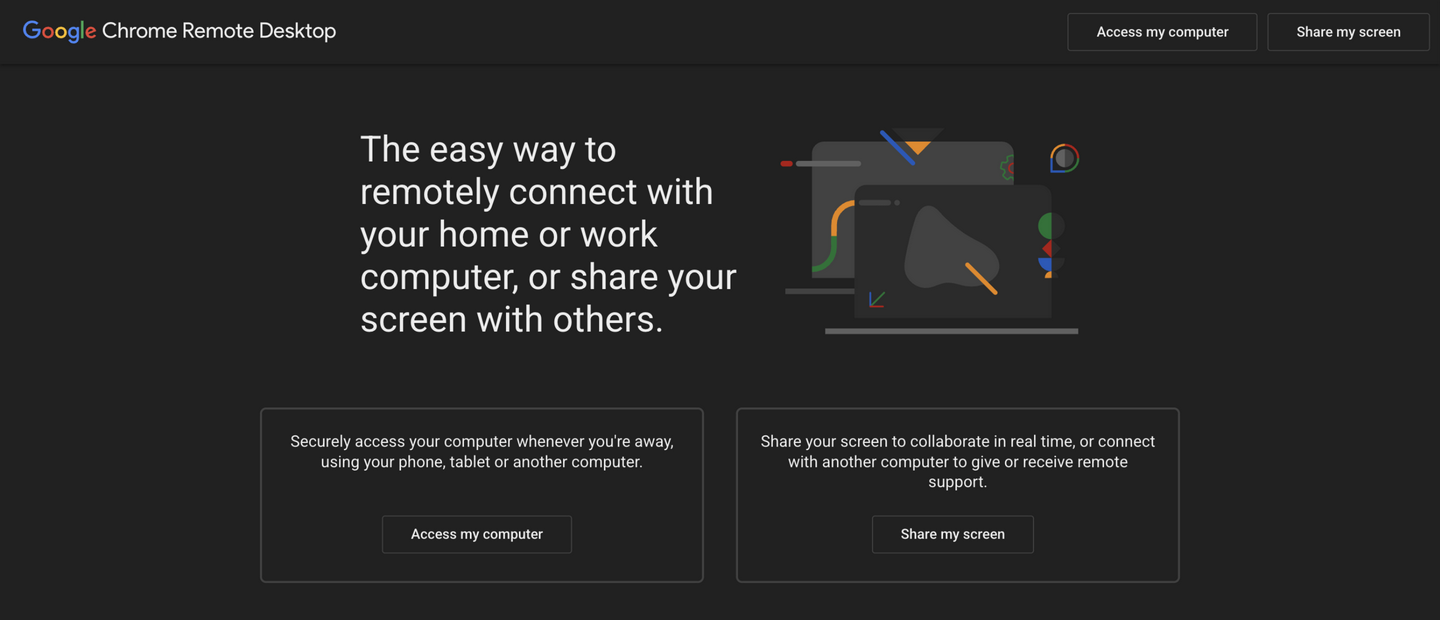
Quick answer: Go to remotedesktop.google.com in Chrome and sign in with your Google account. To reach your own computer from afar, set up remote access on it with a PIN. To get help from someone, use Share my screen, which generates a one-time access code. It's free, works across Windows, Mac, Linux, Android, and iOS.
What You Need Before Starting
- A Google account (free)
- Google Chrome installed on both computers — Chrome Remote Desktop runs as a web app at remotedesktop.google.com, and the host component installs through the browser
- Both computers online, with the computer you want to reach powered on and awake (enable wake-on-LAN or adjust sleep settings if you plan to connect to a sleeping machine)
- For phone-to-computer control: the Chrome Remote Desktop app from the Play Store or App Store
Job 1: Access Your Own Computer From Anywhere
This is the mode most people actually want — sitting at your laptop and reaching the desktop machine at home or the office as if you were in front of it.
Step 1. Set up the host on the computer you want to reach. On that machine, open remotedesktop.google.com in Chrome, click Access my computer, then Set up remote access under "Set up remote access." Chrome will prompt you to add the Chrome Remote Desktop host installer; approve it and follow the wizard.
Step 2. Name the computer and choose a PIN. Give the device a name you'll recognize ("Home desktop," "Studio Mac"), then set a PIN of at least six digits. This PIN protects the connection even if someone has your Google password — they'd need the PIN too, on top of your account.
Step 3. Leave the computer on. The host runs quietly in the background. As long as the machine is on and online, it will appear as "Online" in your device list.
Step 4. Connect from anywhere. From your other computer, sign into remotedesktop.google.com with the same Google account and click the machine's name under Remote devices. Enter the PIN, tick "Don't ask again" only on a computer you trust. On Android or iPhone, use the mobile app instead — the touch controls simulate a mouse, and you can scroll with a two-finger drag.
Once connected, you see the remote screen in a browser tab, with a side panel for clipboard sync, fullscreen, and keyboard mapping. File transfer between the machines happens through the clipboard or by uploading/downloading from that panel.
Job 2: Give or Get One-Time Remote Support
This is the "fix my printer" mode — one person shares their screen, the other drives it for a session, and then the access ends.
Step 1. Both people open remotedesktop.google.com and click Share my screen (or Remote support from the access screen).
Step 2. The person who needs help clicks Get support, which generates a one-time access code — a 12-digit string valid for five minutes.
Step 3. Read the code to your helper. They enter it under "Give support," and Chrome shows you a confirmation prompt asking to share. Nothing happens until you approve on your side.
Step 4. After approval, the helper can see your screen; to control it, you'll also approve a second prompt, and the helper may need to enter a PIN you agree on. When the job is done, click Stop sharing — access dies with the session, and the code can't be reused.
For helping a less technical relative, this beats talking them through menus over the phone. It's also the safer pattern: unlike setting up permanent access, one-time codes leave nothing running afterward.
Tips That Make It Better
- Connection quality beats software. Chrome Remote Desktop streams over the internet, so a flaky Wi-Fi link on either end makes every remote tool feel bad. If sessions stutter, see our fixes for Android Wi-Fi showing connected with no internet for the phone side, and check the computer's connection on the other end.
- Clipboard and audio sync by default on modern systems; if audio doesn't come through on a Linux host, that's the platform's usual limitation, not a setting you missed.
- Multiple monitors: the toolbar lets you switch displays or view them side by side.
- Security habits: keep the PIN non-obvious, don't tick "don't ask" on shared computers, and review the list of configured hosts occasionally — remove machines you've retired.
How It Compares to the Alternatives
TeamViewer and AnyDesk offer more features — file managers, wake-on-LAN, meeting tools — but free tiers come with commercial-use nagging and, in TeamViewer's case, connection limits. Windows users also have Quick Assist built in, which covers the one-time-support job well between two Windows machines. Chrome Remote Desktop's advantages are that it's genuinely free with no time limits, works across Windows, Mac, and Linux in the same way, and needs nothing but a Google account. For permanent access to your own machines and occasional favors for family, it's usually all you need.
FAQ
Is Chrome Remote Desktop free to use?
Completely — there's no paid tier and no session time limits, unlike TeamViewer's free license, which restricts commercial use. Your costs are just the Google account you sign in with and the internet connection. Google makes it available for personal and work use alike at no charge.
Is Chrome Remote Desktop safe?
Reasonably, with good habits. Sessions are encrypted end to end, and reaching your own computer requires both your Google account and the PIN you set — two independent checks. The main risks are account compromise (protect it with two-factor authentication) and social-engineering scams where a caller talks a victim into sharing their screen and code. Never read a support code to someone you didn't contact first.
Why can't I connect to my computer remotely?
The usual suspects: the remote machine is off, asleep, or lost its internet connection; the host service stopped running (restart the computer or relaunch it from the web app); or you signed in with a different Google account than the one used during setup. The device list shows whether the machine is online before you try.
Does Chrome Remote Desktop work without Chrome?
The modern version runs in the browser as a web app, so any Chromium-based browser (Edge, Brave, Arc) handles it, and the mobile apps cover phones. Firefox and Safari can't drive the full setup experience — installing Chrome on the host machine remains the smoothest path, especially for the host service installation step.
Can multiple people use Chrome Remote Desktop at once?
Yes, in the support flow a different person can hold a session each time, since one-time codes are per-session. For permanent access, each person who needs to reach the machine would sign in with their own Google account only if the host was configured under theirs — otherwise share credentials carefully, or better, keep permanent access to the owner's account and use share-screen sessions for everyone else.
Related reading
- Boost download speeds with Chrome flags: parallel downloading
- A free app to remote control a PC
- Android Wi-Fi says connected, no internet: 12 real fixes
- 8 best productivity tools and apps for remote work
Which do you reach for — Chrome Remote Desktop, Quick Assist, or something else? Tell us in the comments what's worked for your setup.