Moving from a personal OneDrive to OneDrive for Business is one of those migrations everyone hits eventually: a new job, a company merger, an old personal account hitting its storage ceiling, or IT finally rolling out Microsoft 365 properly. The good news is that this no longer requires an all-day download-and-upload marathon — there are four workable routes in 2026, from drag-and-drop to Microsoft's own built-in migration tooling.
Quick Answer: For a handful of files, download from the source OneDrive and upload to the destination. For a full library, sync both accounts to one PC and drag between them, use rclone for a scripted copy, or — for business-to-business moves — use Microsoft's built-in cross-tenant OneDrive migration, which now handles permissions and metadata automatically.
When You Actually Need This
- Personal → business: you've been using a free personal OneDrive and the organization hands you a work account
- Tenant-to-tenant: two organizations merged, or your company re-created its Microsoft 365 tenant
- Storage pressure: the personal account's free 5 GB is full and moving to a paid business plan (1 TB and up per user) is cheaper than buying consumer storage
- Offboarding/role changes: consolidating a departing colleague's files into managed storage
One caveat before any method: personal and business OneDrive are separate products. Sharing links, embedded Office document content and version history don't survive a move between them — you're copying files, not transplanting an account.
Method 1: Download, Then Upload (Simple and Fine for Small Libraries)
1. Sign in to the source account at onedrive.com (or in the desktop app).
2. Select the files and folders you need and click Download — OneDrive bundles multi-folder selections into a ZIP.
3. Sign in to the destination OneDrive for Business account.
4. Click Upload → Files/Folder and add everything you downloaded.
This is honest, transparent and zero-risk, and for under a few gigabytes it's genuinely the fastest option. Its limits are bandwidth (you're pulling everything down and pushing it back up), lost timestamps and sharing links, and the fact that nobody enjoys doing it for 40,000 files.
Method 2: Sync Both Accounts to One PC (Best Balance)
The underrated middle path. Install the OneDrive sync client once — it happily handles both account types side by side:
1. Add the source account in OneDrive settings (Accounts → Add an account) and let it sync fully to local disk.
2. Add the destination OneDrive for Business account the same way.
3. Drag the folder tree from the source's local folder into the destination's local folder.
4. The sync client uploads everything in the background; pause/resume and it picks up where it left off.
You keep local copies as a natural backup during the move, syncs resume after interruptions, and no ZIP-wrangling is involved. Watch your local disk space — this method needs room for the full library.
Method 3: rclone (Free, Scriptable, for Power Users)
rclone is the open-source cloud-transfer standard, and it can copy OneDrive-to-OneDrive directly server-side — nothing downloads to your machine:
“`
rclone config # set up both OneDrive remotes (personal + business)
rclone copy source:Documents destination:Documents –progress
“`
It's free, resumable, rate-limit aware and ideal for scheduled or repeated migrations. The setup asks a couple of questions about account type (be honest about personal vs. business — the flows differ) and takes ten minutes. For IT folks and solo migrations of tens of gigabytes, it beats everything else on this list for control.
Method 4: Business-to-Business — Microsoft's Built-In Migration
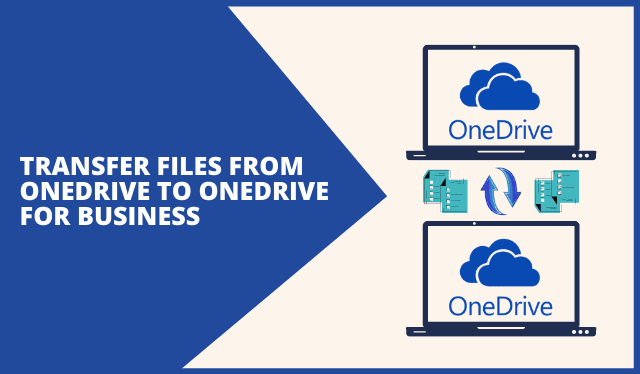
Older guides (including earlier versions of this one) claimed Microsoft offers no built-in way to do this. That's no longer true for the common corporate case: Microsoft now provides cross-tenant OneDrive migration, documented in its enterprise migration guidance. Admins on both tenants grant scoped permissions, map users, and the service moves OneDrive content, permissions and metadata across tenants — no third-party software, no download-to-desktop hop.
If your migration is actually within the same tenant (personal-scope files moving into a user's OneDrive for Business), the sync-based methods above remain the practical route, because Microsoft's tooling targets tenant-to-tenant scenarios.
Commercial migration suites still earn their keep at organizational scale — SysTools' OneDrive migration tool is one of several (CloudFuze, AvePoint and Quest are the usual enterprise names) that add scheduling, delta re-runs and reporting on top of what Microsoft's native tooling covers. If you're a single user, you don't need them; if you're migrating a 400-seat tenant with an audit trail requirement, you probably do.
Which Method Should You Use?
| Situation | Best method |
|---|---|
| A few GB, one-time | Download & upload |
| Full personal library, one user | Dual-sync to a PC, or rclone |
| Repeated/scheduled migrations, big data | rclone |
| Tenant-to-tenant (org to org) | Microsoft cross-tenant migration |
| Org-scale with reporting/compliance needs | Microsoft native + a commercial suite |
Whichever route you take, don't delete the source account until you've confirmed the copies open correctly at the destination — and keep a local backup of anything irreplaceable during the process. Our walkthrough on backing up folders to OneDrive doubles as a checklist for the reverse direction.
Frequently Asked Questions
Can I transfer files directly from OneDrive to OneDrive for Business?
Not by drag-and-drop between the two web apps in one browser session — personal and business accounts are separate products. Practically: sync both to one PC and drag between folders, use rclone for a direct cloud-to-cloud copy, or use Microsoft's cross-tenant migration for organization-level moves.
Will my sharing links survive the transfer?
No. Sharing links are account-specific and break when files move to a different account. Copy the destination URLs after the move and redistribute them. File contents, folder structure and (with rclone flags or Microsoft's tool) permissions can be preserved; consumer sharing links cannot.
How long does a OneDrive-to-OneDrive migration take?
As a rule of thumb, budget an evening for ~50 GB over a normal home connection using download/upload, and expect rclone or dual-sync to run unattended for hours on large libraries. Business cross-tenant migrations are queued through Microsoft's service and take from minutes to days depending on data volume.
Is rclone safe to use with OneDrive?
Yes — it's a mature open-source tool that uses Microsoft's official APIs, and your credentials stay on your machine (you can use its built-in credential manager). The main risks are mistyping a destination path and throttling on huge transfers; both are handled with rclone's –dry-run flag and default rate limiting.
Does moving files to OneDrive for Business cost anything?
The transfer itself is free by any method in this guide. The destination account's storage comes with the Microsoft 365 Business license (1 TB and up per user) — if you were paying for extra personal OneDrive storage, moving to a business plan usually ends that cost too.
Related reading:
- Smart Way to Migrate Mailboxes from Office 365 to Office 365
- 3 Easy Ways to Back Up Any Folder to OneDrive
- EaseUS Data Recovery Wizard: A Review
Which method did you end up using — and how many GB made the jump? Tell us in the comments.