Yes — chipset drivers are necessary. They tell Windows how to talk to the motherboard: USB ports, PCIe lanes, SATA and NVMe controllers, power management, the system's onboard sensors. Windows 11 installs generic versions automatically, but generic is not the same as correct — and skipping them is one of the most common causes of a new PC build that "works but feels wrong."
Quick Answer: Yes, install chipset drivers. Windows Update covers the basics on most systems, but the full chipset package from AMD or your motherboard vendor enables proper USB performance, PCIe lane assignment, power management and stability. On AMD systems the chipset software updates regularly and is worth installing manually; on newer Intel boards, Windows Update delivers much of it automatically. Ten minutes of setup prevents months of weirdness.
What Chipset Drivers Actually Do
The chipset is the traffic controller of your motherboard — every data path between CPU, RAM, storage, expansion cards and peripherals routes through it. The driver package doesn't speed anything up by itself; it identifies each controller to Windows so the OS can use it correctly.
Without the proper INF (Information) files, Windows falls back to generic controllers. The machine boots and seems fine — that's what fools people. What you may actually get:
- USB ports running at reduced speed or ignoring power management
- NVMe drives missing out on features like HMB or proper thermal throttling behaviour
- Yellow-bang devices in Device Manager ("SM Bus Controller", "PCI Simple Communications Controller")
- Broken sleep states, fans that never spin down, or sensors that read zero
- Subtle instability under load — the kind that gets misdiagnosed as "bad RAM" for weeks
When You Need to Install Them Manually
Windows 11 does a decent job for everyday machines, but four situations call for the manual package:
1. A fresh Windows install on a new build. This is the big one. Until chipset drivers are in, the board runs on generics. Make it the second thing you do after connecting to the network — and if you're starting from scratch, our guide to building a computer setup puts this step in context.
2. AMD systems. AMD's chipset software is a real, actively-updated application — it has shipped meaningful USB, power-plan and stability fixes for AM5 boards well into 2025–2026. If you run Ryzen, install it from AMD directly and let its updater run.
3. Unidentified devices in Device Manager. Any yellow warning mark on a system or motherboard device means Windows couldn't identify it — the chipset package usually clears these in one pass.
4. After a BIOS/AGESA update. Major firmware updates sometimes change device behaviour; reinstalling the current chipset package afterwards keeps Windows and firmware in sync.
How to Check What You Have First
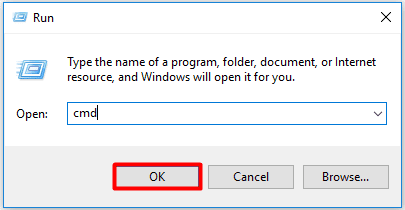
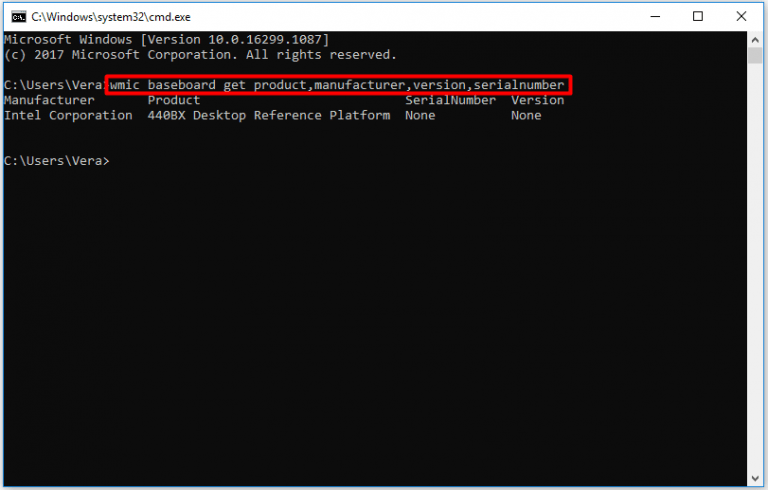
Before updating, know your board. Press Win+R, type `msinfo32`, and read the BaseBoard Product line — that's your motherboard model. On prebuilt machines the model may point to the OEM (Dell, HP, Lenovo) instead; in that case the OEM's support page, not the chip maker's, is your driver source.
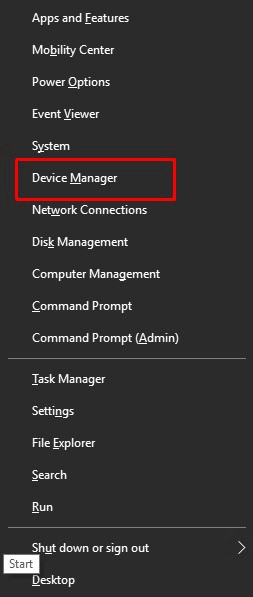
Open Device Manager (Win+X → Device Manager) and expand System devices. If you see generic names with warning icons, you're running on generics — proceed below.
How to Update Chipset Drivers in 2026
Method 1: Windows Update (do this first)
Settings → Windows Update → Check for updates, then open Advanced options → Optional updates → Driver updates. Chipset INFs increasingly arrive here as "Intel – System" extension updates — for recent Intel 700/800-series boards this is often the only channel, and AMD's USB4/Promontory components show up here too. Install everything offered, reboot, and re-check Device Manager.
Method 2: AMD Chipset Software (Ryzen systems)
Go to AMD's support and drivers page, select your chipset family, and download the AMD Chipset Software package. It installs a small updater app that keeps the drivers current — much like GPU drivers. This is the correct tool on AM4 and AM5; skip third-party mirrors entirely.
Method 3: Intel Chipset INF Utility (Intel boards)
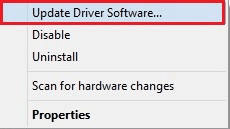
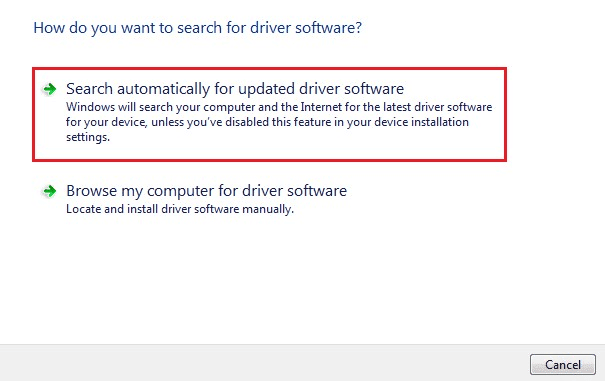
Intel still publishes the Chipset Device Software (INF Utility) through its Download Center — it doesn't add features; it writes the INF files so Windows identifies every controller correctly. On older boards (400/500 series and earlier) this manual package is still the main route; on newer ones Windows Update usually covers it. If you want a third-party walkthrough of the same manual steps, Systweak's Intel chipset driver guide covers them with screenshots.
Method 4: Your motherboard vendor's support page
ASUS, MSI, Gigabyte and ASRock publish board-specific chipset packages tuned (and occasionally hotfixed) for your exact board. Enter the model from `msinfo32` on the vendor's support site, download the chipset driver from the drivers section, and install it after any BIOS update. This is the best source on fresh Intel installs where the INF installer misbehaves.
What About Driver Updater Tools?
The internet is full of "one-click driver updater" utilities, and this article's earlier version recommended one of them. The honest 2026 position: for chipset drivers specifically, they're unnecessary — Windows Update and the vendor tools above are authoritative and free. If you prefer an automated sweep for all drivers on a cluttered system, tools like Driver Booster can help, but treat any updater that pushes paid upgrades aggressively with suspicion, create a restore point first, and never let it touch chipset drivers when the vendor package is available. A general driver-maintenance routine lives in our outdated drivers guide.

If your PC's real problem is general slowness rather than missing drivers, driver updates won't fix it — the usual suspects are covered in our PC gaming optimization guide.
Frequently Asked Questions
What happens if I never install chipset drivers?
On many systems, nothing dramatic — Windows Update quietly supplies enough. But you risk degraded USB speeds, missing power management, unidentified devices and occasional instability that's painful to diagnose. On a fresh AMD build especially, skipping the chipset package leaves real fixes on the table.
Do chipset drivers improve gaming performance?
Rarely by much, but AMD's chipset updates have included USB and scheduler-related fixes that smoothed out stutter on AM5 boards, and correct PCIe lane assignment matters if you run multiple M.2 drives or a second GPU. Install them for stability; any FPS gain is a bonus.
Is Windows Update enough for chipset drivers in 2026?
For recent Intel platforms, mostly yes — Windows Update delivers the INF updates as system extensions. For AMD, no: the dedicated AMD Chipset Software is the primary channel and updates more often than Windows Update does. Motherboard vendor pages remain the source of truth after BIOS updates.
How often should chipset drivers be updated?
Check after: a Windows feature update, a BIOS update, or a new game/hardware behaving oddly. AMD's updater app will notify you on its own. Beyond that, quarterly is plenty — chipset drivers mature quickly and don't need chasing every month.
Is it safe to install chipset drivers?
Yes, from the right sources: AMD.com, Intel's Download Center, or your board vendor's support page. The only real risk is downloading from third-party "driver download" sites, which bundle junk installers. If an install goes sideways, roll back via Device Manager or System Restore.
Related reading:
- How to Update Outdated Drivers on Windows 11/10
- Updating Drivers with Driver Booster 12 Free
- Building Your Dream Computer Setup: A Guide
- 10 Must-Try Optimization Tricks for PC Gaming
Which camp are you in — install everything manually on day one, or trust Windows Update and forget about it? Tell us in the comments.