Your Android phone takes ten seconds to open an app, the keyboard stutters, and then the whole thing locks up mid-tap. It feels random, but it almost never is. Slow-and-freezing behavior traces back to five causes: storage nearly full, one misbehaving app, outdated software, a worn-out battery, or hardware that is simply getting old. Find which one applies to you and the right fix is usually obvious.
Quick answer: force-restart the phone first (hold the power button about 30 seconds — on Samsung, hold Volume Down + Power for 7–10 seconds). Then make sure at least 10% of storage is free, install every pending update, and boot into safe mode to catch a culprit app. If the phone still crawls after all that, check the battery’s health — the cause most guides skip — and only then consider a factory reset.

First, find your cause: five suspects, five clues
Most articles throw ten generic tips at you and hope one lands. It is faster to match your symptom to its cause:
| Cause | The clue | Jump to |
|---|---|---|
| Storage nearly full | Lag everywhere; camera or downloads fail with an error; Google warns trouble starts under 10% free | Fix 2 |
| Misbehaving app | Freezing happens in one app, or started right after a new install | Fix 4 |
| Outdated software | Slowness began days ago and updates are sitting uninstalled | Fix 3 |
| Worn-out battery | Random shutdowns, battery % jumps around, lag hits hardest in games and the camera | Fix 5 |
| Aging hardware | Phone is 4+ years old and slow even after everything above | Fix 8 |
The fixes, in order
1. Force-restart the frozen phone
If the screen is stuck, Google’s official method is to hold the power button for about 30 seconds until the phone restarts. On recent Samsung Galaxy models the documented combo is faster: press and hold Volume Down + Side (Power) button for 7–10 seconds, per Samsung’s restart guide. A force restart clears memory that a frozen app is hogging and loses no data. If the phone comes back fast and stays fast, you may have simply had a one-off memory jam — but if the freeze returns within a day, keep working down this list.
2. Free up storage — the 10% rule
Android needs free space to write temporary files, cache, and system updates. Google puts a number on it: phones start having issues when less than 10% of storage is free. Below that, apps stall, the camera refuses to record, and the whole interface drags — which most people misread as “my phone is dying.”
Check yours under Settings → Storage (on Samsung: Settings → Battery and device care → Storage). Then clear the big three: the Downloads folder, apps you have not opened in months, and photo/video libraries. Back your photos up to Google Photos and tap Free up space to strip the originals off the device. Email can be the hidden hog too — cloud storage has its own ceiling, and our Gmail storage-full fix guide covers that side. On iPhone the same rules apply, by the way; we walked through them in the iPhone storage-full guide.
3. Install every pending update
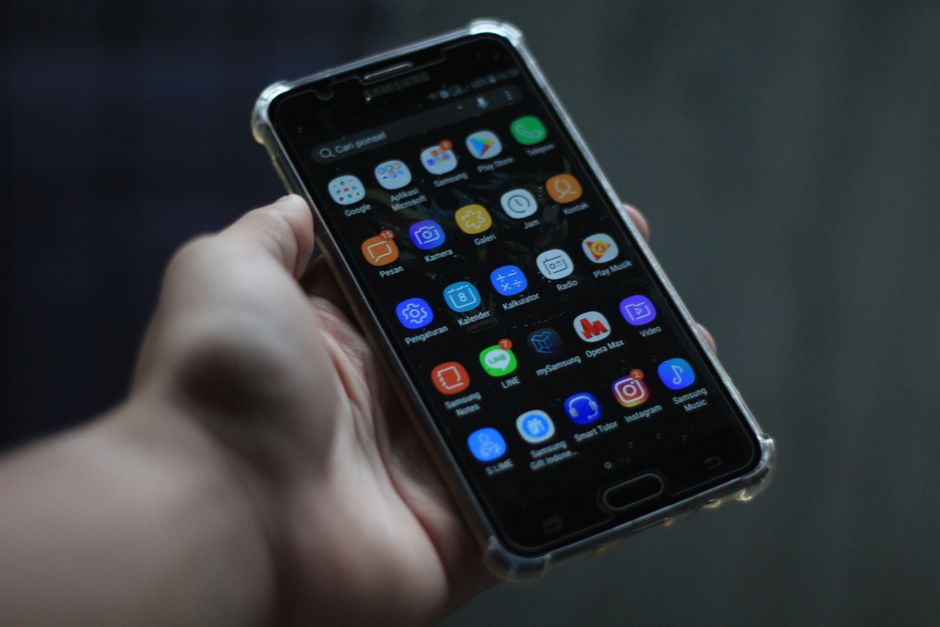
An out-of-date system and stale apps are a classic cause of sudden lag — old app versions stop playing nicely with newer Android releases. Update the system under Settings → System → Software update, then open the Play Store, tap your profile icon → Manage apps & device → install everything listed under updates. Two expectations to set: right after a major Android update, the phone re-optimizes apps in the background for 24–48 hours and can run warm and sluggish — that settles on its own. And if the slowdown started immediately after a specific update, note it; if nothing else fixes it, the manufacturer’s next patch usually will.
4. Catch the culprit app in safe mode
Safe mode runs the phone with all downloaded apps temporarily switched off — Google recommends it as the definitive app test. Open the power menu, then touch and hold Power off and confirm Reboot to safe mode (the exact gesture varies by brand). Now use the phone normally:
- Smooth in safe mode? An app you installed is the cause. Restart normally and uninstall your most recently added apps one at a time, restarting after each removal — Google’s suggested isolation method — until the lag goes.
- Still freezing in safe mode? The cause is deeper: storage, battery, or the system itself. Move to fixes 5–8.
One caution while you are in app settings: Clear cache is safe and just deletes temporary files. Clear storage (on some phones “Clear data”) logs you out of that app and wipes its settings and files — use it only when an app is beyond saving.
5. Check the battery — the cause most guides skip
A lithium battery that has worn out does more than drain fast. Its internal resistance rises, and Samsung’s own battery documentation warns that high deterioration can cause “steep and instantaneous voltage drops” that force protective shutdowns — and that demanding apps like games and the camera “may cause a drop in performance and decreased response times” on a weakened battery. In plain terms: an aging battery can make a perfectly healthy phone lag, throttle, and switch off at 20–30%.
Tell-tale signs: the percentage jumps from 40 to 15, the phone shuts down unexpectedly, it gets hot during ordinary use, or heavy apps stutter worse than light ones. On a Samsung, open the Samsung Members app → Support → Get started → Phone diagnostics → Battery status to see the battery’s condition; some models also pop a status-bar alert when the battery needs replacing. If diagnostics say “poor,” a battery replacement — often cheap at an authorized service center, and sometimes free under warranty — can make an old phone feel new again. For the longer game, our Android battery-life tips and the common causes of rapid battery drain are worth a read.
6. Tame background apps the right way
Force-stopping a suspect app tells you whether it is the drag: Settings → Apps → pick the app → Force stop, then use the phone for an hour — keep a list of what you stopped; if it speeds up, you have your culprit. On Samsung, Settings → Battery and device care → Optimize now closes background battery hogs in one tap, and putting unused apps to sleep stops them relaunching. On stock Android, Settings → Battery → Adaptive battery limits rarely used apps. For pre-installed bloatware you cannot uninstall, open it in Settings → Apps and tap Disable — it stops running and mostly disappears from view.
7. Scan for malware
Apps sideloaded from outside the Play Store are the usual source of phones that suddenly run hot and slow. Open the Play Store → profile icon → Play Protect → Scan, and uninstall anything flagged — or anything you installed from an unknown site recently, flagged or not.
8. Factory reset — the honest last resort
A reset reinstalls a clean system and wipes every app, setting, and file, so back up first: Google Account backup covers contacts, calendar, and app data, and Google Photos covers your library. If the phone is still slow on the fresh system, the cause is hardware — an aging battery (fix 5) or worn flash storage — and no software will change that. And if the lag returns only after you reinstall your apps, one of them is the culprit; add them back a few at a time.
Samsung and Pixel quick paths
On a Samsung Galaxy
- Force restart: Volume Down + Side button, 7–10 seconds.
- One-tap cleanup: Settings → Battery and device care → Optimize now.
- Battery health: Samsung Members → Support → Phone diagnostics.
- Post-update lag: if your model offers it, power off, then hold Volume Up + Power to enter recovery and use Wipe cache partition — a long-standing fix for stutter after big updates.
On a Pixel or stock Android
- Force restart: hold the power button about 30 seconds.
- Safe mode: power menu → touch and hold Power off → Reboot to safe mode.
- Storage and updates: Settings → Storage, and Settings → System → Software update.
What not to do
- Do not install a RAM cleaner or “booster” app. Android manages memory on its own; cleaner apps run permanently in the background, kill and reload your apps repeatedly, and usually make lag worse. If one is already installed, that alone can explain your problem — uninstall it.
- Do not swipe away every app after each use. Android keeps recent apps in memory on purpose; relaunching them from scratch costs more power and time than resuming them. Force-stop only apps you suspect.
- Do not keep tapping a frozen screen. Hold the restart buttons instead — extra taps just queue more input for the jammed system.
Frequently asked questions
Why is my Android phone suddenly slow and freezing?
Match the pattern: freezing in one app points to that app; lag everywhere points to storage below 10% free or a pending update; lag plus random shutdowns points to a worn battery. A recent new install is always a prime suspect — uninstall it and compare.
How much free storage does an Android phone need?
Keep at least 10% free — Google states problems begin below that line. On a 128 GB phone, that means keeping roughly 13 GB free at all times.
Will a factory reset make my phone faster?
Yes, temporarily — it clears years of accumulated apps and cached junk. But if the cause is a worn battery or aged flash storage, the slowdown returns within weeks. Reset after the cheaper fixes, not before, and back up first.
How do I know if the battery is causing the slowdowns?
The combination of percentage jumps, shutdowns under load, heat during light use, and lag in demanding apps. Run the built-in diagnostics (Samsung Members app on Galaxy phones) or have a service center test it — replacement is inexpensive compared to a new phone.
Why does my phone lag right after a system update?
Post-update, Android re-optimizes every app in the background for a day or two — the phone runs warm and slow, then settles. If it does not, try the wipe-cache-partition step on Samsung (where available) or give the next patch a chance to fix a known regression.
The bottom line
Diagnose before you fix: restart, check the 10%-free storage line, update everything, and let safe mode name the guilty app. Check the battery before blaming the hardware — it is the most replaceable part of a slow phone. And if your real complaint is that everything loads slowly online while the phone itself is snappy, that is a network problem in disguise — our Android Wi-Fi connected-but-no-internet guide picks up that thread.