Quick answer
For most Windows PCs in 2026, Wise Care 365 (best free all-rounder) and Advanced SystemCare 19 (best one-click suite) lead the field; Auslogics BoostSpeed 13 suits hands-on tuners, iolo System Mechanic is the premium pick, and CCleaner remains the household name. Set expectations first: a cleaner fixes disk bloat and startup drag, not old hardware.
PC cleaners occupy an awkward corner of Windows software: half the category sells magic, and the other half quietly does useful work. The useful work is real — junk accumulation from Windows Update leftovers, browser caches, broken shortcuts, and startup bloat genuinely slows machines — but no cleaner turns a 2015 laptop into a gaming rig, and aggressive registry "optimization" can break more than it fixes.
This guide covers the five cleaners that have stayed current into 2026, what each is genuinely good at, and where each wastes your time. Written after running most of these on a long-in-the-tooth Windows 11 desktop and a mid-range laptop, October 2026; Windows' own Storage Sense covers the basics if you would rather install nothing.
The five, compared
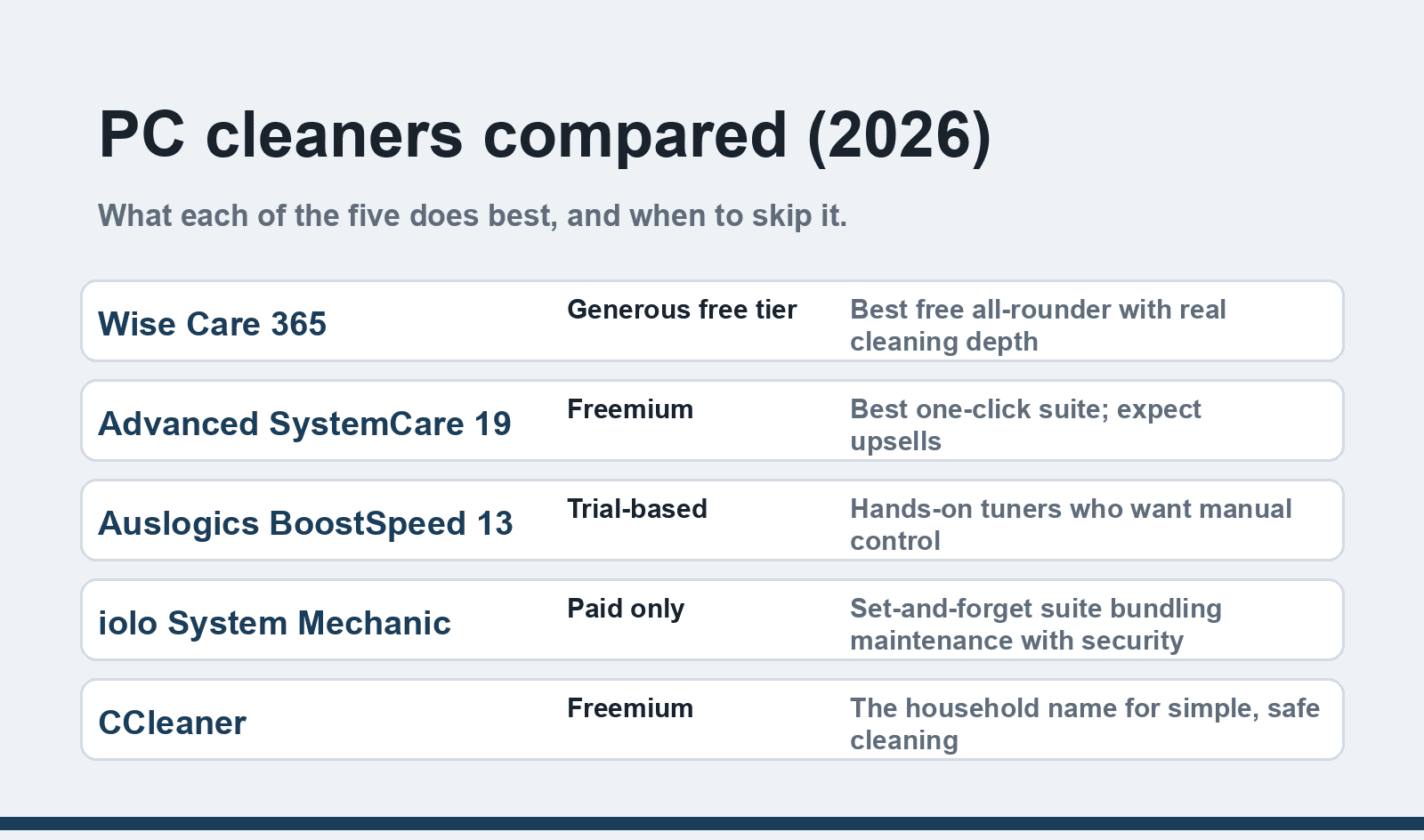
| Software | Free tier | Best for | Skip it if |
|---|---|---|---|
| Wise Care 365 | Generous | A free all-rounder with real cleaning depth | You want automated background maintenance |
| Advanced SystemCare 19 | Yes, feature-limited | One-click "fix everything" simplicity | You dislike upsell popups |
| Auslogics BoostSpeed 13 | Trial-based | Hands-on tuners who want manual control | You want set-and-forget |
| iolo System Mechanic | No (paid only) | Security-conscious users wanting one paid suite | You want a free tool |
| CCleaner | Yes | Brand-trust users; browser and disk cleaning | You want modern UI or deep tuning |
Wise Care 365 — best free all-rounder
Wise Care 365 (from Wisecleaner) remains the closest thing to a complete free cleaning toolkit. The Cleaner tab handles registry junk, useless files, and privacy traces in one pass; the System Tuneup section manages startups and services; and the toolbox hides another dozen utilities (disk defrag, file shredder, password generator). Its one-click "Checkup" finds plenty without installing anything extra.
The catch: the privacy-protection and some optimization modules sit behind the Pro version, and the app nudges you toward the upgrade regularly. The free tier still does the core job. Lifetime Pro licenses surface in sales often enough that nobody should pay full price — ignore coupon sites promising deeper discounts and buy from the vendor directly.
Best for: anyone who wants a free tool that actually cleans thoroughly, with manual control.
Advanced SystemCare 19 — best one-click suite
IObit's Advanced SystemCare reached version 19 in 2026, and its appeal is unchanged: one big scan button that sweeps junk files, registry issues, privacy traces, and startup drag, then fixes them in one go. The AI-mode scan learns your usage patterns, and the suite keeps adding genuinely useful modules — the software updater alone is worth enabling, since outdated apps are a bigger security hole than most junk files.
The catch is the freemium model at its most enthusiastic: the free scan finds problems, the fixes sometimes require Pro, and the installer offers companion software you did not ask for — read each install screen. Long-time users should know the interface was refreshed in recent versions and the upsells, while still present, are easier to decline than they used to be. For the suite in depth, our walkthrough of boosting PC performance with Advanced SystemCare covers the modules worth enabling.
Best for: people who want one button that handles maintenance without learning the details.
Auslogics BoostSpeed 13 — for hands-on tuners
Auslogics BoostSpeed is the enthusiast's option. Version 13 exposes what other suites hide: individual controls over services, startup delays, internet tweaks, disk optimization, and registry maintenance, each with explanations. Its cleaning is competent, but the product's real identity is a tuning dashboard for someone who wants to decide what happens to their system rather than approve a one-click verdict.
The cost is the free tier: BoostSpeed 13 is effectively trial-based, with the full toolkit behind a subscription. Less experienced users may find the number of switches intimidating — that is by design, and it is also the appeal.
Best for: tinkerers who want granular control and will actually read what each tool does.
iolo System Mechanic — the premium suite
System Mechanic from iolo (now part of RealDefense) is the fully paid option — no free tier — priced as a suite rather than a cleaner. It bundles performance tuning with security-adjacent features (malware removal in the upper tiers, privacy protection), and its "ActiveCare" background maintenance automates what the other tools leave manual. The reporting is polished, and the optimization claims are the least inflated of the premium brands.
You are paying for automation and breadth. If your maintenance routine is "nothing until it slows down", System Mechanic's scheduled background care is worth more than a free tool you never open. Watch the subscription terms at purchase — auto-renewal pricing has drawn complaints, and it is cheaper through the vendor's own seasonal offers than through resellers.
Best for: households that want set-and-forget maintenance bundled with security, paid once a year.
CCleaner — the household name, grown up
CCleaner has outlived every critic. The 2017 breach, the Avast ownership, the telemetry controversy — it survived all of them, and its 2026 form is a subscription product (free tier, Professional, and Professional Plus bundles with defrag and recovery tools) with a cleaner interface than its years suggest. Its core disk and browser cleaning remains excellent and fast, the registry cleaner is appropriately cautious, and the Health Check view summarizes what needs attention without jargon.
Two honest deductions: the freemium wall has grown (features like automatic updates and scheduled cleaning require Professional), and the data-collection practices that drew criticism in 2018 have been dialed back but not eliminated — check the privacy settings on install. For pure browser-cache and junk-file duty, it still does the job it became famous for.
Best for: users who value a familiar name and want simple, safe cleaning — free or paid.
Before you install anything
Windows 11's built-in tools cover more than people expect: Storage Sense handles temp files automatically, the Startup apps page in Task Manager manages boot drag, and Settings, System, Storage breaks down what is eating your disk. A cleaner earns its keep when those are not enough — deep registry cleanups, privacy-trace removal, driver and software updates. And if the machine in question is a gaming rig, startup bloat and background tasks are only half the story — our PC gaming optimization tricks cover the settings side. Start with the built-ins, then pick from the five above based on which gap remains.
FAQ
Do PC cleaners actually speed up your computer?
They help in specific ways: freeing disk space, trimming startup lists, and clearing caches measurably improve boot and app-launch times on cluttered systems. They do not upgrade hardware — if your PC is slow from 8 GB of RAM, a spinning HDD, or a 10-year-old CPU, no cleaner fixes that. Expect a tidier system, not a new one.
Is registry cleaning safe?
Conservative registry cleaning of orphaned entries is generally safe with reputable tools, and it is also mostly unnecessary — the registry's size rarely causes modern slowdowns. The risk comes from aggressive "deep" cleaners removing entries Windows still needs. Back up the registry before any cleaning (all five tools here offer to), and skip registry optimization entirely on working systems.
Is CCleaner still safe to use in 2026?
Yes, with the usual caveats: download only from ccleaner.com, review the privacy options during setup, and know it now operates as a subscription product. Its post-2017 history includes a breach and telemetry debates, but the current product is maintained, widely used, and safe for its core cleaning job.
What is the best free PC cleaner?
Wise Care 365's free tier offers the most complete free cleaning experience, with Advanced SystemCare's free version close behind for one-click convenience and Windows' built-in Storage Sense handling background maintenance. Between those three, most users need nothing paid.
Do I still need a PC cleaner with Windows 11?
For basic temp files and disk pressure, Windows 11's Storage Sense and Storage settings handle it automatically. You benefit from a third-party cleaner for deeper work: privacy-trace removal, software updates, startup tuning, and defrag tools beyond the built-ins. Assess what remains slow after the built-ins run.
How often should I clean my PC?
Automated light maintenance (Storage Sense, scheduled cleaning in Pro versions) can run weekly without attention. Manual deep cleans: monthly is plenty for most users, and beyond that you are cleaning out of anxiety rather than benefit. If disk space keeps vanishing fast, find the cause instead of cleaning the symptom.