The original version of this guide walked through Advanced SystemCare 18 as a one-click fix for a slow PC. IObit has since moved on — Advanced SystemCare 19 is the current version (19.5.0 landed in July 2026) — and a couple of years of Windows 11 updates have changed what a cleaner utility can realistically contribute. So this refresh covers both: how the tool works today, and an honest accounting of what it fixes versus what Windows 11 already handles for free.
Quick answer: Advanced SystemCare 19 automates junk cleanup, startup management and privacy-trace removal, with a free tier that works and a PRO tier at about $24.99 a year. It's a convenience tool — useful for hands-off users, unnecessary if you'll run five minutes of Windows' built-in maintenance a month.
What changed since the original guide
| What changed | When | What it means |
|---|---|---|
| Advanced SystemCare 18 superseded by 19 (current build 19.5.0) | July 2026 | Interface refresh, updated cleanup rules; the free tier stays free |
| Windows 10 support ended | October 2025 | This guide now assumes Windows 11, where more maintenance is built in |
| PRO pricing | 2026 | About $24.99/year list; frequent discounts bring 1-year/3-PC deals to roughly $22 |
The screenshots from the version-18 guide were removed with this update — they no longer match the current interface.
What Advanced SystemCare actually does well
Three jobs in the toolkit are genuine and measurable:
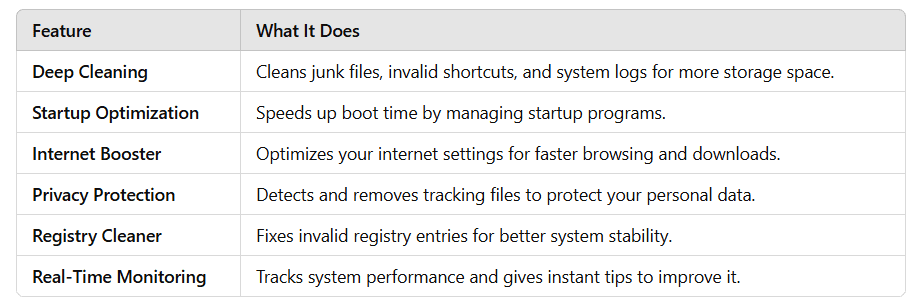
- Junk and temp-file cleanup. Browsers, Windows Update leftovers and app caches accumulate gigabytes. Clearing them frees SSD space and occasionally fixes a misbehaving app. Windows' Storage Sense does a lighter version of this automatically; ASC is more thorough and more visible.
- Startup management. Every app that autostarts with Windows adds seconds to boot and background load. ASC's list is friendlier than Task Manager's raw one, and trimming startup apps is the single highest-impact cleanup most PCs need.
- Privacy-trace removal. Browser and system histories, recent-file lists, tracker cookies. It's hygiene, not security — but it's tidy.
The AI-tuned scan mode works acceptably: leave the defaults, run a scan, review what it wants to remove, fix. The free tier genuinely covers all of the above; PRO mostly adds automation depth, deeper cleaning modes, and the extra toolbox.
What Windows 11 already does for free
Work down this list before paying anyone for speed: disable heavy startup apps (Task Manager, Startup tab); turn on Storage Sense and clear temp files (Settings, System, Storage); finish Windows and GPU-driver updates; run a Windows Security full scan; and if the machine has 8 GB of RAM or still boots from a hard drive, spend the ASC money on hardware instead — an SSD-to-SSD upgrade or an extra RAM stick delivers gains no software can. Our full breakdown of why a computer runs slow covers these in order.
The honest limits
- It won't add gaming performance. "Turbo Boost" frees RAM by suspending background processes; games bottleneck on GPU and CPU, not on a few hundred megabytes of freed memory. Don't buy a cleaner for FPS.
- "Internet Booster" claims deserve skepticism. Internet speed is set by your plan and connection, not by browser tweaks. At best these features adjust settings you can change yourself.
- Registry cleaning is mostly theater. A Windows registry with some unused entries is normal and harmless. Aggressive registry pruning has broken more PCs than it ever sped up — if you use ASC, skip the deepest registry options.
- Install carefully. IObit's installers have a history of offering bundled extras and companion apps. Choose custom installation and actually read the checkboxes.
None of this makes Advanced SystemCare unsafe — used with defaults, it's a well-built convenience tool. It makes it a convenience tool: worth $24.99 a year to the right user, and worth $0 to a user who'd rather tick five boxes a month.
Getting the most out of it, if you use it
Install the free edition, run a scan, review results before fixing. In settings, keep the weekly scheduled scan (monthly is honestly enough — weekly is harmless), turn on auto-clean for browser junk, and resist enabling every module: a cleaner that hammers the disk on schedule is its own slowdown. Upgrade to PRO only if you find yourself wanting the automation depth — 1-year/3-PC deals around $22-25 make it cheap, but only for machines you don't want to think about.
I've kept a copy of the free edition on my parents' desktop for exactly that reason: it automates the tidy-up I'd otherwise do on every visit. On my own machine, Task Manager and Storage Sense cover it.
Related reading
- Why Is My Computer So Slow? 7 Common Reasons
- How to Update Outdated Drivers on Windows 11 and 10
- How to Clone a Hard Drive to SSD in Windows
Frequently asked questions
Is Advanced SystemCare free?
Yes — the free edition does real work: junk cleaning, startup management, privacy sweeps. PRO (about $24.99/year, often discounted) adds deeper automation and the full toolbox. Try free for a month before considering the upgrade.
Can a PC cleaner harm my computer?
Used on defaults, no — modern cleaners operate within safe limits. Risk comes from the aggressive options: deep registry cleaning, forced background-process kills, and running multiple cleaner suites against each other. Stick to one tool, review before fixing, and skip registry pruning.
Does it work on old or low-spec PCs?
It runs on modest hardware and its startup-plus-junk cleanup helps older machines most — that's where boot times and background bloat hurt. But if the PC still has 8 GB RAM and a spinning hard drive, a $25 SSD or RAM upgrade beats any software, every time.
How often should I run a cleanup?
Weekly is more than enough; monthly is fine. Scheduled auto-clean at that frequency covers the accumulation — the performance-relevant work (startup trim, updates, storage headroom) is quarterly at most.
Clean what's bloated, spend on what's slow — the software handles the first, and only hardware fixes the second.