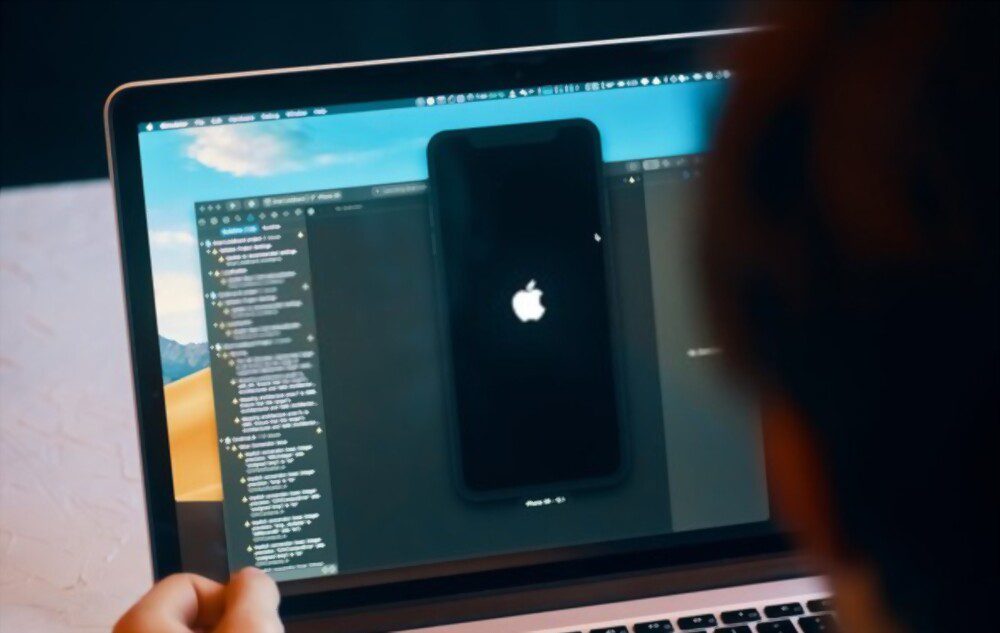


The screen stays black, the side button does nothing, and your stomach drops. Before you book a repair: an iPhone that “won’t turn on” is usually not broken — it’s either a completely flat battery or a frozen boot, and both are fixed at home in under an hour. The ladder is always the same order: charge it properly, force restart it, then recovery mode via a computer. Work down the steps below and you’ll either revive the phone or know exactly which part failed — which is also what decides whether a repair shop is worth it.
Quick answer: put the iPhone on a wall charger for 30 minutes (a laptop USB port is often too weak for a fully drained phone), then force restart — on Face ID models press volume-up, then volume-down, then hold the side button for 15–20 seconds until the Apple logo appears. Still black? Put it in recovery mode and choose Update on a computer. If a known-good charger, a force restart and an Update all fail, it’s hardware — the signs-of-life test below tells you which part.

Step 1: Charge it properly (most “dead” iPhones aren’t)
A battery that hits true zero shuts the phone down hard, and it needs a real charge before it can even boot — during the first several minutes the screen stays black with no charging icon, which is exactly when people assume the worst and give up.
- Plug the iPhone into a wall adapter you’ve verified works (test the adapter and cable on another device, or use the one that charges daily) — not a laptop port, public USB station or wireless pad, all of which deliver too little power for a deeply drained battery.
- Leave it at least 30 minutes untouched. Don’t keep pressing buttons — each attempt drains the trickle of power the phone is banking to boot.
- After 30 minutes, press and hold the side button for a few seconds. The Apple logo should appear, followed by a normal boot.
On the way, one useful cross-check: if you own any wireless charger, place the phone on it during this half hour. If it takes a charge wirelessly but not by cable, your port or cable is the failure — swap both before suspecting the phone. Wireless charging has its own quirks worth knowing if it’s your daily method — our wireless charging primer covers alignment and case thickness, the two usual suspects.
Step 2: The force restart (fixes a frozen boot, erases nothing)
When the battery has charge but the phone won’t respond, the boot process is hung — a crash during an iOS update, a misbehaving app, or simple software fatigue. A force restart cuts power to the boot process without touching your data. This matches Apple’s own unresponsive-iPhone instructions:
iPhone with Face ID (iPhone 8 and later)
- Press and quickly release volume up.
- Press and quickly release volume down.
- Press and hold the side button — ignore the power-off slider, keep holding through the screen going black, for up to 20 seconds, until the Apple logo appears.
iPhone with a Home button (iPhone 7 and earlier)
- Press and hold the Home button and the side (or top) button together for about 10 seconds, until the Apple logo appears.
Timing matters: releasing the side button at the power-off slider is the single most common reason people think a force restart “didn’t work”. Hold through it. If the phone shows the logo but dies again, charge another 15 minutes and repeat once.
Step 3: Check for signs of life before declaring it dead
Between charging and recovery mode, run this two-minute diagnostic — it changes what “broken” means:
- Vibrates, chimes or buzzes when plugged in (or you hear the connect sound with the screen black): the phone is alive; the display has failed, not the boot. That’s a screen repair, often cheaper and more certain than a board problem.
- Shows the Apple logo, then restarts in a loop: the boot is crashing partway. Go straight to Step 4 — recovery mode’s Update option fixes most loops without data loss.
- Warm but black: something is running. Same conclusion — the phone boots with a dead screen.
- Completely cold, silent, no vibration on any charger: proceed to Step 4, then read the hardware verdict at the end.
Step 4: Recovery mode — the last software fix
Recovery mode rebuilds iOS from a computer. You need a Mac or PC with a USB cable and (on Windows) iTunes or the Apple Devices app installed. The steps are from Apple’s can’t-update-or-restore guide:
- Connect the iPhone to the computer with a cable.
- Put the phone into recovery mode: on Face ID models, press volume-up, press volume-down, then hold the side button and keep holding past the Apple logo until you see a computer-and-cable graphic (on Home-button models, hold Home + side instead).
- When the computer offers Update or Restore, choose Update first — it reinstalls iOS while keeping your data, and takes 15–30 minutes.
- If Update fails after two tries, Restore is the remaining move — it erases the phone, which is why the data section below matters before you reach this point.
If the phone drops out of recovery mode mid-process, hold the buttons again to put it back and let the computer finish — longer updates on older computers time out more often than people expect.
Step 5: Before you hand it to a repair shop
If the phone is still black after recovery mode, it’s a hardware fault — but what you do in the next five minutes affects how much of your data survives:
- Check when iCloud last backed up. From any other device signed into your Apple Account (icloud.com works from a browser), you can see the date of the phone’s last backup. If it’s recent, breathe: photos, messages and settings are safe and will come back with a repair or replacement.
- Tell the shop the truth about backups. A repair that involves restoring iOS will erase an un-backed-up phone. Say plainly “there is no backup” — good shops will attempt data preservation first; some board-level specialists recover data from dead phones entirely.
- If messages matter most, recover them early. When the phone briefly comes back to life at any point in this process, that’s the moment to secure your data — our guide to recovering WhatsApp messages without a backup explains what’s recoverable when there’s no backup to lean on.
- Ask for the diagnosis before approving anything: battery, screen or logic board are the three candidates, in roughly that order of repair cost. A shop that replaces the battery first as a cheap test is reasonable; one that replaces the board sight-unseen is not.
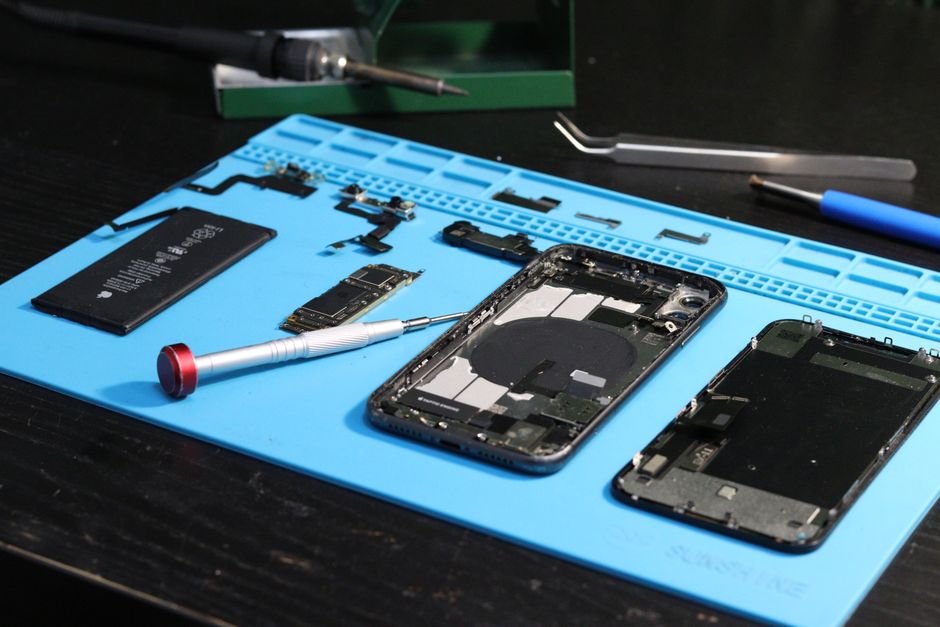
When it’s genuinely hardware (and what that means)
- After a drop or water exposure: liquid damage is the sneaky one — phones often work for days after getting wet, then die as corrosion spreads. If the phone got wet recently, Apple’s liquid guidance applies: don’t keep putting it on charge; let it dry port-down and try once. A phone that died in water usually needs board work, not a battery.
- Swollen battery warning: if the screen is lifting, the back panel bulging, or the phone doesn’t sit flat any more, stop pressing buttons and stop charging it. A swollen battery needs immediate professional handling — it’s the one “won’t turn on” cause where DIY attempts make things genuinely worse. Heat and batteries interact in other ways too; our phone-hot-while-charging guide covers the patterns that precede failure.
- The economics, honestly: for recent models a battery or screen repair usually makes sense; for a phone several years old with a board-level fault, a repair quote can exceed the phone’s worth. Get the diagnosis, ask what a board repair costs and what a refurbished replacement costs, and compare before committing. And once any repair is done, the battery-health habits in our battery-draining guide are what keep the revived phone from an early repeat.
FAQ
How long should I charge a dead iPhone before giving up?
Give it 30–60 minutes on a wall adapter before judging. A deeply drained battery shows nothing on screen for the first several minutes — pressing buttons during that window only slows the recovery.
Does a force restart delete anything?
No. A force restart just cuts and restarts the boot process; photos, apps and settings are untouched. Only a recovery-mode Restore erases data — its Update option does not.
My iPhone shows the Apple logo then turns off again. What now?
That’s a boot loop, usually from an interrupted update or corrupt system file. Charge for 15 minutes, then use recovery mode and choose Update — that fixes most loops while keeping your data.
Can a completely dead battery be revived?
Often, yes — what looks like a dead battery is usually a protection state that clears after a proper charge. If a known-good charger and 60 minutes do nothing, the battery itself has likely failed, which is one of the cheaper repairs.
Is it worth repairing an iPhone that won’t turn on?
Depends entirely on the diagnosis: battery and screen faults on recent models are usually worth it; a logic-board fault on a phone more than four or five years old often isn’t. Get the diagnosis and compare the repair quote against a refurbished replacement before deciding.