You plug in a drive, phone or keyboard and Windows throws “USB device not recognized” — or worse, the error keeps popping up even though nothing is plugged in. Annoying as it is, this error almost always comes down to one of three things: the device, the cable or port, or Windows having put the port to sleep and forgotten how to wake it. The fixes below are ordered so the thirty-second physical checks come first, and the software ladder after that solves the rest — including the ghost-device case where the error appears with every port empty.
Quick answer: test the device in another port and another computer, and swap the cable. Then open Device Manager: uninstall any Unknown USB Device (Device Descriptor Request Failed) entry and scan for hardware changes. If the error persists, untick “Allow the computer to turn off this device to save power” on the USB Root Hubs, disable USB selective suspend, and do a full power drain (shut down, unplug, hold the power button 30 seconds). Here’s each step in detail.

Step 1: Find which part is actually failing
“USB device not recognized” is Windows saying it detected *something* on the port but couldn’t identify it. That failure lives in exactly one of three places, and two minutes of swapping tells you which:
| Test | If it works there | Verdict |
|---|---|---|
| Same device, different port | Yes | The original port is at fault (driver/power) — skip to Step 3 |
| Same device, different cable | Yes | The cable is bad or charge-only — replace it |
| Same device, another computer | Yes | Your PC’s software — Steps 2-5 |
| Another device, same port | Also fails | The port or its controller — Steps 3-5 |
| Another device, same port | Works fine | The device itself is failing — check its support/warranty |
One cable note that trips up modern devices: many USB-C cables sold as charging cables have no data lines at all. A phone may charge happily for hours on one and never be recognized by any computer. If your device works over one cable and not another, the cable was always the problem.
Step 2: The error that appears with nothing plugged in
If the “USB device not recognized” toast keeps appearing on an otherwise empty laptop, a ghost device is the cause — Windows remembers a half-registered device (often after a bad unplug or a dock was disconnected mid-transfer) and keeps retrying it forever. Clear it out:
- Right-click Start and open Device Manager.
- Look under Universal Serial Bus controllers and Other devices for anything named Unknown USB Device, Unknown Device, or a device with a yellow warning triangle.
- Right-click it and choose Uninstall device.
- Then pick Action > Scan for hardware changes from the menu bar.
If nothing shows a warning but the pop-ups continue, enable View > Show hidden devices and clear ghosts from there too — greyed-out entries are old devices Windows still remembers, and a stuck one among them can cause exactly this loop.
Step 3: Fix “Device Descriptor Request Failed”
Open the failing device’s entry in Device Manager and you’ll often find the specific culprit: Unknown USB Device (Device Descriptor Request Failed). The descriptor is the little ID card every USB device hands over when asked; when Windows can’t read it, the handshake failed — usually from a power glitch or corrupted driver state, not from a dead device. Fix it in this order:
- In Device Manager, right-click the Unknown USB Device entry and choose Uninstall device (leave the computer checked if asked — it doesn’t matter here).
- Choose Action > Scan for hardware changes. Windows redetects the device and rebuilds the handshake.
- Unplug the device, wait ten seconds, plug it back in — ideally directly into a port on the laptop, not a hub.
- If the same error returns on every port, test the device on another computer. A device that fails the descriptor handshake everywhere is dying; no Windows fix can reach it.
The same uninstall-and-rescan flow is how you fix most device-driver corruption generally — our guide to updating outdated drivers on Windows 11 and 10 covers the broader routine, and Microsoft’s Device Manager guide documents the same steps officially.
Step 4: Stop Windows power-managing your ports
Windows aggressively cuts power to idle USB ports to save battery, and some devices — external drives especially — fail the wake-up handshake when it does. Two settings to defuse:
- In Device Manager, expand Universal Serial Bus controllers.
- For every USB Root Hub and Generic USB Hub: right-click > Properties > Power Management tab > untick Allow the computer to turn off this device to save power.
- Then open Control Panel > Power Options > Change plan settings (next to your active plan) > Change advanced power settings > USB settings > USB selective suspend setting and set it to Disabled.
The battery cost is real but tiny — a few minutes at most over a day — and it eliminates a whole category of “works until it sleeps” failures. If a device only dies after the laptop sleeps or idles, this step is your fix, full stop. If your device is a mouse or keyboard that drops out, our Logitech MX Master reset guide covers the wireless-specific version of the same problem.
Step 5: Reinstall the USB controllers and chipset drivers
If several ports misbehave at once, the shared controller stack is corrupted. Reinstall it:
- In Device Manager, expand Universal Serial Bus controllers.
- Uninstall the entries in this category — each Generic USB Hub, USB Root Hub and USB xHCI Compliant Host Controller. Don’t worry: these are system components Windows rebuilds automatically on the next restart.
- Restart the PC. Windows re-enumerates every controller fresh on boot.
If problems still linger after the rebuild, install the chipset driver from your laptop or motherboard manufacturer’s support page — Windows’ generic chipset drivers occasionally miss the power-delivery and sleep-state quirks of a specific controller. We explain in whether chipset drivers are necessary why this one download fixes so many odd device behaviours at once. Driver-issues in the same family — like the PCI memory controller warning — respond to the identical manufacturer-first approach.
Step 6: The power-drain reset (and hub reality check)
Two physical-layer fixes round out the ladder:
- Full power drain. Shut down, unplug the charger and everything USB, then hold the power button for 30 seconds. This drains residual charge from the board and resets the USB controllers more thoroughly than any software restart — it reliably revives ports that died after sleep or a power surge. Boot and test again.
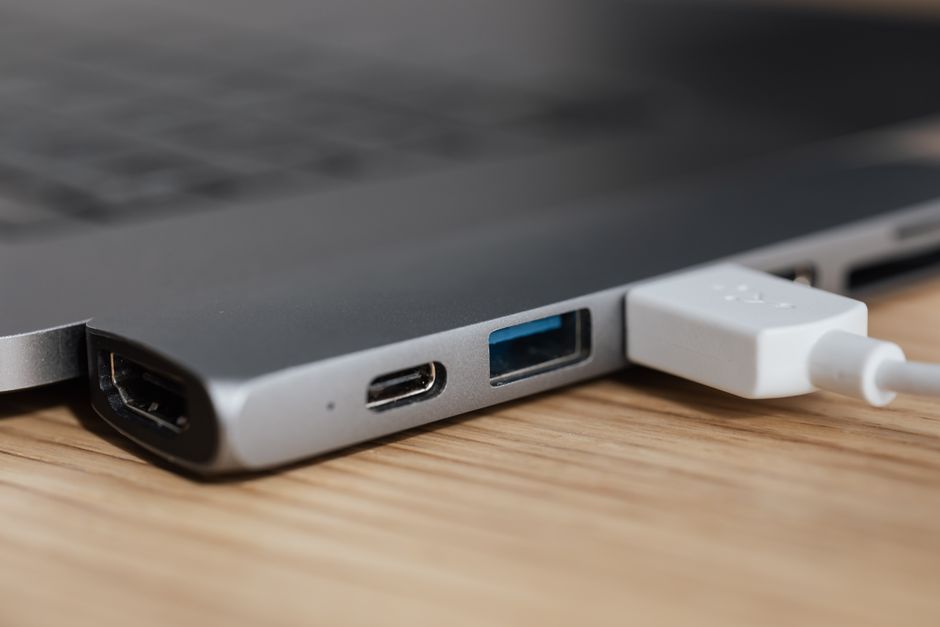
- Hub and power reality check. A bus-powered hub (one without its own power adapter) splits one port’s electricity across everything plugged into it. External drives and other power-hungry devices routinely fail recognition on them — plug the device directly into the PC, or use a powered hub. USB-C docks add another layer: if a dock works for the mouse but not the monitor or drive, Microsoft’s USB-C troubleshooting page covers dock-specific and Alternate Mode issues.
Fast startup deserves a mention here too: like the touchpad, USB ports can fail to initialize after Windows’ hybrid shutdown. If ports are dead after every cold boot but fine after Restart, untick Turn on fast startup in Control Panel > Power Options > “Choose what the power buttons do”.
When it’s hardware — and which hardware
After Step 5, the verdict is usually clear:
- Device fails on every computer and cable: the device is failing. If it’s a drive, stop plugging it in repeatedly and go straight to recovery — see a professional if the data matters.
- Everything fails on one specific port, all software fixes done: that port is damaged (look closely for a bent or dirty connector — a burst of compressed air fixes ports that simply aren’t making contact).
- All ports dead at once after a power event: run Step 6’s power drain before assuming the motherboard; on desktops, a failed front-panel header or a knocked-loose internal USB cable produces the same symptom.
FAQ
Why does “USB device not recognized” keep popping up randomly?
That’s the ghost-device loop from Step 2 — Windows retrying a half-registered device in the background. Clear the warning-triangle entries (and hidden devices) in Device Manager and the pop-ups stop.
Does this error mean my flash drive is broken?
Not usually. Test it in another port and another computer first. Only if it fails the descriptor handshake everywhere (Step 3) is the drive itself likely dying — and then recover the data once, immediately.
Is it safe to uninstall USB controllers in Device Manager?
Yes. They’re Windows components that reinstall automatically on reboot — you can’t lose data or break the ports permanently. The worst case is that nothing changes, in which case a simple restart restores the previous state.
Why does my USB device work until the PC goes to sleep?
Windows powered the port down and the device failed the wake-up handshake. Disable the root-hub power setting and USB selective suspend (Step 4) — that combination is the specific cure for sleep-related disconnects.
Why won’t my phone be recognized but it charges from the same cable?
The cable is charge-only: it has power wires but no data lines. Use the cable that shipped with the phone or one explicitly labelled as a data cable, then retest.