An upload form wants your PDF under 2 MB. Or under 100 KB. You run it through a free compressor, and it comes out at 2.3 MB — still rejected. Here’s the honest part most guides skip: no one-click tool hits an exact size on demand. Getting under a specific limit is a workflow: compress, check the real result, and escalate the aggressiveness until you’re under. This guide gives you that ladder, starting with the free tools already on your computer.
Quick answer: for most PDFs, one pass with an offline tool (Preview on Mac, Print-to-PDF on Windows) or a reputable online compressor gets you under 2 MB. If you’re still over, drop image quality deliberately — on Mac via a custom Preview filter, or anywhere with Ghostscript’s one-line command stepping from /printer to /ebook to /screen. Hitting 100 KB from a scanned document is a different beast: that usually needs the scan itself re-done at lower resolution, not harder squeezing.

Why your PDF is huge in the first place
Understanding this saves you an hour of blind clicking. A PDF is a container, and its size is usually images:
- Scans are photographs of paper. A single page scanned at 300–600 DPI can weigh more than a 50-page text document. Ten scanned pages of a signed form can easily hit 40 MB.
- Text PDFs are already tiny. A CV or report exported from Word is mostly vectors and fonts — often under 500 KB before anyone “compresses” it.
- Already-compressed files resist. If your PDF’s images are already JPEG-squeezed (most scanned PDFs are), running it through a compressor again squeezes almost nothing. This is why a tool “does nothing” on some files — the failure mode behind half the forum threads about compression not working.
So: text-heavy PDF rarely needs help; scanned PDFs are where the battle is.
The methods, compared
| Method | Cost | Good for | Kills |
|---|---|---|---|
| Preview “Reduce File Size” (Mac) | Free, offline | Quick wins on scans | Image quality (brutally) |
| Print to PDF (Windows) | Free, offline | Bloated exports | Form fields, hyperlinks |
| Word/Office re-export | Free (if you have Office) | Documents made in Word | Nothing relevant |
| Online compressors | Free tier | Non-sensitive files, decent ratios | Privacy; free-tier limits |
| Ghostscript (command line) | Free, offline | The exact-size ladder | Image detail (proportionally) |
Mac: Preview’s one-click compress (and its catch)
- Open the PDF in Preview.
- File > Export…
- In the Quartz Filter dropdown choose Reduce File Size, then save.
Ten seconds, works offline — but Apple’s own Preview guide admits the result “may produce a lower-quality PDF,” and that’s polite. The built-in filter crushes images hard; on text scans it can turn signatures into soup. Always open the result and check it’s still readable before deleting the original.
For a gentler version: open ColorSync Utility (in Applications > Utilities), go to the Filters tab, duplicate “Reduce File Size,” and relax its image downsampling/compression settings. Save the copy under a new name and it appears in Preview’s export dropdown as a custom filter. (On some recent macOS versions custom filters occasionally fail to show up in that dropdown — a known annoyance; if yours vanishes, Ghostscript below is the more reliable escalator.)
Windows: Print to PDF as a size reset
Windows has no single built-in “compress PDF” button, but it has a decent stand-in: open the PDF in any viewer, press Ctrl+P, choose Microsoft Print to PDF as the printer, and save a fresh copy. The print pipeline re-renders the document and often sheds bloat from badly exported files.
Honest limits: this re-print flattens fillable form fields, drops hyperlinks and attachments, and can turn text into an image — so it’s a last resort, not a first move, and never use it on a form you still need to fill in. For documents that were born in Word, the cleaner route is simply re-exporting from the source: File > Save As > PDF, which Microsoft documents for exporting Word documents as PDF and which produces far smaller files than printing.
Online compressors: fine for most things — know the limits
For non-sensitive files, the big free compressors work well and usually beat the built-ins on quality retention. The free tiers have real constraints, though (current as of writing): iLovePDF’s pricing page caps free compression at 200 MB per file and 2 files per batch; Smallpdf’s free level is its “Basic” compression only, with stronger modes paywalled. Both delete uploaded files automatically — Smallpdf within an hour, iLovePDF within about two — but read that as “your document lives on their server for a while,” not “it never left.”
The privacy line, plainly: never upload a passport, ID card, bank statement, medical record, or anything you’d not hand a stranger to an online converter. That job-interval scan of your diploma doesn’t need to touch a third-party server to lose 30% of its weight — use the offline routes above. And if your oversized PDF came out of an email export, fixing it at the source (see our guides to converting Outlook emails to PDF and bulk EML-to-PDF conversion) usually produces a smaller file than compressing the bad one. Heavy email attachments eating your mailbox quota is its own problem — our Gmail storage guide covers that cleanup.
The exact-size ladder: Ghostscript (free, all platforms)
When you must get under a number — 2 MB, 1 MB, 500 KB — the dependable tool is Ghostscript, a free open-source engine. Its presets re-sample images at fixed DPI ceilings, which makes its output predictable:
gs -sDEVICE=pdfwrite -dCompatibilityLevel=1.4 -dPDFSETTINGS=/ebook -dNOPAUSE -dQUIET -dBATCH -sOutputFile=out.pdf in.pdf
The ladder, per the official Ghostscript documentation:
- /printer — downsamples images to 300 DPI. Try first; often lands under 2 MB with quality intact.
- /ebook — 150 DPI. The sweet spot for reading on screens; usually half the /printer size.
- /screen — 72 DPI. The emergency lever for 100 KB-class limits; text scans get visibly fuzzy.
Each run takes seconds, so the workflow is mechanical: run /printer, check the file size, and if you’re still over the limit, run /ebook, check again, then /screen. Crucially, text stays as real, selectable text through all three — Ghostscript re-processes images, it doesn’t photograph the page. On Windows and Mac, installers are on the official site; if the command line isn’t your thing, every GUI tool above is simply a friendlier front end over the same idea — compress, check, escalate.
Scans: fix it at the scanner, not after
If your oversized PDF is a scan, the cheapest compression is not scanning at 600 DPI in the first place:
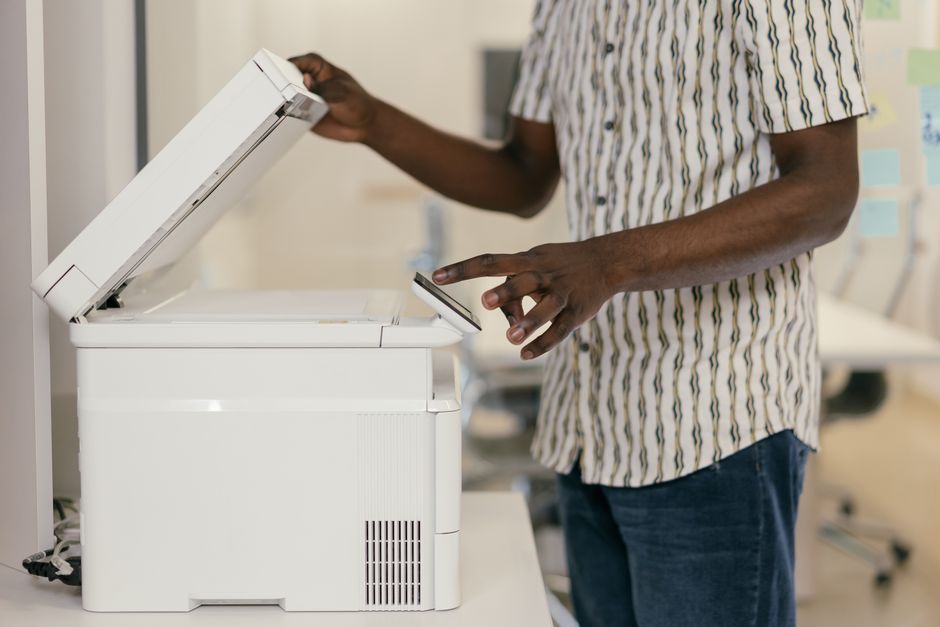
- 200–300 DPI is plenty for text documents. 600 DPI doubles and quadruples size for zero visible benefit on a printed page.
- Black-and-white mode for text-only pages can cut size by 10× versus color.
- Keep text searchable: if you compress a scanned PDF hard, you lose the invisible text layer that makes it Ctrl+F-searchable. The free open-source tool OCRmyPDF applies OCR and image optimization in a single pass, so the squeezed PDF stays searchable — the standard answer in document-archiving circles.
And if the “scanner” is your phone, capture quality is the whole game — shoot in good, even light at 200–300 DPI and crop cleanly, and the scan lands small before any compression at all.
Frequently asked questions
How do I compress a PDF to exactly 2 MB?
Exact targets don’t exist in one click — get under the limit instead. Compress once with any method, check the actual size, and escalate quality loss (Preview’s custom filter, or Ghostscript’s /printer → /ebook → /screen ladder) until the number clears the bar.
Why won’t my PDF compress any smaller?
Its images are almost certainly already JPEG-compressed, so recompression has nothing left to squeeze. Scan-derived PDFs behave this way. The fixes are lowering the image resolution for real (Ghostscript’s DPI presets) or re-scanning at lower DPI.
Is it safe to compress a PDF online?
For non-sensitive documents at reputable services, reasonably — they state retention windows (an hour or two at the majors). For passports, IDs, bank statements, or medical records, no: use offline tools like Preview, Print-to-PDF, or Ghostscript, where the file never leaves your machine.
Does compressing a PDF make it blurry?
Aggressive compression blurs the images in the PDF — that’s where the size lives. Text in native (non-scanned) PDFs stays sharp at every setting, and Ghostscript’s /ebook level is generally still comfortable for reading. Always open the output before you delete the original.
How do I reduce a PDF below 100 KB?
Only small text PDFs and very sparse scans get there. Try /screen in Ghostscript on a text document; for a scanned signature page, re-scan in black-and-white at 200 DPI and crop to the needed area — a 100 KB target from a full-page color scan usually isn’t achievable at readable quality.