Roughly 53% of kids under 11 now have their own phone, and most of them got an iPhone. If you've decided it's time to add monitoring to your child's device, you've probably already discovered the frustrating truth: the iPhone is the hardest platform to monitor. Apple locks down exactly the access that most monitoring apps rely on, and half the features advertised on those apps' websites simply don't work on iOS the way they do on Android.
That's not a reason to give up — it's a reason to pick the right tool. After re-testing this category in September 2026, here are the five apps that actually deliver on iPhone, what each can and can't see, and the free Apple-built option you should set up first.
One principle before the list: monitoring works best in the open. Tell your kids what's on the device and why — the apps below are parental-control tools for your own child's safety, and using them transparently is both more effective and the difference between parental controls and spyware.
Quick answer: best iPhone monitoring apps in 2026
Start with Apple's free built-in Screen Time, then add Bark — it's the best iPhone-compatible monitor in 2026 ($99/year, unlimited kids) because it watches content for dangers instead of demanding device-level access iOS won't give. Qustodio is best for screen-time rules, Norton Family the best value at $49.99/year.
The 5 apps at a glance
| App | Best for | Price | How it works on iPhone |
|---|---|---|---|
| Bark | Content alerts (texts, social, email) | ~$5–14/mo; from ~$99/yr | Connects to accounts & Apple Screen Time API — no jailbreak |
| Qustodio | Screen-time rules & web filtering | ~$55/yr (5 devices); free tier | Uses Apple's MDM/profile framework |
| Norton Family | Budget full-featured supervision | $49.99/yr | Web monitoring, time limits via companion app |
| Fenced.ai | All-round dashboard + location | from ~$5.83/mo | Basic on iOS; strongest on Android |
| MobileSpy | Device-activity dashboards | from ~$100/yr | Limited iOS features; sister app of fenced.ai |
What monitoring apps can actually do on an iPhone in 2026
Set expectations before you spend money, because the app stores are full of products promising Android-style access on iOS:
- They cannot silently read texts, calls, or app messages on a non-jailbroken iPhone. Apple simply doesn't allow it. Products claiming otherwise are usually scams — or pushing you toward jailbreaking, which destroys the security of your child's device.
- What they can do falls into three buckets: filter web content and manage screen time (through Apple's approved frameworks), monitor accounts rather than the device (Bark's approach — analyzing texted, emailed, and posted content through account connections), and report location (via standard location sharing).
- Apple's built-in Screen Time already covers app limits, downtime schedules, content restrictions, and communication limits — free, with no third party seeing your child's data. Every family should set this up first; the paid apps below earn their keep on what Screen Time doesn't do: reading content for danger signals, cross-app alerts, and detailed reporting.
1. Bark — best for catching real dangers
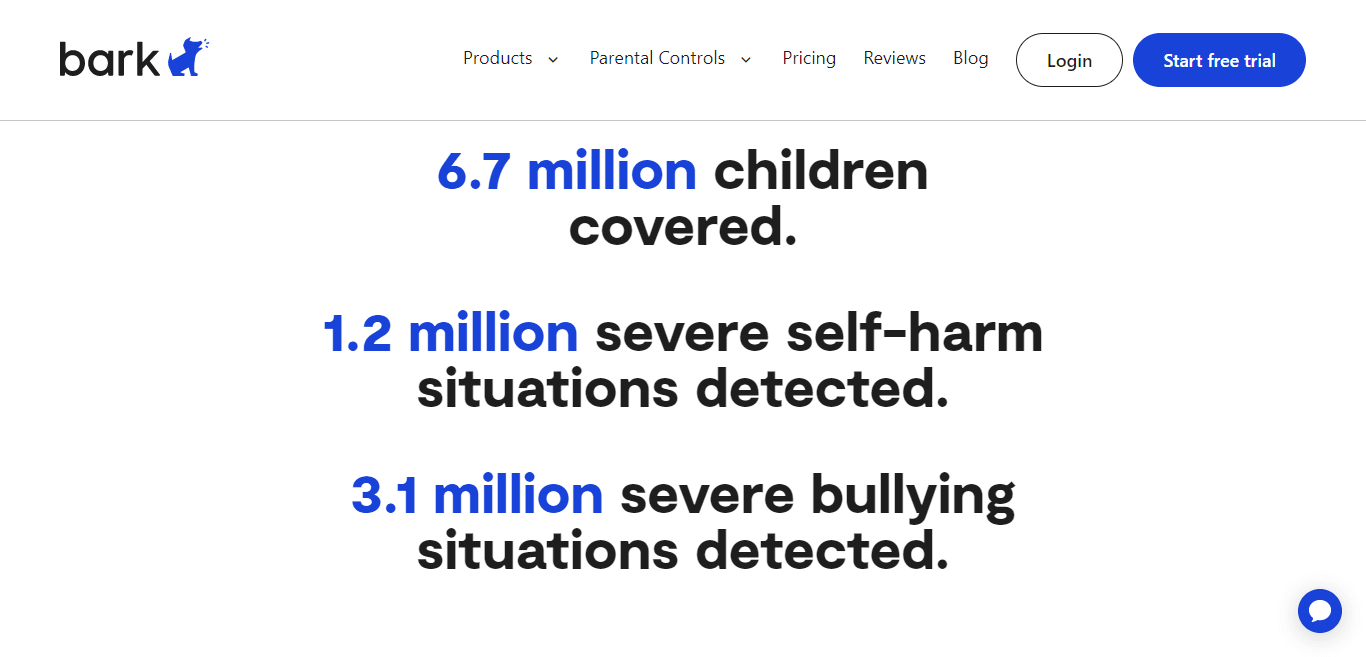
Bark is the app I recommend to most iPhone parents, because it's built around the thing iOS actually permits: scanning content for warning signs rather than spying on devices. It connects to your child's texts, email, and 30+ social platforms, and uses AI trained on years of child-safety cases to flag sexual predators, cyberbullying, self-harm signals, and depression indicators — sending you an alert only when something concerning appears, with expert-recommended next steps.
That alert-only design is the quiet genius of it: you don't have to read every message (which teenagers rightly resent), but you find out when it matters. Bark Premium runs about $14/month or roughly $99/year for unlimited kids and unlimited devices — the best value in the category for families with more than one child.
Pros: works fully on iPhone; smart alerts instead of raw surveillance; unlimited devices on Premium.
Watch out: no call-log tracking — a deliberate design choice, but know it going in.
2. Qustodio — best for screen-time rules
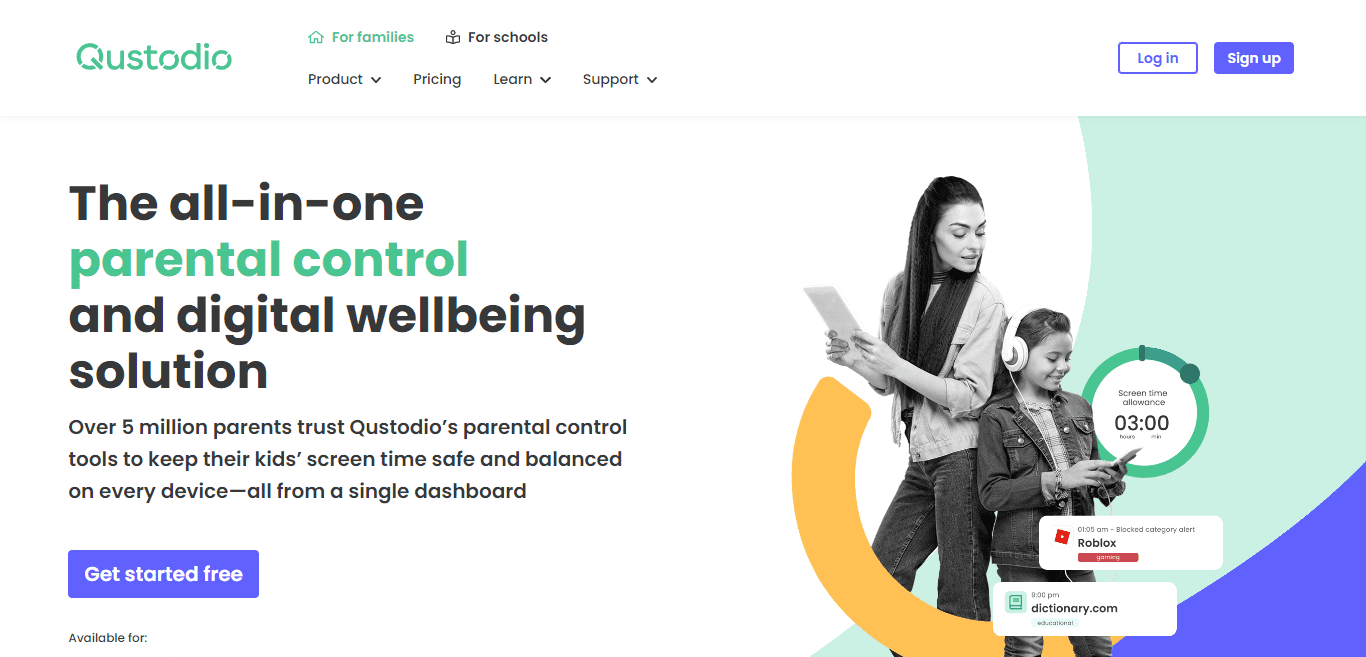
If your battle is less "who's contacting my kid" and more "get off YouTube and do your homework," Qustodio is the strongest rule-setter that still works on iOS. App time limits, daily schedules, web filtering across every browser, YouTube monitoring, location tracking with history, and a panic button — all managed from a parent dashboard that's the cleanest in the category.
Qustodio is also the only app here with a genuinely useful free tier (basic filtering and limited dashboard for one device), so you can test the workflow before paying. Paid plans run from about $54.95/year for five devices to around $110/year for unlimited — set rules once, and the app does the policing.
Pros: granular time limits; cross-browser web filter; free tier to start.
Watch out: on iOS, setup uses Apple's profile/MDM framework — follow their guided steps exactly or features silently half-work. Tech-savvy kids with VPNs can slip past some filters.
3. Norton Family — best value
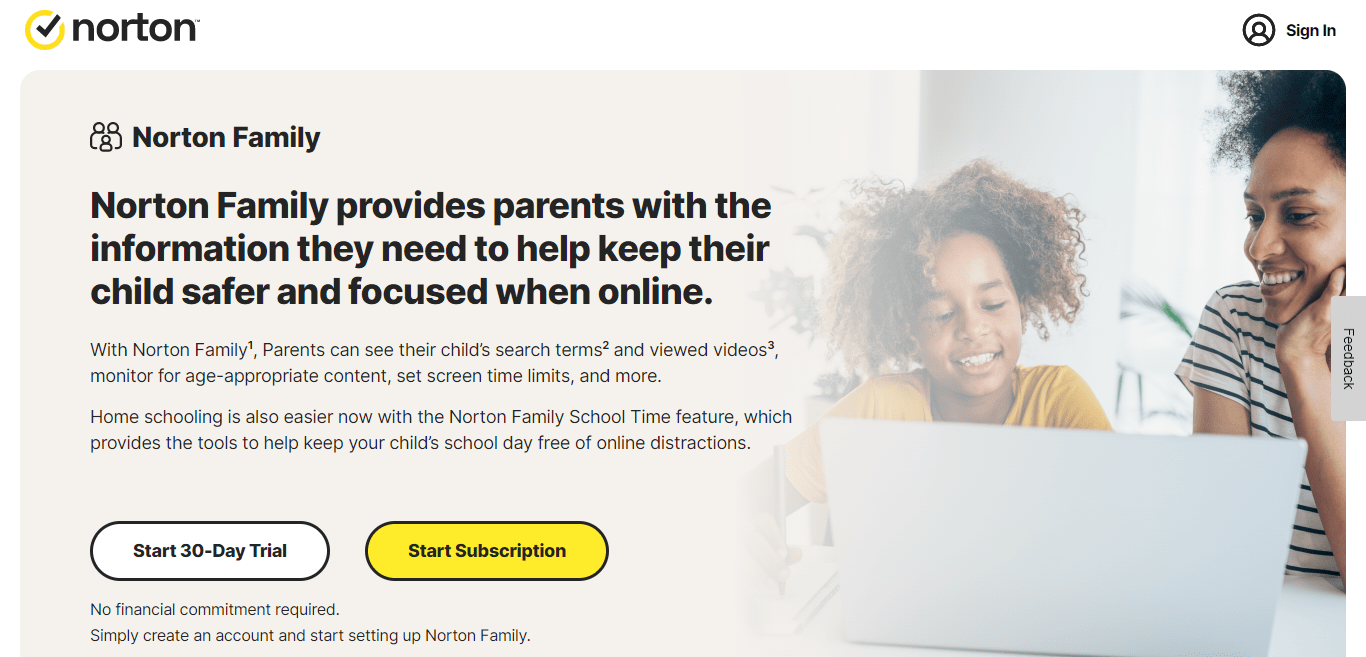
Norton Family does nearly everything Qustodio does — web supervision, time limits, app restrictions, search monitoring, location, and detailed activity reports — at $49.99/year, which is why value-focused comparisons in 2026 keep crowning it. The web monitoring is its specialty: your child's searches and visited sites get logged and categorized, and you can block entire categories with one toggle.
The catch for iPhone households: Norton Family's iOS app is more limited than its Android and Windows versions (app-level time restrictions in particular), so treat it as a web-and-time supervisor on iPhone and pair it with Apple Screen Time for app limits.
Pros: $49.99/year covers the whole family; best-in-class web supervision; 30-day free trial.
Watch out: iOS app can't match Android feature depth — check current limits before buying if app-blocking is your priority.
4. Fenced.ai — best all-round dashboard (with an iOS asterisk)
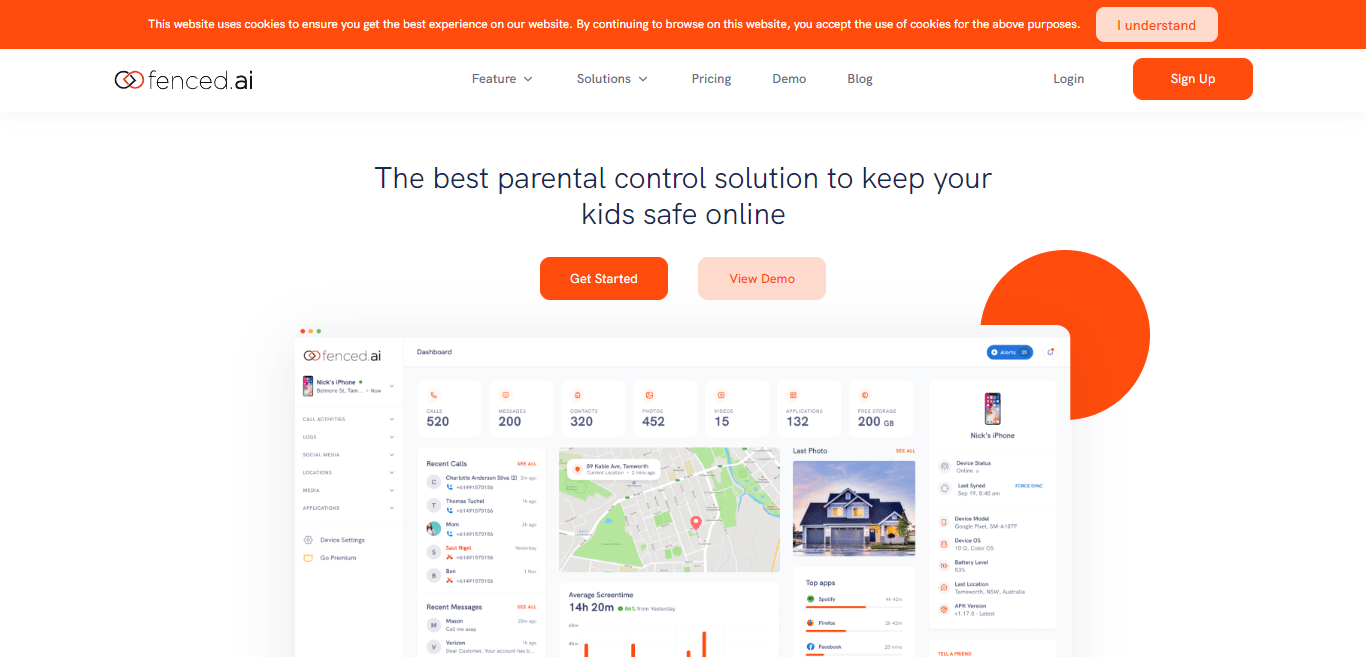
Fenced.ai markets the full wishlist — SMS, call logs, photos, social media, browser history, geofencing alerts when kids leave designated zones — and on Android it delivers. On iPhone, be realistic: fenced.ai works without jailbreaking but operates within Apple's limits, meaning location, web activity, and account-based features lead while deep device monitoring doesn't apply.
Where it earns its slot is the unified dashboard: activity reports, app usage statistics, and geofence alerts in one place, starting at about $5.83/month. If you're a mixed household — one Android tween, one iPhone teen — one subscription covers both fairly.
Pros: clean all-in-one dashboard; geofencing; cross-platform (iOS + Android); affordable entry.
Watch out: the headline features are Android-first; probe the iOS feature list during the free trial before committing.
5. MobileSpy — the dashboard-style alternative
MobileSpy (mobilespy.io) is a sister product of fenced.ai from the same company, and the same iPhone caveat applies double: it's marketed as a full device monitor, but on a non-jailbroken iPhone you'll get the compliant subset — location, web history, app usage, and account-based monitoring — rather than the Android-level depth its site advertises.
It earns mention here because setup is genuinely easy, the dashboard is beginner-friendly, and pricing starts around $100/year. If a dashboard-style view of your child's activity is what you want and Bark's alert-only model feels too hands-off, this tier of tool fits — just buy it knowing exactly which features are iOS-real.
Pros: simple setup; easy dashboard; works without jailbreak.
Watch out: iOS feature set is much narrower than advertised; premium pricing buys features your child's iPhone may not support.
Don't skip the free one: Apple Screen Time + Family Sharing
Before any subscription, set up what Apple already gives you — it's the foundation the paid apps build on:
1. Open Settings > [Your Name] > Family Sharing and add your child to the family group.
2. On the child's iPhone, go to Settings > Screen Time and enable it under the family account (choose "This is My Child's iPhone").
3. Set Downtime (device-off hours), App Limits per category, and Communication Limits (who can call/text them, and when).
4. Under Content & Privacy Restrictions, block adult content, restrict app installs, and prevent settings changes with a passcode only you know.
5. Enable Location Sharing in Family Sharing if you want free location visibility.
This costs nothing, needs no third party, and survives most uninstall attempts. The paid apps below add what it lacks: content-level alerts, cross-platform dashboards, and reporting. For deeper platform comparisons beyond these five, our Net Nanny alternatives guide covers more options in the same category.
How to set up a monitoring app on your child's iPhone
1. Choose the app based on what you actually need — danger alerts (Bark), time rules (Qustodio), or a budget dashboard (Norton/Fenced.ai).
2. Install the parent app on your iPhone and create your account; subscribe to the tier you need (most require premium for real features, but all offer trials — use them).
3. Prepare the child's iPhone: install the companion app or configuration profile, and grant the permissions it asks for (screen time, location, notifications).
4. Configure rules on the dashboard: filters, limits, alerts, and location zones — start stricter, then loosen as trust builds.
5. Test everything: try the filter from the child's device, check that alerts reach your phone, and confirm location updates.
6. Talk to your kid. The setup step that matters most: explain what's monitored and why. Kids who understand the "why" don't waste energy trying to defeat the system — they spend it on the negotiation that actually builds judgment.
Making it work long-term
Four habits separate parents who get value from these apps from parents who uninstall them in a month:
- Transparency beats stealth. A monitoring app is a safety net, not a trap — and when (not if) your child discovers a hidden one, you lose the trust the whole system depends on.
- Act on alerts, not on everything. Reading every message teaches your kid that privacy is temporary; responding to real danger signals teaches them the system exists for their safety.
- Loosen with age. Revisit settings every few months — a setup right for a 10-year-old should look different at 14, and the app should retire gradually as they demonstrate judgment.
- Keep talking. No app replaces the five-minute conversation about what happened online today. If you're navigating co-parenting arrangements alongside all this, document what both households use — and if you need Android coverage too, our guide to monitoring kids' calls on Android covers that platform separately. For building positive screen habits, our piece on e-books and lifelong learning for kids is a useful companion.
Frequently asked questions
Can you monitor a child's iPhone without them knowing?
Not meaningfully, and you shouldn't try. Apple blocks stealth monitoring on non-jailbroken iPhones — location sharing and Screen Time are visible to the device user. Bark-style account monitoring is semi-visible by design. The practical and ethical approach is transparent monitoring: kids get a safer device, parents get visibility, and nobody discovers a betrayal later.
What's the best free parental control for iPhone?
Apple Screen Time, built into every iPhone via Family Sharing. It handles app limits, downtime schedules, content filtering, communication limits, and location sharing for free. Qustodio's free tier adds a basic dashboard for one device. Most paid features only become necessary once you want content-level alerts and detailed reporting.
Is Bark worth it for iPhone?
Yes — it's the best fit for iOS because it monitors the content of texts, emails, and 30+ social accounts (which Apple permits through account connections) instead of needing device-level access iOS forbids. At roughly $99/year for unlimited kids and devices, it undercuts most rivals for families with more than one child, and its alert-only design respects your child's privacy where it counts.
Do parental control apps drain the iPhone battery?
Modestly and acceptably. Apps like Qustodio and Norton Family run background services for filtering and reporting — expect a small percentage of extra daily drain, noticeably less than a game or navigation app. Bark is light because most analysis happens on its servers, not the device. If battery drops sharply, re-check setup: a misconfigured profile is the usual culprit.
Can my child uninstall a parental control app?
Not easily if you configure it correctly. Apple's Screen Time passcode (yours alone) prevents app deletion and settings changes; Qustodio and Norton Family use device profiles that resist removal the same way. Some apps also alert you if tampering is detected. The real weak point is always the passcode — if your child learns it, no app protects itself.
At what age should you stop monitoring your child's iPhone?
There's no fixed age — shift from monitoring to mentoring as judgment develops. A common pattern: full controls until ~12, filtered freedom with alerts through mid-teens, then conversations-only by 16–17. The goal of every tool on this list is to make itself unnecessary; if the monitoring never loosens, it stops being protection and starts being surveillance.
Related reading on TechBii
- 5 alternatives to Net Nanny parental control app
- How to monitor your kids' calls on an Android phone
- How e-books can inspire lifelong learning in kids
Final verdict
Set up Apple Screen Time first — it's free and handles the rules. Then add Bark if your worry is who's reaching your child and what they're seeing (its content alerts are unmatched on iOS), Qustodio if the fight is screen time, or Norton Family if budget decides. Fenced.ai and MobileSpy make sense for mixed Android/iPhone households that want one dashboard.
Whatever you pick, tell your kids it's there. The apps work best as guardrails — and guardrails only work when everyone knows the road.
I've parented through every version of iOS parental controls since Screen Time launched, and re-tested all five apps for this update in September 2026. If a feature changes or an app stops delivering, tell me in the comments and I'll re-check it.