Gboard stopped being "just a keyboard" a couple of years ago and became the place where Google's on-device AI actually shows up in daily use: it proofreads your messages, rewrites them in a different tone, and turns your face photos into custom emoji. The old version of this article was still describing Gboard 5.0-era gestures — good features, but 2016 ones. This version covers what's genuinely new through 2026, and where each feature lives.
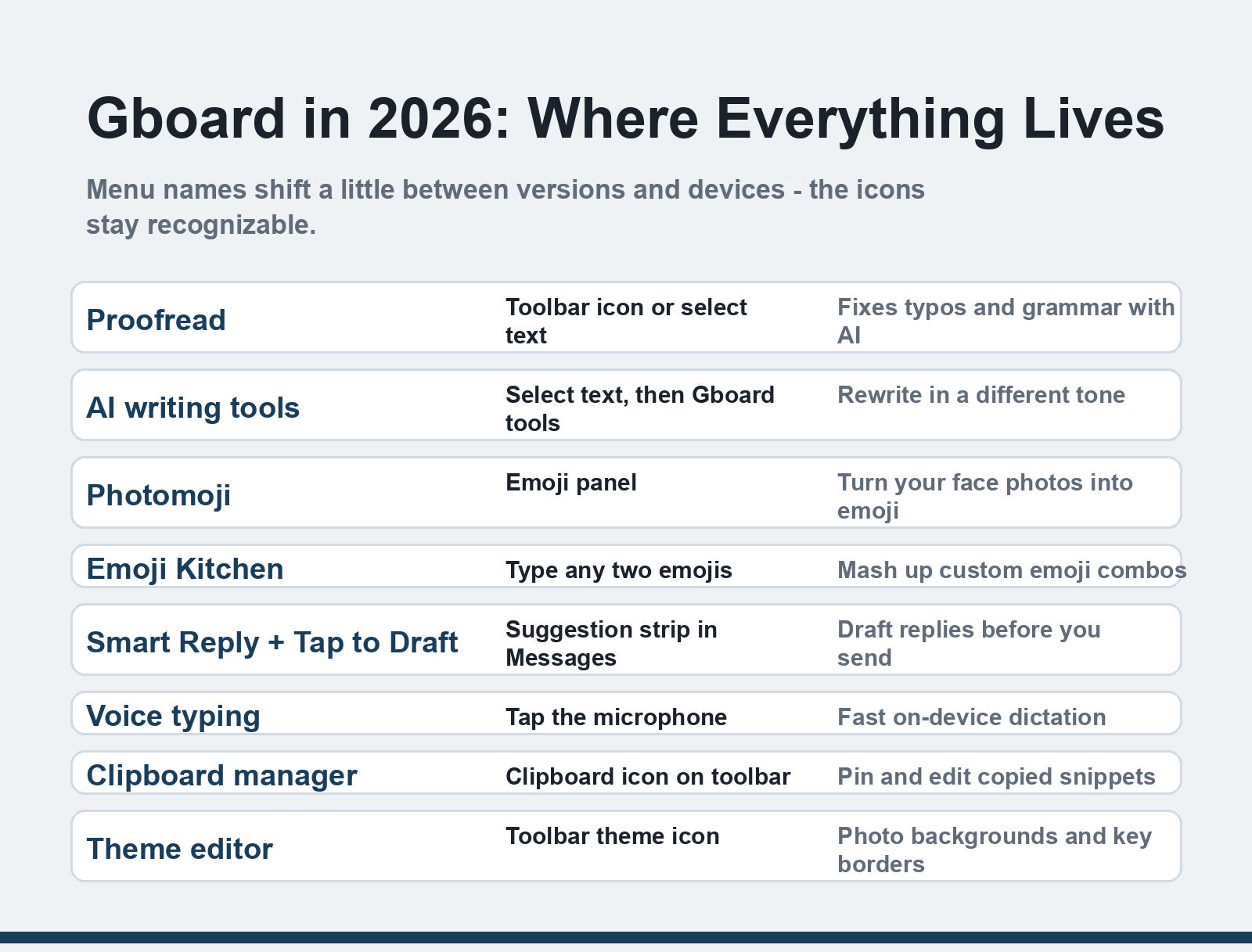
Quick answer: Gboard's biggest 2026 features are Proofread (AI typo and grammar fixing), AI writing tools (rewrite selected text in another tone), Photomoji (custom emoji from your photos), Emoji Kitchen combos, and Tap to Draft smart replies in Messages — plus the classics: voice typing, clipboard manager, and themes. Everything is free; some AI features need a recent Pixel or Android flagship.
What changed since the 2023 version
The 2023 list was honest but generic — smart completion, dark mode, sticker suggestions — because Gboard's genuinely new wave hadn't landed yet. Since then Google shipped the feature drop in September 2025 that brought AI writing tools to the keyboard, expanded Proofread beyond Pixels, and kept layering emoji tools. Feature availability and menu names shift a little between phones and versions; Google's own Gboard help pages are the reference for the exact paths.
The AI features worth learning
Proofread — the one everyone should try
Proofread checks text you've typed, pasted, or dictated for spelling and grammar mistakes and offers fixes right in the text box, before you hit send. It appears on the toolbar or when you select text, and it runs on-device on capable hardware (recent Pixels and other modern flagships) rather than shipping your text to a server. I run it constantly on work messages — it catches the kind of typo that autocorrect smiles at. Where: toolbar icon or select text → Proofread.
AI writing tools — rewrite without leaving the app
Rolled out in Google's September 2025 Android feature drop, Gboard's writing tools revise a selected block of text: different tone, restructured sentences, tightened wording. It's the difference between "let me rewrite this three times" and one tap, and it works in any app where you can select text. On older devices you may see fewer options — the full set needs the AI-capable hardware. Where: select text → Gboard writing tools.
Photomoji and Emoji Kitchen — the fun layer
Photomoji turns a photo of your face (or your dog, honestly better) into custom emoji stickers you can send anywhere. Emoji Kitchen — older but still the best party trick — mashes any two emojis into a custom sticker: type two emojis, and Gboard offers the combination. Both live in the emoji panel, and both generate stickers that work in WhatsApp, Messages and most chat apps. Where: emoji panel → Photomoji / just type two emojis.
Tap to Draft and Smart Reply — responses that get reviewed first
Google Messages' suggestion strip now drafts a full reply from context, and Tap to Draft opens it for editing before sending instead of firing off a canned response. It runs through Gboard on recent Android versions and quietly changes reply behavior: you send messages that sound like you, faster. Where: suggestion strip in Messages.
The classic features that still earn their place
The legacy section of the old article survived six years for a reason — these settings remain under Preferences and Themes:
- Gesture typing and cursor control — slide across letters to type, slide on the spacebar to move the cursor; still the fastest one-handed input on Android.
- Voice typing — tap the microphone; modern Gboard does fast, on-device dictation that works offline on supported devices.
- Clipboard manager — pin frequently copied snippets (addresses, account numbers) and edit them before pasting; the privacy auto-delete timer is worth enabling.
- One-handed mode — shrink and dock the keyboard to one side under Preferences.
- Theme editor — set a photo as the keyboard background and adjust key borders under the theme icon.
- Number row and long-press symbols — both under Preferences, and the first thing I enable on any new phone.
Privacy: what Gboard actually sends
The question every keyboard review should answer. Gboard processes most input — typing, suggestions, proofread, dictation — on-device, and Google's privacy controls let you review and delete anything stored server-side (dictionaries, voice history) from your Google Account. Network-connected features like search and some AI processing do reach Google servers; the settings page spells out what each toggle does. If that trade is unacceptable, the alternative is a fully offline keyboard — but then you lose the AI layer this article is about. And on the broader safety question: our guide to keyboard apps and their alternatives covers what to watch for with third-party keyboards, which sit outside Google's sandbox.
Getting Gboard
Gboard is free on the Play Store with no ads or paid tiers — every feature in this article costs nothing, which remains one of the quiet arguments for it over rival keyboards. Updates arrive through Google Play continuously rather than in version drops, so features appear on your phone as they roll out, not when you update. If you're setting all this up on a new device, our guide to recovering app data explains what transfers automatically — and what keyboard settings you'll re-enable by hand.
FAQ
Why don't I see Proofread or the AI writing tools on my phone?
The on-device AI features require recent hardware with Google's AI stack — Pixels from recent generations and other modern flagships. Google also staggers rollouts by region and device. Update Gboard on the Play Store, check Settings for the feature flags, and if the hardware is older, the classic features all still work.
Does Gboard work on iPhone?
Yes, Google ships Gboard for iOS with search, glide typing, emoji, and translation, but the newest AI features (Proofread, AI writing tools, Photomoji) are Android-first — Apple's keyboard API limits what third-party keyboards can do. On iPhone, Gboard is good; on Android, it's the default worth keeping.
Is Gboard safe for passwords and banking apps?
Yes with the standard caveats: Gboard is a Google-signed app that processes most input on-device, and it's the shipped keyboard on Pixel devices. For sensitive fields, use a password manager's own autofill rather than typing, and review Gboard's privacy settings once so you know what's enabled. The bigger risk is any third-party keyboard from an unknown developer, not the platform default.
How do I make Gboard use less battery?
Disable the features you never use: Google Search integration on the toolbar, clipboard history auto-delete, and always-on voice typing all draw small amounts. The biggest battery item is normally vibration on keypress — turn haptics down under Preferences. Proofread and AI tools only run when invoked, so they cost nothing at rest.
The fastest way to make this list useful: open any text field right now, long-press the comma to reach settings, and switch on the three features you didn't know you were missing.