You open the AirPods case expecting music and get nothing — no popup, no connection, sometimes no sign of them in the Bluetooth list at all. AirPods are usually plug-and-play, which is exactly why it’s so annoying when they aren’t. The good news: the cause is almost always one of five things — a flat case, a stale connection, Apple’s auto-switching handing them to another device, a Windows Bluetooth driver, or settings that need a full reset to clear.
Quick answer: charge the case for 30 minutes, toggle Bluetooth off and on, and close the case lid for 15 seconds before trying again — that trio clears most cases. If they still won’t play, forget the device on your phone and pair fresh, check which device they’re silently connected to, and only then move to the model-specific fixes below. The full reset is the last step, not the first.
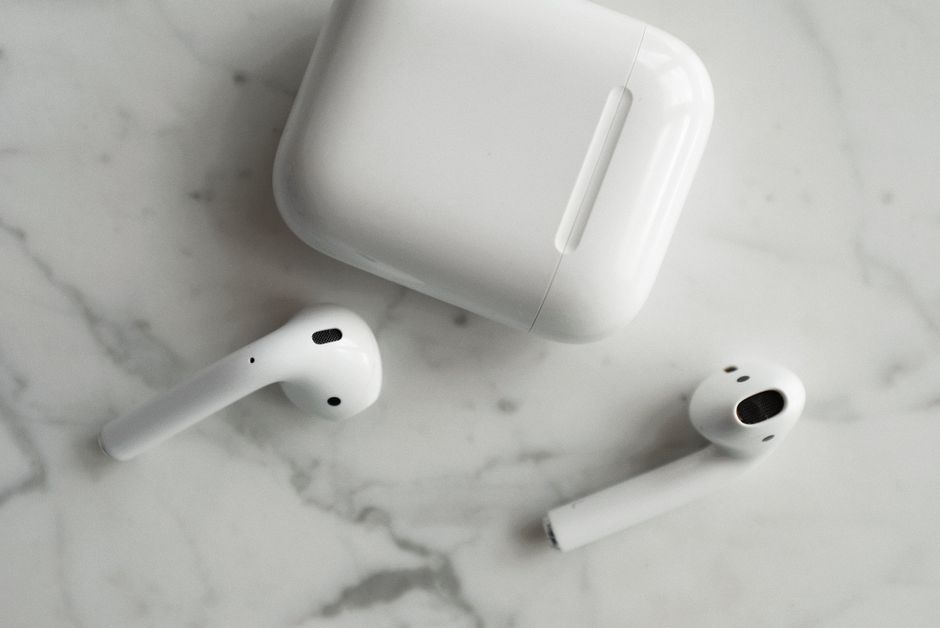
First: the five-minute triage that fixes most cases
Do these in order before anything else — they apply whether you’re connecting to an iPhone, a Windows PC, or an Android phone:
- Charge the case, not just the buds. The earbuds can show charge while a dead case refuses to pair. Plug the case in for 30 minutes and check its light comes on.
- Toggle Bluetooth off and back on on the device you’re connecting to.
- Put the buds in the case, close the lid, wait 15 seconds, then open the lid and hold the buds in — Apple’s own AirPods connection guide starts here for a reason: it forces the radios to renegotiate.
- Move away from interference (microwaves, crowded Wi-Fi routers) and within a couple of meters of the device.
Fixed? Great. Still nothing? The pattern of the failure now tells you which section below to read.
Fixes on iPhone
1. Connect manually instead of waiting for the popup
Open the case lid with the buds inside, then on the iPhone swipe down from the top-right for Control Center, tap the audio card’s output icon, and select your AirPods. Manual selection bypasses the flaky animation popup entirely.
2. The auto-switching trap
Signed into iCloud with more than one Apple device? Your AirPods may be silently connected to the iPad in the next room or the Mac on your desk. Either disconnect them there first, or on the iPhone go to Settings → Bluetooth → (i) next to your AirPods → Connect to This iPhone and choose When Last Connected to This iPhone instead of Automatically. This one setting explains a huge share of “they just stopped connecting” reports.
3. Forget, then pair fresh
Settings → Bluetooth → (i) → Forget This Device, then re-pair from scratch with the case open. Stale pairing data survives restarts and causes exactly this symptom.
4. Update iOS
Settings → General → Software Update. AirPods firmware ships through the connected phone, so a phone that hasn’t updated in months can leave both ends buggy. While you’re in Settings, clear any storage-full warnings too — a choked phone causes problems far beyond Bluetooth, and our iPhone storage guide frees space without losing photos.
Fixes on Windows 11
1. Pair properly: the lid stays open and the button does the work
Windows doesn’t do magic popups. With the buds in the open case, press and hold the setup button on the back of the case until the light flashes white — that’s pairing mode. Then Settings → Bluetooth & devices → Add device → Bluetooth, and pick your AirPods. Apple documents this same routine for non-Apple devices.
2. If they’re “connected” but silent
Windows may be playing sound somewhere else. Go to Settings → System → Sound and set your AirPods as the output device. And remember the AirPods are probably still holding a connection to your phone — disconnect them there first; they can’t serve both properly at once.
3. Remove the stale pairing and reinstall the Bluetooth driver
If the AirPods appear in the list but never finish connecting, remove them from Windows, then update or reinstall the Bluetooth driver in Device Manager (right-click the adapter → Uninstall device → restart, and Windows rebuilds it). A corrupted Bluetooth driver is the signature Windows-11-only failure — it’s also the first thing Microsoft’s responders ask for in the AirPods-on-Windows-11 Q&A thread. And when a Windows machine is generally misbehaving, our hotspot-not-working fix guide covers the network-side cousin of this problem.
Fixes on Android
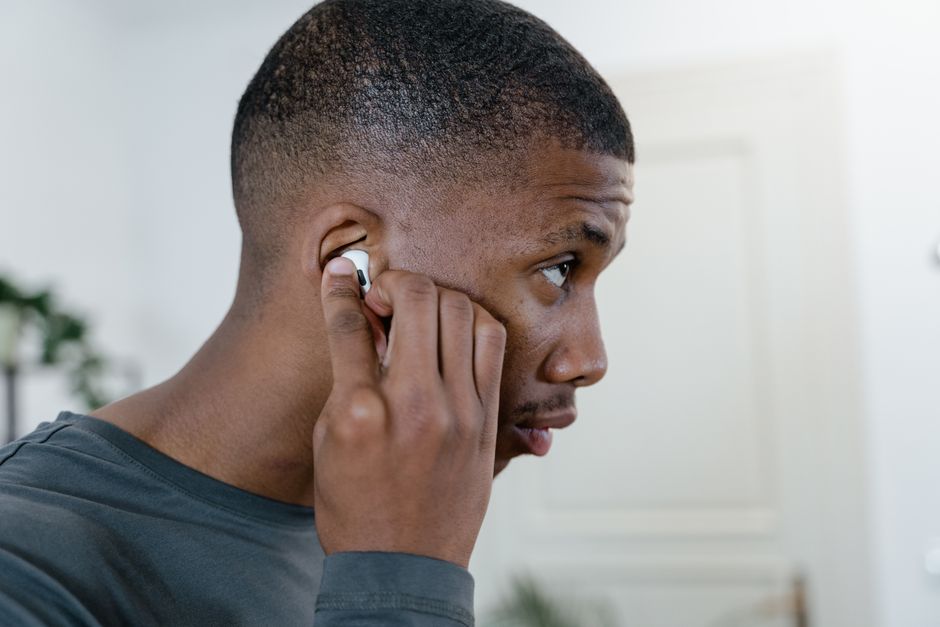
AirPods work fine as ordinary Bluetooth earbuds on Android — you lose the Siri magic and some sensors, but pairing is simple. Put the case into pairing mode (buds in, lid open, hold the back button until the light flashes white), then Settings → Connections → Bluetooth and select the AirPods from the list. If they connected before but fail now, tap the gear icon next to them and choose Forget, then pair fresh. Two Android-specific notes: first-time pairing may trigger a Google Fast Pair popup — accept it and Android handles everything; and if audio plays from the phone speaker instead, tap the media-output icon while playing and route it to the AirPods explicitly. Radio-level issues that also affect other Bluetooth or Wi-Fi gear point at the phone itself — our Android Wi-Fi fix guide covers the diagnostic flow.
The full reset — when nothing else worked
Resetting erases all pairings and returns the AirPods to factory state, so do it last. The classic procedure: put the buds in the case, lid open, press and hold the setup button on the back for about 15 seconds until the status light flashes amber, then white. Then re-pair from scratch. Exact button placement and timing differ slightly across AirPods generations (newer cases changed the routine), so follow the reset steps in Apple’s guide for your specific model. After a reset, if one earbud still refuses to join, put both buds in the case, keep the lid open, and tap the case gently — then let both charge for 30 minutes and pair again. A bud that still won’t wake after that usually has a failed battery and needs service.

FAQ
Why won’t my AirPods connect even though Bluetooth is on?
Usually a flat case, a stale pairing, or the AirPods being auto-connected to another Apple device you own. Charge the case, toggle Bluetooth, and check the auto-switch setting before deeper troubleshooting.
Why do my AirPods work with my iPhone but not my Windows 11 PC?
Because the problem is the PC, not the buds: either the Bluetooth driver is corrupted (reinstall it), the AirPods are still holding the phone connection (disconnect them there), or Windows is outputting sound elsewhere (set them as the output in Sound settings).
How do I reset my AirPods?
Buds in the open case, hold the setup button about 15 seconds until the light flashes amber then white, then re-pair. Steps vary slightly by model — use Apple’s reset guide for your exact generation.
Can AirPods connect to two devices at once?
They switch between Apple devices automatically on iCloud accounts, but they can’t properly serve a phone and a Windows PC simultaneously. Disconnect from one before using the other.
Why does only one AirPod connect?
Put both buds back in the case for 30 seconds, then take them out together. If one stays silent, clean the charging contacts and charge both for 30 minutes; a bud that still won’t wake likely needs a battery service.
The bottom line
AirPods connection problems narrow down fast: dead case, stale pairing, auto-switching theft, Windows driver, or corrupted settings needing a reset. Work the triage first, match the fix to the device, and save the factory reset for last — in that order, they resolve nearly every “won’t connect” report.