


Back when I unlocked my Redmi 3S Prime's bootloader, I hit the infamous wall: the Mi Unlock Tool's progress bar crawls to 50%, then dies with "Couldn't verify device: Current account is different from the account info on the device." I'd unlocked HTC, Moto and Sony phones without drama, so this one sent me digging through forums for days. The fix turned out to be an account-rebinding trick, and it still works in 2026 — though Xiaomi has layered new application and quota steps on top since the HyperOS era began.
Quick answer: The 50% "Couldn't verify device" error means the Mi account logged into the Mi Unlock Tool doesn't match the one bound to your phone. Sign out of your Mi account on the phone, sign back in with the same account (mobile number login), remove all screen locks, enable OEM unlocking, verify the device shows Online at i.mi.com, then run the unlock again from the latest Mi Unlock Tool.
Why Xiaomi shows "Couldn't verify device" at 50%
The Mi Unlock Tool checks your phone against Xiaomi's servers at the halfway point of the unlock process. That check compares three things: the Mi account you logged into the tool with, the account currently bound to the device, and the unlock permission attached to that account. If any of the three disagree — a factory reset that dropped the account, a re-login with a different email, a number change, or a permission that was granted to another account — the verification fails and the progress bar freezes at 50%.
Nine out of ten reports I see on forums trace back to a mismatch between the tool's login and the phone's bound account, not to anything wrong with the phone itself. That's good news, because the fix takes minutes once you know it.
What changed since this guide was first published
If you're on a recent Xiaomi phone running HyperOS (or MIUI 12 and newer), Xiaomi added a few gates before you ever reach the tool:
- You must apply for unlock permission through the Xiaomi Community app (or the Mi unlock page), stating a reason and verifying your phone number. Approval can take hours to days.
- Quotas exist. Xiaomi grants a limited number of unlock permissions per day in some regions; if you see "application quota limit reached," retry shortly after midnight China time (GMT+8) when the quota resets.
- A wait timer runs after binding. Classic MIUI enforced 168 hours between binding your account and unlocking; many HyperOS devices reportedly run a shorter 72-hour timer. The Mi Unlock Tool shows your remaining time.
- The tool got updated. The current official build is Mi Unlock v7.6.727.43, downloadable from Xiaomi's official unlock page. Old 2016-era tool zips floating around blogs won't talk to modern firmware — use the current one.
None of this replaces the fix below. It just means you do the account-rebind dance after your permission is approved and the wait timer has expired.
Before you start: requirements
- Back up everything. Unlocking wipes the phone completely — photos, apps, WhatsApp history, the lot. Sync to Mi Cloud or Google One first.
- Charge above 50% on both the phone and, if it's a laptop, the PC.
- Use the original USB cable, ideally a USB 2.0 port directly on the PC, not a hub.
- Install Xiaomi drivers. The Mi Unlock Tool bundles them; if Device Manager shows a yellow warning icon when the phone is in fastboot, reinstall drivers before anything else.
- Remove every screen lock — fingerprint, PIN, pattern, password. Sounds superstitious, but it has fixed the verify step for enough readers that I keep it on the list.
- Windows 8/10/11: if the driver won't install at all, you may need to disable driver signature enforcement for the installation; re-enable it afterwards.
The fix: rebind your Mi account, then unlock
Work through these in order — the sequence matters:
1. On the phone, sign out of your Mi account (Settings → Mi Account → Sign out).
2. Remove all screen locks: fingerprint, PIN, pattern, and password.
3. Sign back into your Mi account using your registered mobile number, not an email or account ID. The number must match the one tied to your unlock permission. Turn off Find Device if it asks during sign-in.
4. Sign in at i.mi.com with the same account and confirm your phone shows Online and locatable. If it doesn't appear here, the bind hasn't taken — fix that before continuing.
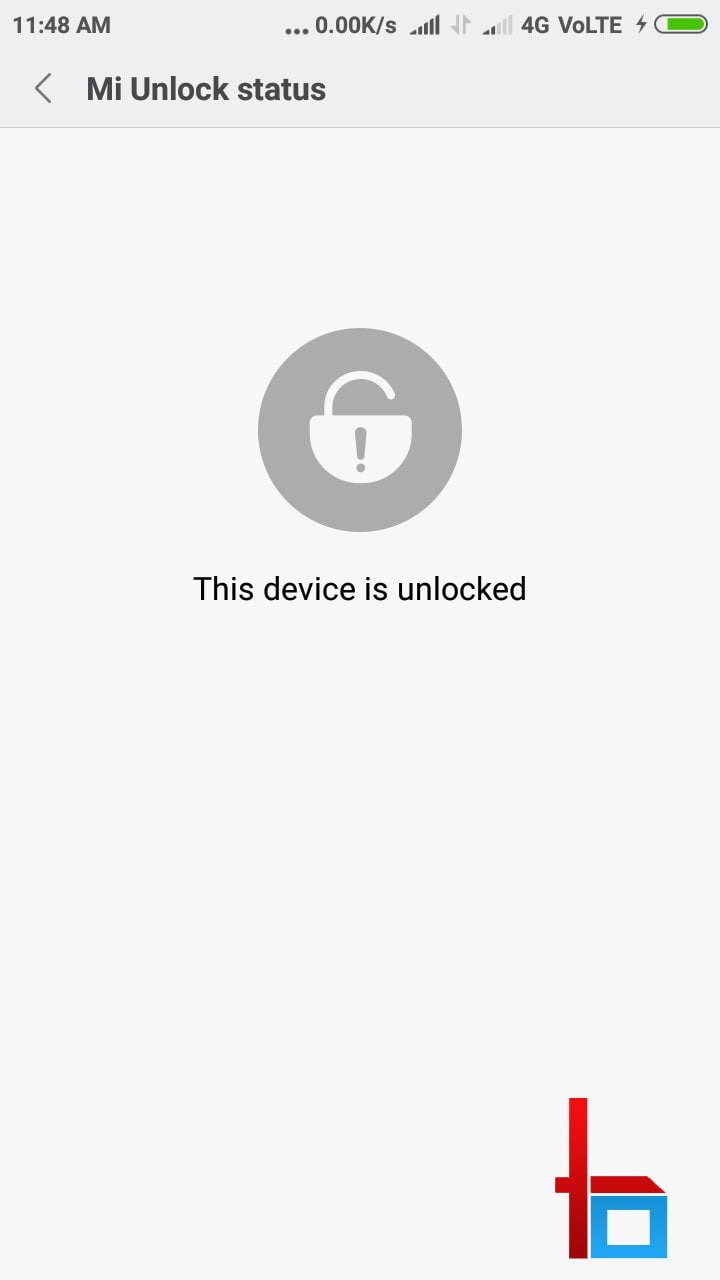
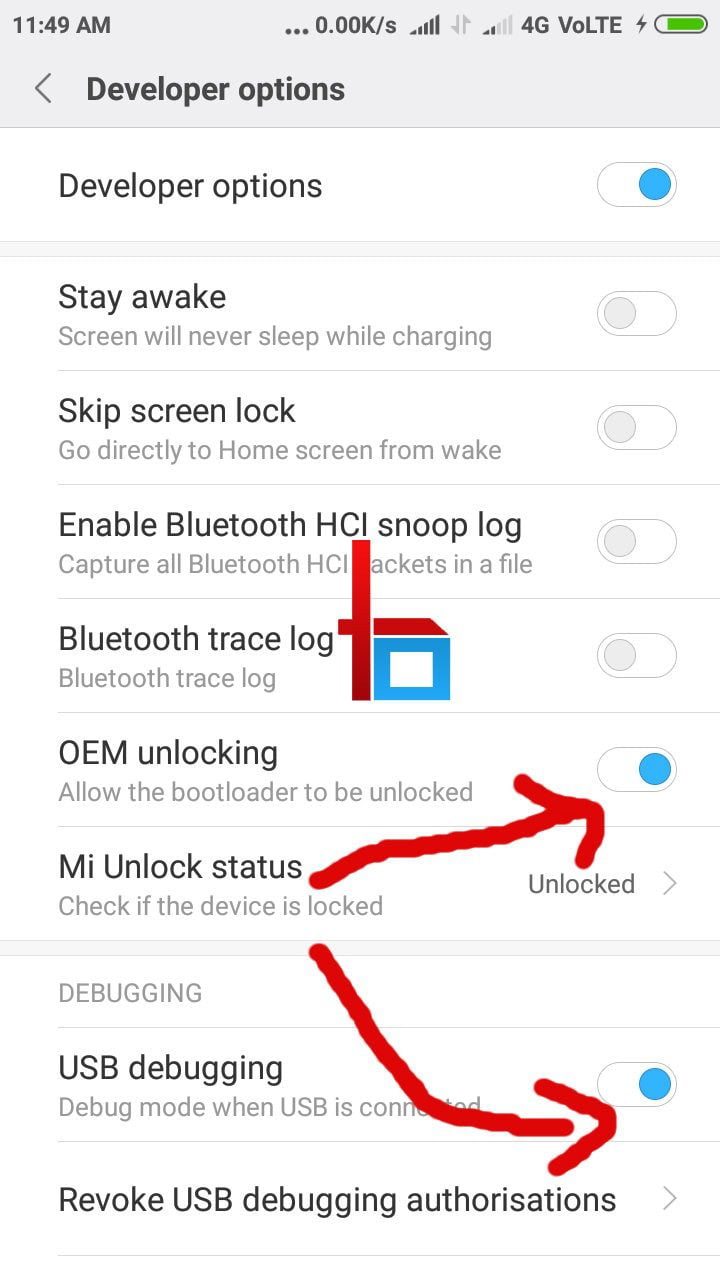
5. On the phone, enable Developer options (tap MIUI/HyperOS version in About Phone seven times), then enable OEM unlocking and USB debugging. Check Mi Unlock status in Developer options — it should say the device is unlocked-bound to your account, or prompt you to add the account.
6. On the PC, open the latest Mi Unlock Tool from Xiaomi's official unlock page and sign in with the same account, again using the mobile number.
7. Reboot the phone into fastboot (power off, then hold Volume Down + Power until the fastboot mascot appears) and connect it to the PC.
8. Click Unlock. Xiaomi warns the process wipes the device — confirm.
9. If a wait timer appears, leave the phone connected to Wi-Fi, keep the SIM in, don't sign out of the account, and return after the countdown (72–168 hours). Then run the unlock again.
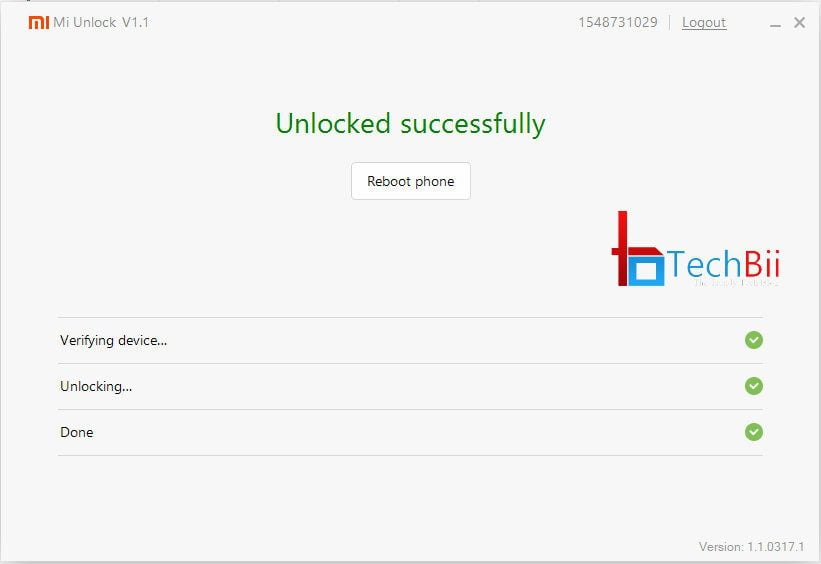
For most readers the error clears at step 9 with "Unlocked successfully."
Still stuck at 50%? Four things left to try
- Swap login methods. If you signed in with your number everywhere, try the Mi account ID (or email) instead — consistently, on both the phone and in i.mi.com and the tool. The reverse works too: number instead of ID.
- Bind, wait, retry. Sign in on the phone, check Mi Unlock status says "added," then wait 5–15 minutes before retrying. Server-side propagation is genuinely slow sometimes.
- Try an older tool build if the latest refuses to connect, or vice versa — but only ever download it from Xiaomi's official page, never from random file mirrors.
- Wait it out on a fresh permission. If your unlock permission was granted years ago or to a different account, request a fresh one from the Mi unlock page — approval typically arrives within hours to a few days, occasionally hitting the daily quota.
And the one nobody likes: if you re-locked a bootloader after flashing stock ROMs, the server can take days to update your device's status. Waiting genuinely fixes cases that no trick does.
What "unlocked" gets you (and what it costs)
With the bootloader unlocked you can flash custom recoveries, root with Magisk, install custom ROMs, and enable hidden features like Camera2 API levels on some models. The costs: the full wipe (again — it happens at unlock), a warranty that Xiaomi may refuse on software grounds, some banking apps and games that flag unlocked bootloaders, and widevine L1 dropping to L3 on many models, which caps Netflix and Prime at SD on some titles. Decide with your eyes open.
Frequently asked questions
Why does the Mi Unlock Tool say my current account is different from the device?
Because the Mi account signed into the tool doesn't match the account bound to the phone's bootloader. This happens after factory resets, number changes, or signing into the tool with an email while the phone uses a mobile number. The fix is to sign out on the phone, sign back in with the exact same account the permission was granted to (mobile-number login works best), verify the device at i.mi.com, and retry.
How long does Xiaomi take to approve bootloader unlock permission?
Anywhere from a few hours to a few weeks. My first approval came through in about 8 hours; recent HyperOS-era applications often wait several days, and the daily quota can push your request to the next reset window. You'll get an SMS or in-app message in the Xiaomi Community app when it's granted — the unlock button stays greyed out until then.
Can I unlock the bootloader without losing data?
No. Xiaomi's unlock process performs a full factory reset as part of the security wipe — there's no supported way around it. Back up to Mi Cloud, Google One, or a PC first. The only people who skip the wipe are those using unofficial exploit methods, which I don't recommend: they trip anti-rollback protections and can hard-brick newer models.
Does unlocking the bootloader void my Xiaomi warranty?
Xiaomi's stance is that software damage from an unlocked bootloader isn't covered, and service centres can see the unlock status instantly. In practice, hardware faults are usually still serviced, but anything brick-related — failed flashes, corrupted partitions — lands on you. If your phone is under warranty and you're nervous, wait until it expires before unlocking.
The tool says "couldn't find device" instead — is that the same error?
No, that's simpler. "Couldn't find device" means the PC can't see your phone at all: wrong USB port or cable, missing fastboot drivers, or the phone isn't actually in fastboot mode. Fix the connection first — yellow-bang entries in Device Manager tell you which driver is missing — and the verify-at-50% error only appears once the tool can talk to your phone.
Related reading
- Redmi 3S/Prime: Unlock Bootloader, Root & Install TWRP Recovery
- Magisk vs. SuperSU: what's the difference?
- How to enable Camera2 API on a Mi A1 with a locked bootloader
- How to install an OxygenOS port on the Poco F1
That rebind trick has saved every Xiaomi I've owned since 2016 — if your progress bar still freezes at 50% after all nine steps, tell me your device and exact error text in the comments.






thank you so much..cant believe it worked…
You’re welcome. 😀
Lots of thanks to you brother. Its works. MI team not help me for this. But you help me. Thank you. You are awesome brother. I respect your hard work.
You’re most welcome Ram.
I havo no words to thank u.
U r such a genius.
I’m glad to hear it. Thanks. 🙂
No, it’s not 100%. 🙁
Still 99% and fault.