Quick answer
SQL Server error 3417 means the service could not recover the master database, so SQL Server refuses to start. The usual fixes: decompress the master.mdf and master.ldf files, give the service account full control of the data folder, or restore/rebuild master from backup. The exact root cause is always in the SQL Server error log.
When the SQL Server service dies with Event ID 3417 in Windows Event Viewer, the message you see there ("service terminated with a service-specific error") is only the surface. The real failure, in nearly every case, sits one level deeper: the master database could not be recovered at startup, and the SQL Server error log recorded why just before 3417 appeared.
This guide covers the diagnosis and the three fixes that resolve most real-world 3417 cases, in the order you should try them. Steps checked against Microsoft's current MSSQLSERVER_3417 documentation (SQL Server 2025) and SQL Server 2022 on Windows, October 2026.
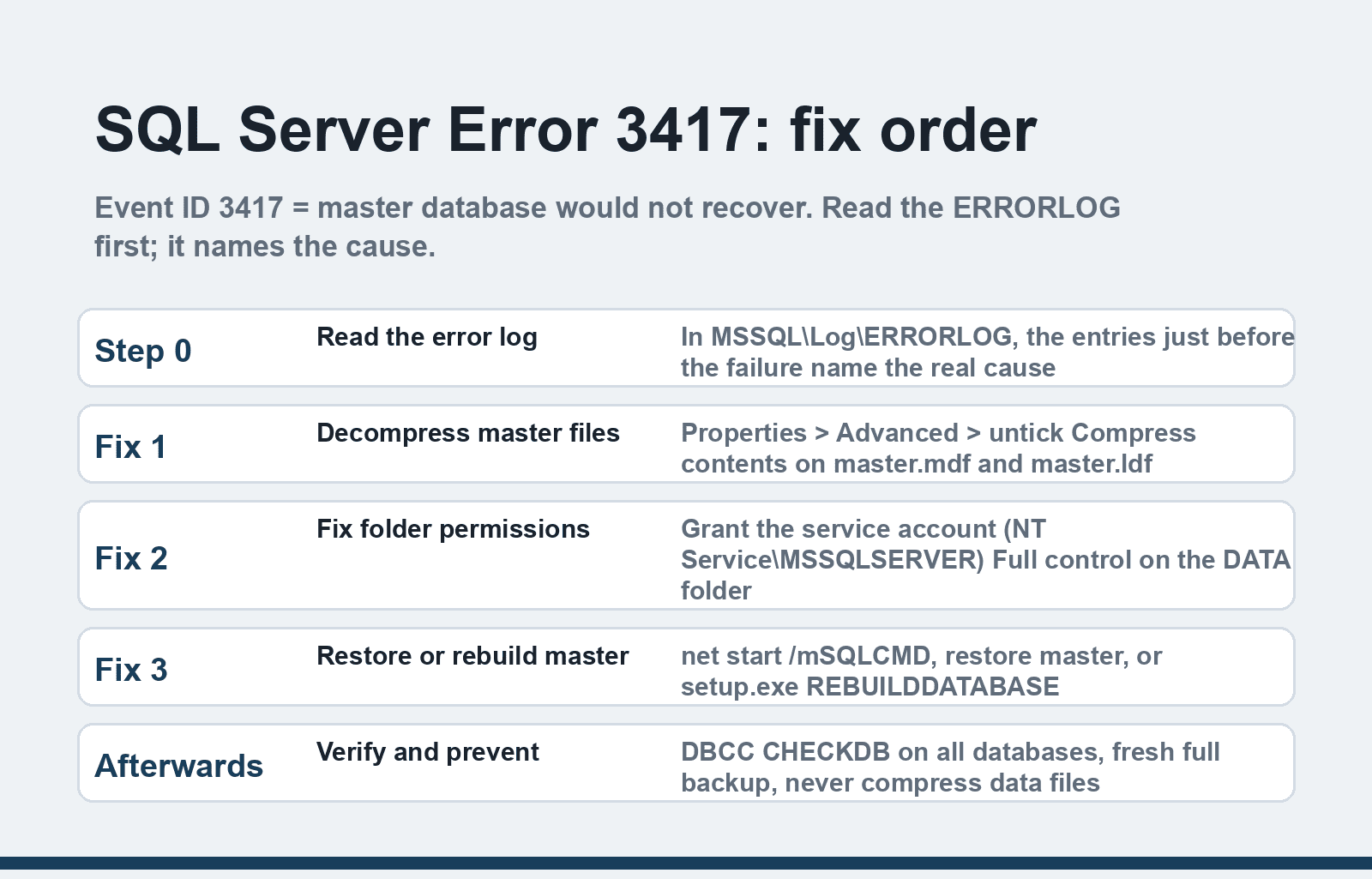
What error 3417 actually is
Microsoft's documentation defines 3417 with the symbolic name REC_BADMASTER and this message: "Cannot recover the master database. SQL Server is unable to run. Restore master from a full backup, repair it, or rebuild it."
The master database holds the instance's logins, configuration, and pointers to every other database on the server. If master or tempdb cannot come online, the whole engine stops. Common underlying causes:
- The master.mdf or master.ldf file is NTFS-compressed, read-only, or locked by another process.
- The SQL Server service account (NT Service\MSSQLSERVER or a domain account) lacks permission on the data folder, typically after the folder was moved or a security policy changed.
- The master database is genuinely corrupt, from disk failure, an unclean shutdown, or a failed upgrade to a cumulative update or service pack.
Because several different failures funnel into the same 3417, resist the urge to jump straight to a fix. Spend two minutes in the error log first.
Step 0: Read the SQL Server error log before anything else
The error log sits in a path like: Program Files\Microsoft SQL Server\MSSQL16.MSSQLSERVER\MSSQL\Log\ERRORLOG (the folder number tracks your version; older installs may show MSSQL15 or MSSQL13). Open the most recent ERRORLOG file and scroll to the entries just before the shutdown. You are looking for the failure that triggered the recovery failure, most often one of these:
- Operating system error 5 (access denied) — a permissions problem; use Fix 2.
- Operating system error 2 (file not found) or an FCB::Open failure — a moved or missing file; check the paths.
- An error about a compressed file — use Fix 1.
- Checksum or read-failure errors on master — go to Fix 3.
Microsoft also maintains a reference page for MSSQLSERVER_3417 that links the restore and rebuild procedures this guide summarizes.
Fix 1: Decompress the master database files
NTFS compression on the data folder is the single most common cause of this error on small servers, and Microsoft does not support running SQL Server databases on compressed volumes.
1. Open the instance's data folder, by default C:\Program Files\Microsoft SQL Server\MSSQL<version>.<instance>\MSSQL\DATA.
2. Right-click master.mdf, choose Properties, then Advanced.
3. Uncheck "Compress contents to save disk space" and click OK.
4. Repeat for master.ldf (and for tempdb's files if the log flagged them).
5. Windows may take a moment to decompress; then start the SQL Server service from services.msc and check that it stays running.
While you are in Properties, also confirm the "Read-only" box is cleared on both files.
Fix 2: Grant the service account permission on the data folder
If the error log showed access-denied, the service account lost rights to its own files. This commonly follows folder moves, antivirus quarantine, or group-policy changes.
1. Right-click the DATA folder, choose Properties, then the Security tab, then Advanced.
2. Click Add and type the service account. For a default instance running under a virtual account, that is NT Service\MSSQLSERVER; some installs use NETWORK SERVICE or a named domain account (check services.msc, Properties, Log On tab for the instance to be sure).
3. Grant Full control, apply, and let it propagate to child files.
4. Start the SQL Server service again.
I have hit this exact failure after moving a data folder to a new drive years ago on a home lab box, and the access-denied line in ERRORLOG pointed straight to it. The log really does tell you which fix you need; the fixes above are just the two most common answers it gives.
Fix 3: Restore or rebuild the master database
If the files are readable and correctly permitted but recovery still fails, master itself is damaged. You now have two options, in order of preference.
Restore from backup. Start the instance in single-user mode from an elevated command prompt: net start MSSQLSERVER /mSQLCMD. Then connect with sqlcmd and restore: RESTORE DATABASE master FROM DISK = 'path\to\master.bak' WITH REPLACE. After the restore the service restarts normally. This works only if you have a master backup, which most small servers do not.
Rebuild the system databases. With no usable master backup, rebuild from installation media. Run setup.exe from the SQL Server install DVD or mounted ISO with the REBUILDDATABASE action, pointing to the media's setup folder and passing the SAPWD parameter for the sa password. Rebuilding gives you a blank master, so afterwards you must reattach your user databases (SSMS, Databases, Attach) and recreate logins and jobs; our guide to moving data from one SQL Server to another covers the reattach-and-verify sequence. Document every login and job you can before rebuilding if the server still runs enough to extract them.
If the 3417 appeared during a cumulative update or service pack installation, do not rebuild immediately. Microsoft's upgrade-failure guidance, referenced from its 3417 page, covers repair paths for patching failures first, since a failed upgrade usually leaves the databases intact.
After the service starts
Run DBCC CHECKDB on every database to confirm nothing else was damaged, take a fresh full backup including master, and fix the underlying condition: exclude SQL Server folders from compression, re-pin service-account permissions, and set up a maintenance plan if one is missing. An ounce of scheduling here prevents the next 3am outage.
Still not working?
- Match the exact wording of the pre-3417 errors to Microsoft's MSSQLSERVER error reference; the root error usually has its own page with a targeted fix.
- If tempdb caused the failure, deleting and letting SQL Server recreate tempdb files is a known safe recovery, since tempdb is rebuilt at every startup anyway.
- No backup, no rebuild success, and business-critical data at stake: that is the point to engage a professional SQL recovery service or Microsoft support. Paid recovery tools are heavily marketed for this error, but they cannot start a service that will not start; be wary of any tool advertised as a one-click 3417 fix, and treat "free scan" downloads as risk until scanned and verified. When your data is worth a fee, a specialist service with a no-recovery-no-fee policy beats a utility download.
If this incident has you weighing a platform change, our guide to validating a SQL Server to PostgreSQL migration covers the checks that matter before moving, and the same log-first, backup-first discipline applies to repairing a corrupt SQLite database on smaller projects.
FAQ
What causes SQL Server error 3417?
The master database failed to recover at startup. The three usual root causes are NTFS compression on the data files, missing permissions for the service account on the data folder, and genuine corruption of master from disk failure, an unclean shutdown, or a failed upgrade. The SQL Server error log names the specific cause before the 3417 event appears.
Where do I find the SQL Server error log?
In the instance's Log folder, for example C:\Program Files\Microsoft SQL Server\MSSQL16.MSSQLSERVER\MSSQL\Log. Open the newest ERRORLOG file and read the entries immediately before the shutdown. Windows Event Viewer only tells you the service stopped with error 3417; the SQL log tells you why.
Can I fix error 3417 without a master database backup?
Yes, in the common cases. Decompressing the files or restoring service-account permissions needs no backup at all. If master is truly corrupt without a backup, you rebuild the system databases from installation media and reattach your user databases afterwards, recreating logins and scheduled jobs manually.
What is single-user mode and why is it needed to restore master?
Master can only be restored while no other processes hold the database, so the instance must start in single-user mode with the /m startup parameter. From an elevated prompt, net start MSSQLSERVER /mSQLCMD starts SQL Server accepting one connection, which you use with sqlcmd to run the restore.
Does this error mean my databases are corrupted?
Not necessarily. The failure is in the system database, and your user databases are usually intact files on disk. After the service starts, run DBCC CHECKDB across all databases to confirm, then reattach any that were left offline.
How do I prevent error 3417 from happening again?
Keep SQL Server directories excluded from NTFS compression, avoid moving the data folder without re-auditing permissions, protect the server from unclean shutdowns with a UPS, back up all system databases including master on the same schedule as user databases, and read the error log after every failed update before retrying.