Making a QR code takes about two minutes, and it's free unless you need the code to be editable after you've printed it. I've created codes for restaurant menus, business cards, event posters and payment links over the years, and the difference between a code that works everywhere and one that quietly fails is almost always in the details — size, error correction, and testing.
This guide walks through the process in eight steps, from picking a generator to tracking scans after launch. The same steps apply whether you're linking to your website, sharing Wi-Fi credentials, or putting a menu on a table.
Quick answer: Pick a QR generator (Chrome's built-in tool for a quick link, or a free generator like QRCodeChimp), choose your content type — URL, text, Wi-Fi, or vCard — enter the details, customize the colors, and download as PNG or SVG. Test the code on at least two phones before you print or publish it. That's the whole job.
What a QR code actually is
A QR (Quick Response) code is a two-dimensional barcode. Unlike the old striped barcodes on product packaging, it stores data in both directions — up to 7,089 numeric characters or about 1,800 Kanji characters in a single square. Phones read it with the camera they already have: point, tap, done. That zero-apps reality is why QR codes survived long after the pandemic made them mainstream — they're now the default bridge between print and web.
The 8 steps to create a QR code
Step 1: Pick your QR code generator
Three tiers, and most people only need the first two:
- Already in your browser: Chrome on desktop and Android can generate a QR code for any page — on desktop, right-click the page and choose Create QR Code for this page. Perfect for quick links, no website needed.
- Free generators: tools like QRCodeChimp and Beaconstac's QR code generator create both free static codes and more advanced options with logos, custom shapes, and analytics.
- Commercial platforms: if you're running print campaigns at scale and need scan tracking, bulk generation, or editable destinations, a paid platform is worth it.
Step 2: Decide what the code should do
This is the step people rush. A QR code can open a URL, but it can also store plain text, dial a phone number, draft an email, join Wi-Fi without typing a password, add a contact card (vCard), or open a payment link. Match the type to the moment: a poster wants a URL, a conference badge wants a vCard, a café table wants Wi-Fi or a menu link.
Step 3: Enter the details and choose static or dynamic
Fill in the content your type requires — the destination URL, the Wi-Fi name and password, whatever it is. Then make the one decision with real consequences:
- Static code: the data is baked in forever. Free, never expires, but change the URL later and every printed code becomes garbage.
- Dynamic code: the code points to a short service URL that redirects wherever you like, so you can edit the destination after printing and count the scans. These need a subscription — and here's the trap: free trials of dynamic codes expire, taking your printed materials with them. I've seen menus on tables die this way. If you won't pay long-term, print a static code to a page you control and change that page instead.
Step 4: Customize — carefully
Add your brand colors and a center logo if you like, but two rules keep codes scannable: keep strong contrast between the code and background (dark code on light background), and when you overlay a logo, regenerate the code at the highest error-correction level (H, which survives up to ~30% damage). Skip gradients and light-on-dark inversions; many scanners struggle with them.
Step 5: Download the right format
PNG for websites and screens, SVG or EPS for anything printed — a vector file stays sharp at any size. Download at the highest quality offered and keep the original file; you'd be surprised how often a client asks for the code again two years later.
Step 6: Test before anything goes to print
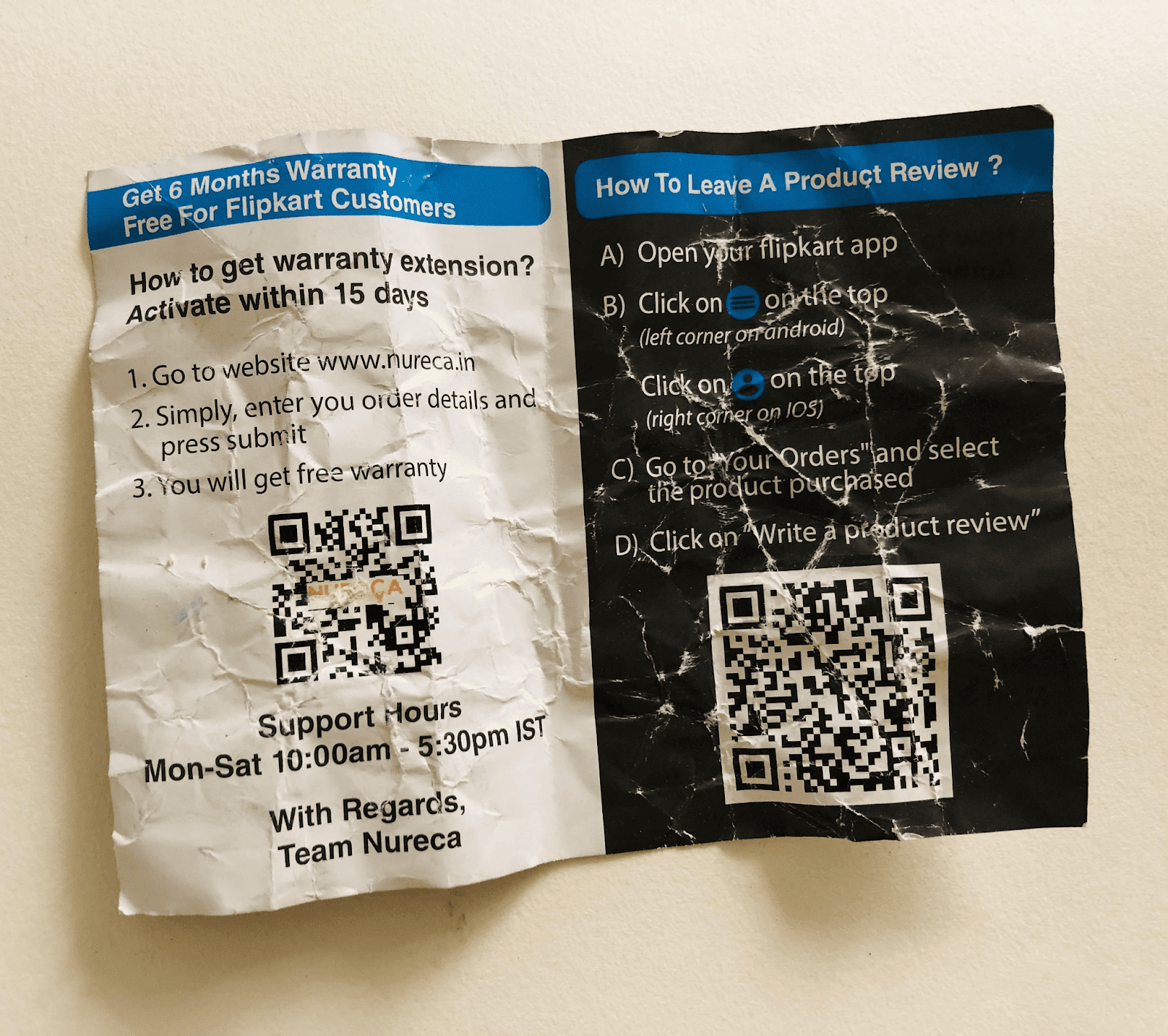
Test with at least two different phones (one Android, one iPhone), from arm's length and from farther away, in dim light, and with the code printed at its final size. Then test the destination on mobile: a code that opens a 404, or a PDF that takes 20 seconds to load on 4G, wastes every scan you paid for. A robust scanner handles wrinkled or partially damaged codes, but your users' phones are ordinary — don't design for the best case.
Step 7: Put it where people will actually scan it
Print and publishing have their own physics. A QR code's scan distance is roughly 10:1 — a 2 cm code scans from about 20 cm, so a poster read from 3 metres needs a code around 30 cm wide. Keep a quiet margin around the code (scanners read the border too), put it at eye level rather than floor level, and always print the destination URL in small text underneath for people who won't scan.
Step 8: Track performance and iterate
If you used a dynamic code, the platform's dashboard shows scans over time, by location and device — enough to tell whether a flyer placement is earning its cost. With static codes, add UTM parameters to the destination URL (e.g. `?utm_source=poster`) so your analytics attribute the visits. Watch the data for a few weeks, then move or resize codes that nobody scans.
Choosing a QR code scanner (for testing and work)
Any modern phone camera scans QR codes natively, so ordinary users need nothing. But if you're testing codes in bulk or building scanning into your own workflow, quality varies:
- Speed and bulk scanning: commercial-grade barcode readers can detect dozens of codes in a single frame — useful for inventory, not for checking one poster.
- Damaged-code tolerance: reader quality shows on wrinkled print, weird angles, and bad lighting. Test in the worst conditions your users will face, not the best.
- Platform coverage: a web-based scanner that runs in the browser saves you installing an app per device — handy for shared or kiosk hardware.
If you're curious how QR codes went from car-parts tracking to everyday infrastructure, I wrote about the rise of QR code technology during Covid — and there's also a shorter beginner's guide to creating a QR code on the site.
FAQ
Are free QR codes really permanent?
Static QR codes are — the data lives in the pattern itself, so they work forever with no account or renewal. What expires is the free trial of dynamic codes: once the subscription lapses, the redirect dies and your printed code leads nowhere. If you won't commit to a subscription, generate a static code pointing to a URL you control permanently.
What's the difference between static and dynamic QR codes?
A static code encodes the final destination directly and can't be changed after printing. A dynamic code encodes a short redirect URL, so you can edit where it points anytime and track every scan — at the cost of a subscription and a dependency on the provider staying in business. Static for anything permanent, dynamic for campaigns you might want to measure or retarget.
Is it safe to scan QR codes?
Mostly, but treat them like links from strangers. Attackers stick fake codes over real ones ("quishing") to send people to phishing pages, so on public posters check that the code hasn't been slapped over another, and read the URL preview your phone shows before tapping. Scanning is safe; blindly opening where a random code points is not.
How do I make a QR code with my logo in the middle?
Generate the code at the highest error-correction level (H), which tolerates about 30% obstruction, then place a logo covering no more than about a fifth of the code's area in the center. Most generators — QRCodeChimp and Beaconstac among them — do this in one step. Test the finished design on two phones before printing anything.
How big should a printed QR code be?
Use the 10:1 rule: maximum scanning distance divided by ten. A table card scanned from 30 cm works at 3 cm; a shop window read from 5 metres needs a code around 50 cm. Also keep the quiet zone — the blank margin around the code — and never print it smaller than about 1.5 cm, whatever the distance.
Can I see how many people scanned my QR code?
Only with a dynamic code or a workaround. Dynamic-code platforms include scan analytics — counts, timing, coarse location, device type. With a static code, you can still measure: append UTM parameters to the destination URL and read the visits in Google Analytics. You lose device-level scan data but keep the campaign attribution.
Related reading
—
I've printed QR codes on everything from café menus to conference badges — if yours isn't scanning reliably, describe your setup in the comments and I'll help you debug it.