I've been casting Android phones to Windows PCs for years — movie nights on a laptop, app demos on a projector, and (most weeks) testing apps on a big monitor from my desk. The tools have changed a lot since this guide was first published in 2018: Windows 10 reached end of support in October 2025, the old Connect app has become the Wireless Display feature on Windows 11, and scrcpy has quietly become the best free way to actually control your phone from the PC, not just watch it.
- Which method should you use?
- Method 1: Cast to Windows with the built-in Wireless Display app (no third-party apps)
- Method 2: Phone Link — built-in mirroring for select phones
- Method 3: scrcpy — free, open source, and it lets you control the phone
- Method 4: Vysor — the easy, polished controller
- Method 5: ApowerMirror — recording, wireless, and iPhone support
- Two older options, if you already use them
- Troubleshooting: the four problems I see most
- FAQ
- Can I cast my Android screen to a Windows PC without installing anything on the phone?
- Why can't my phone find my PC when I try to cast?
- What's the best free way to control my Android phone from the PC?
- Does casting work without a Wi-Fi network?
- Is it safe to give a mirroring app USB debugging access?
- Can I cast an iPhone to Windows the same way?
- Related reading
This guide walks through five methods that work in 2026, starting with the one that needs nothing installed on your phone. Pick based on whether you want a passive mirror or full control from the keyboard and mouse.
Quick answer: Open the Wireless Display app on your Windows PC (Settings → System → Optional features → View features → Wireless Display), then on your Android tap Cast or Smart View in Quick Settings and pick your PC. That mirrors for free with no third-party apps. To control the phone from the PC, install scrcpy (free) or Vysor / ApowerMirror.
Which method should you use?
| Method | Cost | Mirror or control? | Wireless? | Best for |
|---|---|---|---|---|
| Wireless Display (built-in) | Free | Mirror only | Yes | Movies, classes, presentations |
| Phone Link | Free | Control | Yes | Samsung, HONOR, recent OnePlus/OPPO/Realme phones |
| scrcpy | Free, open source | Control | USB or Wi-Fi | Power users, lowest latency |
| Vysor | Free; Pro $2.50/mo, $10/yr or $40 lifetime | Control | USB free, wireless on Pro | Easiest setup |
| ApowerMirror | Free with watermark; paid plans | Control | Yes | Recording, iPhone support |

Method 1: Cast to Windows with the built-in Wireless Display app (no third-party apps)
Windows 11 can receive a Miracast cast out of the box — you just need to install the receiver app first, because Microsoft stopped bundling it with the system. It takes two minutes and never needs updating from your side.
Set up the PC (once)
1. Open Settings → System → Optional features and click View features.
2. Search for Wireless Display, tick it, and click Next → Install. It's a small download and takes under a minute.
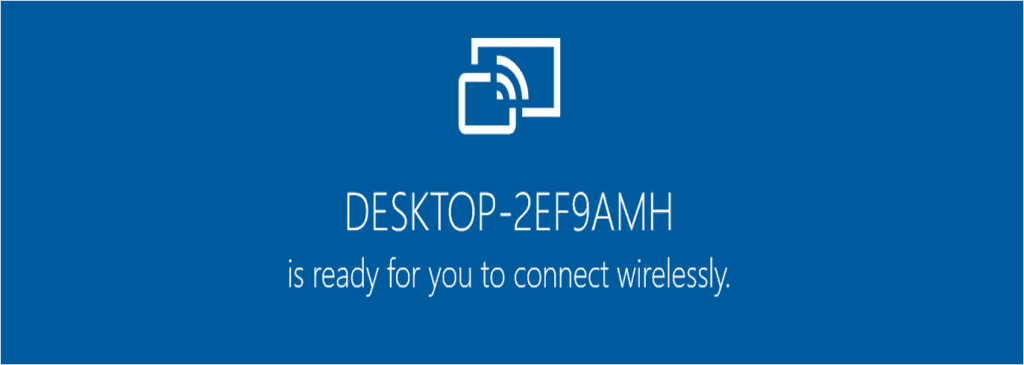
3. Launch the Wireless Display app from the Start menu (type "wireless display"). It will say your PC's name is ready for you to connect wirelessly. Pin it to the taskbar if you'll cast often.
Microsoft documents this exact flow on its screen mirroring and projecting support page.
Cast from the phone
1. Make sure Wi-Fi is on for both devices. Miracast is a direct wireless link (Wi-Fi Direct) — the phone and PC don't need to be on the same network, or on the internet at all.
2. On Android, pull down Quick Settings and tap Cast (stock Android and most brands) or Smart View (Samsung). If you don't see it, look under Settings → Connected devices → Connection preferences → Cast, or Settings → Display → Cast on some older phones.
3. Wait for your PC's name to appear and tap it, then confirm the prompt on the PC.
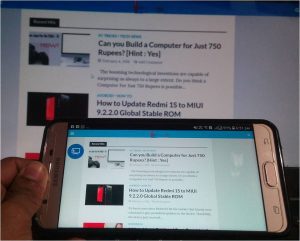
Your screen now appears on the PC. It's a pure mirror — the PC's mouse and keyboard won't control the phone — which makes this the best free option for movies, lectures, and presentations, and useless for actually operating the phone from the desk.
A note on Windows 10: the same trick works with the older Connect app from the Microsoft Store, but Windows 10 lost mainstream support on October 14, 2025. Unless you've bought Extended Security Updates, treat Windows 11 as the baseline; the receiver works identically there.


Method 2: Phone Link — built-in mirroring for select phones
If your phone is a Samsung Galaxy, HONOR, or a recent OnePlus, OPPO, or Realme model, Windows' own Phone Link app can show your phone's screen in a window and drive it with the mouse and keyboard — no Miracast involved. The feature depends on the Link to Windows service being built into the phone, so Microsoft keeps a supported devices list; Pixels, Xiaomis, and most Motorolas don't qualify. If that's you, skip to scrcpy below.
1. Open Phone Link on Windows 11 (it's pre-installed) and sign in with your Microsoft account.
2. Pair the phone by scanning the QR code the app shows — that opens or installs Link to Windows on the phone.
3. Back on the PC, select your phone and start the phone screen (cast) option. After a small first-time setup, your phone's screen streams into a window you can click and type in.
Latency is fine for taps and scrolling. Video playback can stutter, so keep movies on the built-in method above.
Method 3: scrcpy — free, open source, and it lets you control the phone
scrcpy is the tool I use daily. It's a free, open-source utility from Genymobile (the company behind the Genymotion Android emulator) that mirrors and controls Android over USB or Wi-Fi, forwards the phone's audio to the PC, and needs no account, no watermark, and no root. If you're comfortable clicking a button once in your phone's settings, this is the one to beat.
1. On the phone, enable Developer options: Settings → About phone → tap Build number seven times (on Samsung it's under About phone → Software information). Then turn on USB debugging inside Developer options.
2. Download the Windows build from the official scrcpy project on GitHub and unzip it anywhere — it ships with adb, the only dependency.
3. Connect the phone by USB, accept the "Allow USB debugging?" prompt on the phone, and double-click scrcpy.exe. A window opens with your phone in it, and the PC's mouse and keyboard now control it.
To cut the cable, run `scrcpy –tcpip` once while the USB cable is connected — it switches the link to Wi-Fi, and you can unplug. Recent releases also forward audio, can mirror a secondary virtual display on Android 10 and newer, and record with `scrcpy –record file.mp4`.
The trade-offs: setup touches developer settings, and there's no polished interface — it's a plain window driven by command-line options.
Method 4: Vysor — the easy, polished controller
Vysor does the same job as scrcpy — mirror and control over USB, with wireless on the paid tier — but wraps it in a friendlier interface that feels less like a developer tool.
1. Install the Vysor desktop app on Windows.
2. Install Vysor on your Android phone from Google Play.
3. Enable USB debugging (same steps as the scrcpy section above), plug in the cable, open Vysor on both ends, and click View.
The free tier covers basic mirroring and control. Vysor Pro — $2.50/month, $10/year, or a $40 lifetime license — adds wireless mode, drag-and-drop file transfer, and higher-quality video.

Method 5: ApowerMirror — recording, wireless, and iPhone support
ApowerMirror casts over USB or a shared Wi-Fi network, lets you control Android with the PC's mouse and keyboard, records the mirrored screen, and — uniquely among these five — also mirrors iPhones, on both Windows and macOS.
1. Install ApowerMirror on your phone from Google Play.
2. Download the desktop app from ApowerSoft and install it on the PC.
3. For USB control, enable USB debugging (steps in the scrcpy section) and connect the cable. For wireless, put both devices on the same Wi-Fi and connect using the code shown in the phone app.
The free tier works but adds a watermark and feature limits, so check the current pricing before committing if you'll use it regularly.

Two older options, if you already use them
Mobizen built its name on mirroring, and the RSUPPORT app on Google Play is still live — though its focus has shifted toward Mobizen Screen Recorder, with the separate Mobizen Mirroring app handling the PC link over Wi-Fi or even mobile data. It works, but there's little reason to pick it over the options above in 2026.
TeamViewer stays free for personal use: install TeamViewer Host on the phone, then sign in at the TeamViewer web console and connect. It's built for remote IT support rather than casting — heavier, with modest image quality — but it's the one tool here that works when the phone is miles away from the PC.
Troubleshooting: the four problems I see most
- The PC doesn't appear in the phone's Cast list. The Wireless Display app isn't running, or the PC's Wi-Fi adapter doesn't support Miracast. Launch the app first, then re-scan on the phone.
- The cast connects, then drops or stutters. Turn off VPNs on both devices and check your router for AP or client isolation — it blocks device-to-device traffic. Our Android Wi-Fi fixes guide covers the router-side causes in detail.
- There's no sound on the PC. The built-in Miracast receiver mirrors video; depending on the phone, audio can stay on the phone. scrcpy forwards audio reliably.
- Everything is laggy. Wi-Fi casting is inherently lossy. For anything interactive, use USB with scrcpy, Vysor, or ApowerMirror — the latency drop is dramatic.
FAQ
Can I cast my Android screen to a Windows PC without installing anything on the phone?
Yes — that's exactly what the built-in route gives you. Install the Wireless Display feature on the PC (Settings → System → Optional features), then tap Cast or Smart View in the phone's Quick Settings and pick the PC. It uses Miracast, so no app, account, or cable is needed. The catch: it's a view-only mirror, so you can't control the phone from the PC.
Why can't my phone find my PC when I try to cast?
Usually the Wireless Display app isn't open on the PC — launch it first so the PC starts advertising itself. Then check that Wi-Fi is on for both devices, the PC's adapter supports Miracast, and neither device is running a VPN. Router-side AP isolation also hides devices from each other, so disable it if casting still fails.
What's the best free way to control my Android phone from the PC?
scrcpy. It's open source, has no watermark or account, works over USB or Wi-Fi, forwards audio, and its latency is good enough for typing and even gaming. The only cost is one-time setup: enabling Developer options and USB debugging on the phone. Vysor's free tier is a friendlier alternative if you'd rather not touch a command-line switch.
Does casting work without a Wi-Fi network?
Yes, two ways. Miracast — the built-in method — creates its own direct wireless link between phone and PC, so both need their Wi-Fi radios switched on but no router or internet. And USB is network-free entirely: scrcpy, Vysor, and ApowerMirror all mirror and control over a plain charging cable, which is also the lowest-latency option.
Is it safe to give a mirroring app USB debugging access?
With reputable tools — scrcpy, Vysor, ApowerMirror, Phone Link — yes; USB debugging is the standard channel they all use. Keep it switched off when you're not mirroring, only accept the phone's debugging prompt for your own PC, and download desktop apps from official sites only. That removes virtually all of the risk.
Can I cast an iPhone to Windows the same way?
Not with Miracast — Apple doesn't support it, so the built-in method is Android-only. For an iPhone you need a third-party receiver such as ApowerMirror, which mirrors iOS over Wi-Fi once you grant screen-recording permission. AirPlay-based options also exist, but they still need receiver software running on the PC.
Related reading
- Casting an Android screen to Windows 7 without any app — for older machines still in service
- How to screen mirror from an iPhone to a Samsung TV
- Android Wi-Fi says connected, no internet: 12 real fixes
- How to screen record on Mac with audio
—
I've been casting my Pixel to a Windows 11 laptop with scrcpy almost daily for the past couple of years — if a menu name above doesn't match your phone, drop your model in the comments and I'll point you to the right toggle.