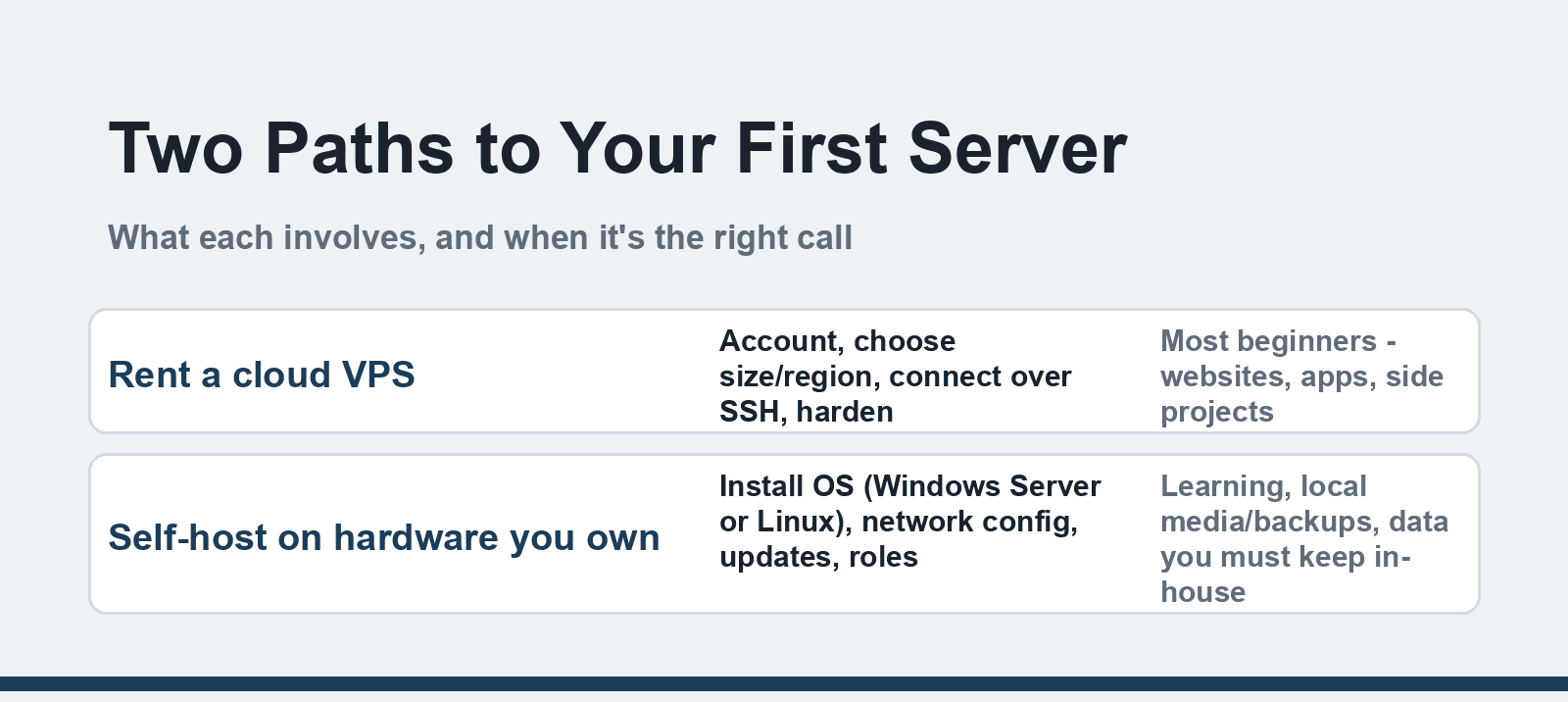
Quick Answer: For most beginners in 2026, "setting up a server" means renting a cloud VPS: create an account, pick a size and region, connect over SSH, apply updates, and lock down the firewall — done in an hour. Installing Windows Server on your own hardware still works too; both paths are below.
Setting up your first server used to mean buying a noisy box and installing an operating system from a DVD. In 2026 the default path is to rent a slice of someone else's data center — but self-hosting on real hardware is still alive for learning, home labs, and data that must stay in-house. This guide covers the decision, then both setups with the security steps that actually matter.
First decision: rent or own?
| Cloud VPS | Own hardware | |
|---|---|---|
| Upfront cost | $0 — hourly/monthly pricing | Hardware + UPS + networking |
| Time to running | ~1 hour | Half a day to a weekend |
| Maintenance | Provider handles power, cooling, hardware | You handle everything |
| Backups & snapshots | Usually one click | Your own scripting or software |
| Where data lives | Provider's data center | Your premises |
| Best for | Websites, apps, side projects | Learning, media servers, local-only data |
For a website, an app backend, or a side project, rent: a small VPS (1–2 vCPUs, 2–4 GB RAM) runs WordPress, a Node or Python app, or a database comfortably, and you can destroy and recreate it freely — the fastest way to learn is on a machine that costs $5–10/month to break.
Path A: setting up a cloud VPS
1. Create the instance. Pick a provider, choose a region near your users, and select an OS — Ubuntu LTS is the friendliest starting point, Debian is leaner, and every provider supports both. Choose SSH-key authentication when asked, not a password.
2. Connect over SSH. From a terminal: `ssh root@your-server-ip` (or your username). You're now on the server — everything else happens in this window.
3. Update everything. First command, always: `sudo apt update && sudo apt upgrade` (Ubuntu/Debian). This installs the security patches released since the image was built — the vulnerability window between image build and your login is real.
4. Create a user and lock down root. Add a non-root user with sudo rights, then disable direct root SSH login and password authentication entirely. With key-only login, brute-force attempts become irrelevant — you'll see them in the logs, and they'll all fail.
5. Configure the firewall. Allow only what the server actually serves — typically ports 22 (SSH), 80 (HTTP), and 443 (HTTPS). On Ubuntu, `ufw` makes this three commands. A default-deny firewall is the single biggest security win on any new server.
6. Add the rest. Install your application stack, set up automatic security updates, and turn on the provider's snapshot/backup schedule before you have anything worth losing.
Path B: setting up Windows Server on your own machine
If you're installing on hardware you own (or a provider's dedicated box), the Windows Server flow looks like this:
1. Boot from the install media (USB created with Microsoft's Media Creation-style tool) and work through the basics: language, keyboard, time zone, license acceptance, then choose the custom installation type and the target disk — double-check the disk, because the installer will happily erase another drive.
2. Let installation run. Windows copies files, installs features and updates, and reboots — a few minutes to a quarter hour depending on hardware.
3. Set the administrator password when prompted, and make it a real one — this account owns the machine. Configure networking next: static IP for a server that others must find reliably (DHCP reservations work on home networks), plus the correct gateway and DNS.
4. Finish updates, then add roles. Check Windows Update for critical fixes before anything else. Then Server Manager → Add Roles and Features is where the server becomes useful: file services, web server (IIS), DHCP, DNS — add only the roles you need, since every role is also an attack surface.
5. Harden the basics. Enable Windows Firewall with only the needed inbound rules, enable Remote Desktop only if you'll use it (and restrict which accounts can connect), and rename the Administrator account as a small speed bump.
One version note: Windows Server 2025 is the current release — the flow above matches it and Server 2022 equally; older guides describing "Windows Server 2016" installers differ only in cosmetic screens.
The security musts (either path)
- Key-based SSH / RDP behind VPN. Never expose remote desktop directly to the internet; if you need RDP remotely, tunnel through a VPN.
- Automatic security updates on. Unattended-upgrades (Linux) or a maintenance window with updates enforced (Windows).
- Least privilege. One non-root/admin account per person, sudo/admin only when needed.
- Backups before you deserve them. Automate from day one; a backup has no value until you've restored from it, so do one test restore.
- Monitoring once it matters. When the server runs something real, watch it — our OpManager network monitoring overview shows what that looks like in practice.
If the server will face the internet with customer data, read our cloud server security guide next — the threat model changes once other people's data is on the machine.
Still not working?
- Can't SSH/RDP in after setup — check the provider firewall and the OS firewall (both exist on cloud VPSes); the OS layer is the one people forget.
- "Connection refused" on your web app — the service isn't listening on the public interface, or the firewall allows the port but the app binds to 127.0.0.1. `ss -tlnp` (Linux) tells you what's listening.
- Windows Server stuck on "Preparing Windows" after reboot — wait; first-boot provisioning runs updates and can take 20+ minutes on slow disks.
- Forgot the administrator password — cloud providers offer a password-reset/rescue mode; for physical machines, offline reset tools or reinstalling is the realistic path (this is why the password matters).
- Server feels slow immediately — check RAM size vs your stack's appetite; 1 GB VPSes run out of memory the moment a database and an app share them. Resize before debugging.
FAQ
How much does it cost to set up a server in 2026?
A starter cloud VPS runs $5–15/month; a solidly specced one (4 GB RAM, 2 vCPU, 80 GB SSD) lands around $20–40/month. Self-hosting starts around $300–500 for a used mini-PC that sips power, plus your time. The hidden cost either way is maintenance hours — the cloud outsources most of them.
Do I need Windows Server, or is Linux enough?
Linux (Ubuntu, Debian) runs the majority of internet infrastructure and is what most tutorials and hosting stacks assume. Choose Windows Server when your applications require it — Active Directory domains, .NET Framework apps, or Windows-only line-of-business software. For everything else, Linux is cheaper to run and to learn.
Can I host a website from my home computer instead?
Technically yes, practically it means exposing your home IP, managing dynamic DNS, keeping your home connection always-on, and hardening a consumer router. It's a fine learning exercise and a poor production choice — a VPS gives you a data center's power, bandwidth, and uptime for pocket change.
How long does a first server setup take?
A VPS with the hardening steps above: about an hour, most of it reading what each command does — which is time well spent. A physical Windows Server install with roles and updates: half a day. Neither includes application-specific setup, which varies wildly.
Related reading
- What is cloud server security? A complete guide
- OpManager Plus for network and server monitoring
- What happens to enterprise hardware after data center upgrades
Set it up small, automate the backups before the first real user, and break things on a machine you can rebuild in one command — that's how the confidence actually gets built.