

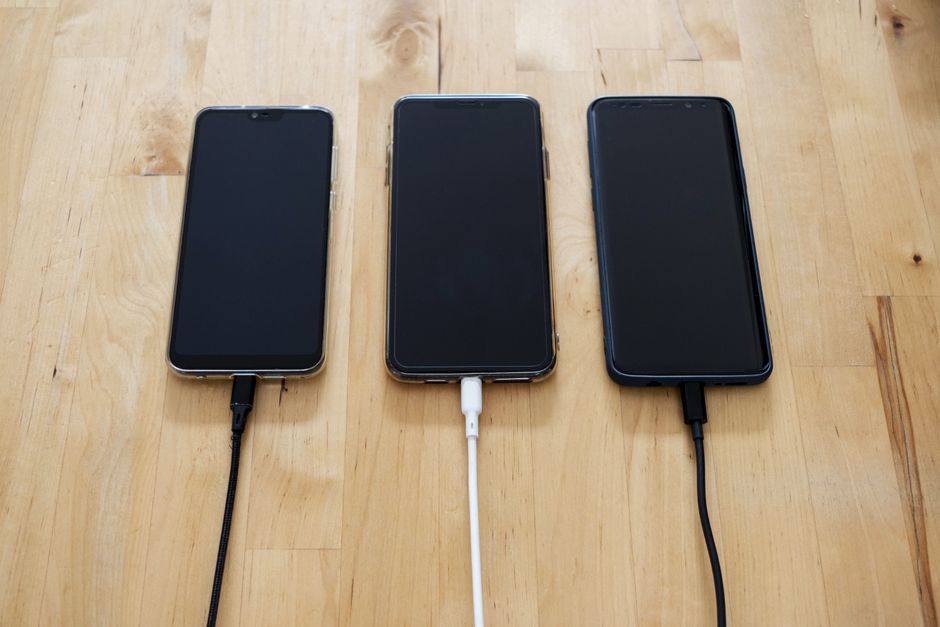
You plug in your iPhone and… nothing. No chime, no charging icon, or the percentage crawls or freezes. Before you assume the phone is dying, know this: most “iPhone not charging” cases come down to five causes — a dead power source, lint packed into the port, a liquid-detection alert, a deliberate charging pause (at 80% or when the phone is hot), or a worn cable — and every one of them has a specific tell. Match your symptom below and you’ll know both the cause and the fix within minutes.
Quick answer: try a different wall outlet, cable and power adapter first. If it charges only at an angle or the plug feels loose, lint is compacted in the port — clean it gently with a wooden toothpick, never metal. If you see a “liquid detected” alert, follow the drying protocol below (and skip the rice). Stuck at exactly 80%? That’s Optimized Battery Charging working as designed, not a fault. Still nothing after a force restart and a Battery Health check? It’s a repair.
Symptom → real cause
| What you see | The actual cause | Jump to |
|---|---|---|
| No charging icon at all | Power source, cable, adapter or a dirty port | First checks |
| Charges only at an angle; plug feels loose | Lint compacted in the port | Lint |
| “Liquid detected in connector” alert | Moisture — real or phantom | Liquid alert |
| Charges to exactly 80%, then stops | Optimized Battery Charging / Charge Limit — not a fault | 80% pause |
| Charging pauses when the phone is warm | Thermal hold protecting the battery | Heat pause |
| “Accessory not supported” pop-up | Non-MFi or damaged cable, or dirty port | Accessory alert |
| Nothing above matches, restarted already | Software or worn battery | Last checks |
The first checks (sixty seconds)
Work through these in order — they clear the boring causes so you can focus on the real one:
- Change the wall outlet. Switched-off power strips and half-faulty sockets are blamed on the phone constantly.
- Swap the cable, then the adapter. Cables fail far more often than phones — frays near the plug and sharp bends kill them. If you only own one cable, test whether the iPhone charges from a different adapter or a computer’s USB port.
- Inspect both ends of the cable. A grey or green crust inside the Lightning or USB-C plug end means corroded contacts — that cable is done.
- Look into the phone’s port with a flashlight. Anything fuzzy or packed at the back is your answer (next section).
- Try wireless charging. If the phone charges on a MagSafe or Qi pad but not by cable, the fault is in the port or cable path, not the battery.
For picking a replacement charger that won’t cause repeat problems, our look at a compact iPhone charger and power-bank combo covers what matters in a safe adapter.
Lint: the most common “broken” port that isn’t broken
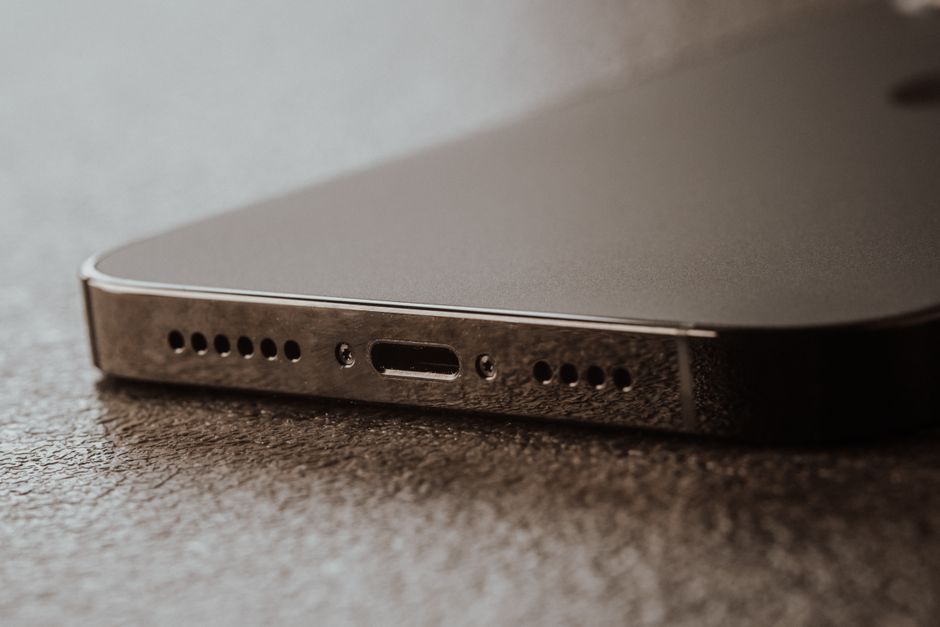
Pocket lint compacts at the back of the charging port a few millimetres at a time until the plug can’t seat fully. The tell-tale signs: the cable only charges at a certain angle, the plug no longer “clicks” in firmly, or charging drops the moment you set the phone down.
- Power the phone off.
- Shine a flashlight into the port — you’re looking for a pale, felt-like layer at the bottom.
- Gently scrape it out with a wooden or plastic toothpick, working from the sides. Use almost no force: the contact pins live on the surfaces, and bending them is the one way to turn this into a real repair.
- Never use metal (paperclips, pins), compressed air (it drives lint deeper and can blast condensation onto the contacts), or a needle.
- Test. A properly cleaned port grips the plug with a confident click again.
The “liquid detected” alert: what to do (and not do)
iPhone 15 and later models, and Lightning models before them, refuse to charge by cable when moisture is detected in the connector — protecting the contacts from corrosion. Per Apple’s liquid-detection guidance, the protocol is:
- Unplug the cable immediately.
- Hold the phone with the port facing down and tap it gently against your palm to shake out drops.
- Leave it to air-dry, port down, for at least 30 minutes — up to a day is normal.
- If the alert repeats after a few hours and the phone must charge, you can dismiss it only if the port is visibly dry — or charge wirelessly meanwhile.
What not to do: no rice (it does nothing useful and its dust can lodge in the port), no hairdryer or radiator (heat damages the battery), no compressed air, and no sticking objects in to “help it dry”. If the alert appears repeatedly with a bone-dry phone, it’s usually lint fooling the sensor — clean the port as above.
Stuck at 80%? That’s a feature, not a fault
An iPhone that charges to exactly 80% and stops is almost always running Optimized Battery Charging, which holds the battery there through the night and tops up to 100% just before your usual wake-up time — Apple’s charging-optimisation page explains the mechanism. Newer iPhones add a Charge Limit setting that deliberately caps the battery at 80%, 85% or 90% to slow battery ageing.
- Charge right now: touch and hold the charging notification and choose Charge Now (or replug), or toggle Optimized Battery Charging off in Settings > Battery > Charging.
- Charge past 80% forever: check Settings > Battery > Charging for a Charge Limit set to 80% and raise it.
- But consider leaving it: these pauses exist because lithium batteries age fastest pinned at 100%. If your phone “won’t charge past 80%” only overnight, it’s doing exactly what it was told.
Charging pauses when the phone is warm
Charging slows or stops entirely when the battery is hot — a protective hold, not a malfunction. It happens when charging under a blanket, in direct sun, in a car mount on the windshield, or while the phone is navigating and charging at once. Take the case off, move the phone somewhere cool, and charging resumes on its own once it cools. If your phone runs hot while plugged in on the regular, our guide to why phones get hot while charging separates the normal warmth from the patterns worth fixing.
“This accessory doesn’t work with this iPhone”
This alert means one of three things: the cable or adapter isn’t MFi-certified (Apple’s accessory licensing), the cable is physically damaged, or the phone’s port is too dirty or corroded to verify the accessory.
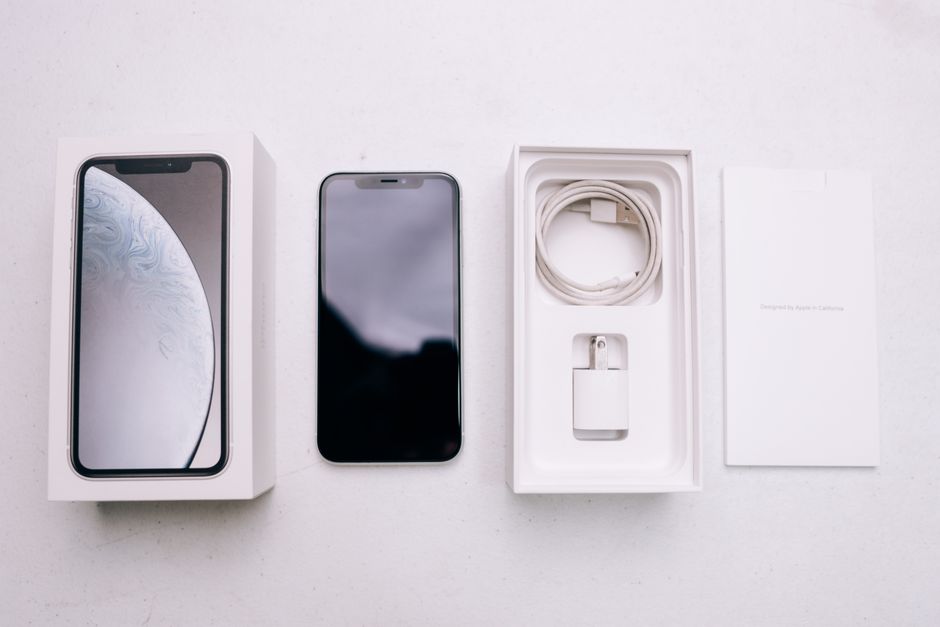
Try the cable with another iPhone if you can — if it fails there too, replace the cable with a certified one. If every accessory triggers the alert on your phone alone, clean the port; if it persists after cleaning, the port’s verification chip has failed and it’s a service job.
The last checks: force restart and Battery Health
Software can genuinely block charging — a crashed charge-management process, usually after an iOS update or a full overnight freeze.
- Force restart: press volume-up, press volume-down, then hold the side button until the Apple logo appears (keep holding through the power-off slider). On models with a Home button, hold Home + side button.
- Check Battery Health: Settings > Battery > Battery Health & Charging. Below about 80% maximum capacity — or with a “Service” message — the battery can behave erratically: refusing to charge from flat, jumping percentages, or dying at 20%. That’s a battery replacement, not a charging fix. Our guide to iPhone battery draining fast after an update covers the software side of battery trouble.
If a known-good cable, a cleaned port, a force restart and a healthy Battery Health reading all check out and the phone still refuses to charge by any means, the charge port or its flex cable has failed — Apple’s won’t-charge checklist is the point where it, too, sends you to service. Book the repair; at that stage no setting will help.
FAQ
Why does my iPhone say it’s charging but the percentage doesn’t rise?
The classic causes: a weak USB port or low-power adapter that only matches idle drain, a worn cable that negotiates power poorly, or a thermal hold because the phone is warm. Swap the adapter and move the phone somewhere cool before suspecting the battery.
Does putting a wet iPhone in rice work?
No. Apple’s own guidance is air-drying with the port facing down — rice adds dust and starch to the port without speeding evaporation. Thirty minutes to a day of patience does more than any bag of rice.
Is fast charging bad for the battery?
No — fast charging is safe on every iPhone that supports it. Heat is what ages batteries, which is why the phone tapers the speed after ~80% and pauses entirely when warm. Using an official or certified fast charger won’t harm it.
Can I use my iPhone while it charges?
Yes. Gaming or navigating while charging generates extra heat, which slows charging — but it doesn’t damage the phone. If the percentage barely moves while you use it heavily, that’s the power budget, not a fault.
How do I know if my charging port is broken rather than dirty?
After a proper toothpick cleaning, test wireless charging and several cables. If wireless works, cables are fine, and the port still grips poorly or fails on every cable, the port hardware has failed and needs service.