Every Exchange mailbox you've ever backed up lives in an EDB file — Exchange Server's database format — and the day you need that data outside Exchange (a server migration, a decommission, a legal hold, or just a portable archive), you need it in PST, the format Outlook can open. I've been through several Exchange migrations, and the export step is where projects stall if you don't know the routes.
This guide covers both ways to do it in 2026: the free built-in export that ships with Exchange Server, and a dedicated converter tool for when you need more control or don't have admin access to a working server.
Quick answer: If your Exchange server is alive and you're an admin, export mailboxes to PST free with the Exchange Admin Center (or the New-MailboxExportRequest PowerShell command) — it needs the Mailbox Import Export role and a network share. If the server is offline, the EDB is orphaned, or you need filtering and batch conversion, a converter tool like Shoviv's EDB to PST Converter opens the EDB directly and exports to PST without Exchange.
Why convert EDB to PST at all?
The EDB format belongs to Exchange; PST belongs to you. Converting matters when you want to:
- Back up Exchange data in a portable file any Outlook version can open, without needing the server.
- Survive disasters — if the server dies, EDB backups are only readable once Exchange is back; PSTs open anywhere.
- Migrate to a new server, to Microsoft 365, or to another email client entirely.
- Leave Exchange behind — once you've stopped paying for it, PST is the format that keeps your history accessible.
Worth knowing before you plan: Exchange Server 2016 is already past end of support, and 2019 exits in October 2025, so many organizations are moving to Exchange Server Subscription Edition or Microsoft 365 — both transitions are classic reasons to export mailboxes to PST first.
Method 1: Export EDB to PST with Exchange's built-in tools (free)
If the server is running and you have admin rights, Exchange Server (on-premises) can export mailboxes itself. The export runs as a mailbox export request, which requires the Mailbox Import Export role — it's not granted to admins by default.
1. Sign in to the Exchange Admin Center with admin credentials.
2. Go to Permissions → Admin Roles, open the Recipient Management role group, and add the Mailbox Import Export role to it.
3. Go to Recipients → Mailboxes, select the mailbox, and choose Export to PST from the more-options (…) menu.
4. Enter the destination path — this must be a UNC network share (like `\\SERVER\Exports\mailbox.pst`), not a local drive letter.
5. Pick whether to export only the mailbox contents or the archive too, choose a notification email, and save.
The request is queued and processed by Exchange; large mailboxes take a while. Power users typically skip the console and run the PowerShell equivalent: `New-MailboxExportRequest -Mailbox user -FilePath \\SERVER\Exports\user.pst`.
Two honest limitations: this only works while Exchange is up and healthy (an orphaned EDB can't be opened this way), and Exchange Online / Microsoft 365 doesn't offer this path at all — cloud mailboxes export via Content Search (eDiscovery) or third-party tools instead. For a comparison of approaches, this LinkedIn roundup of EDB to PST converters covers the tool landscape.
Method 2: Shoviv EDB to PST Converter (works without a live server)
When Exchange isn't available — server decommissioned, EDB pulled from a backup, or you simply want filters, batching, and no role plumbing — a converter opens the EDB file directly. The Shoviv EDB to PST Converter is the tool we've recommended here: it handles multiple EDB files at once, has no practical size limit, and lets you filter what gets exported before you commit.
The workflow, with screenshots:
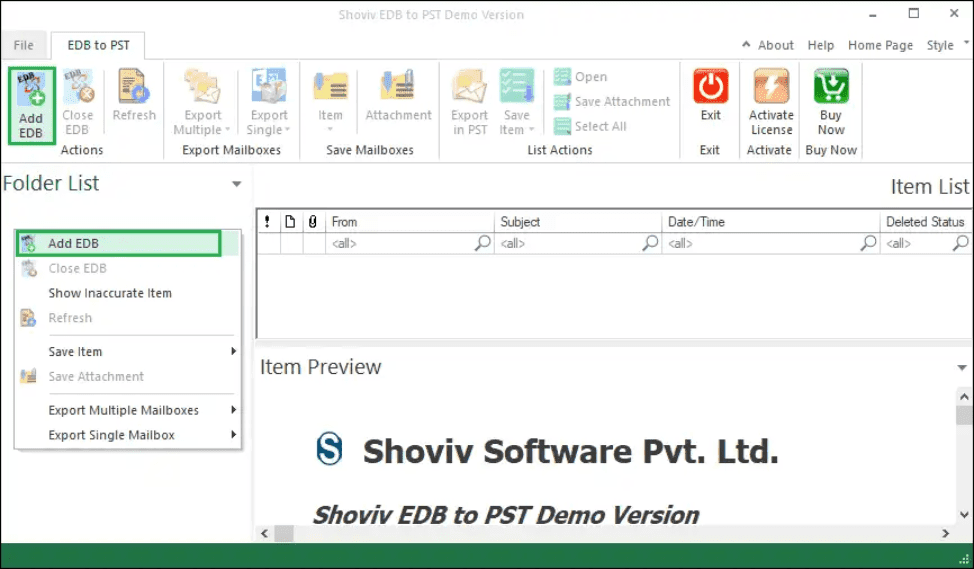
1. Install and open the tool, click Add, and load the EDB file.

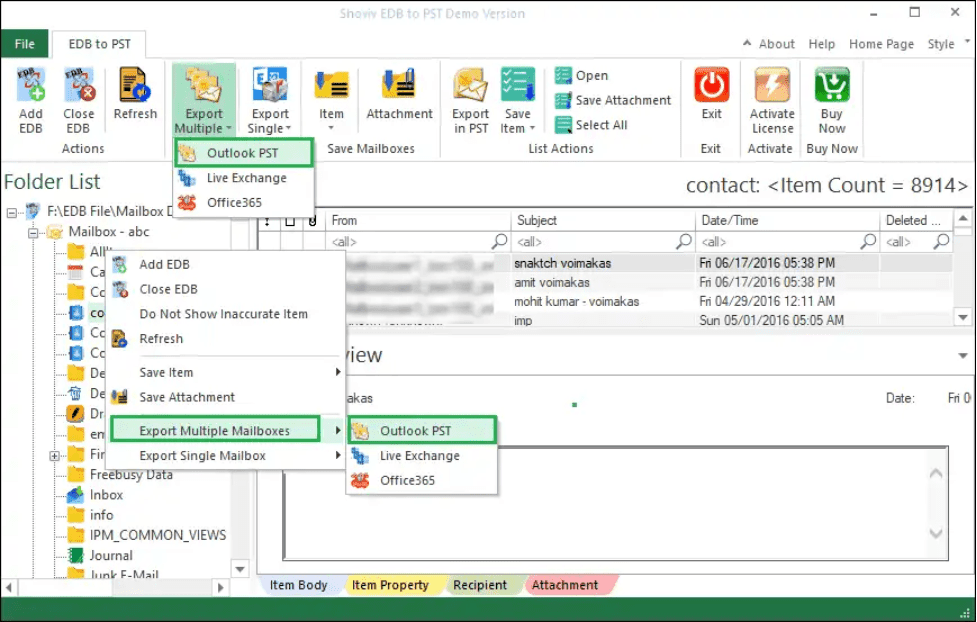
2. With the EDB loaded, select Outlook PST as the target format from the ribbon.
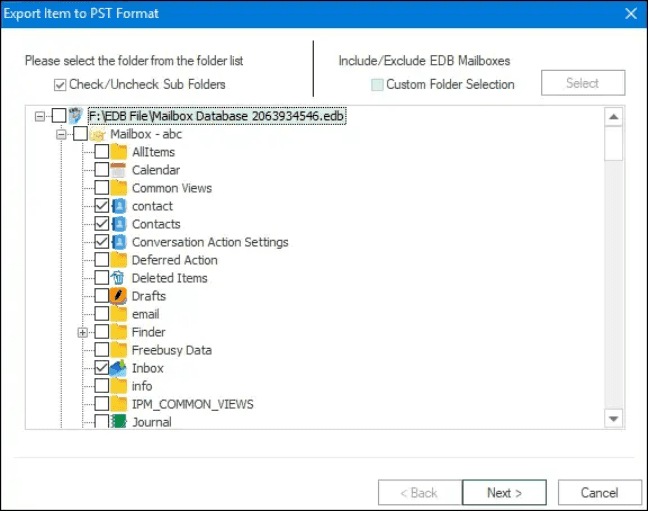
3. Choose which folders to include (check or uncheck subfolders) and set the destination for the PST file.
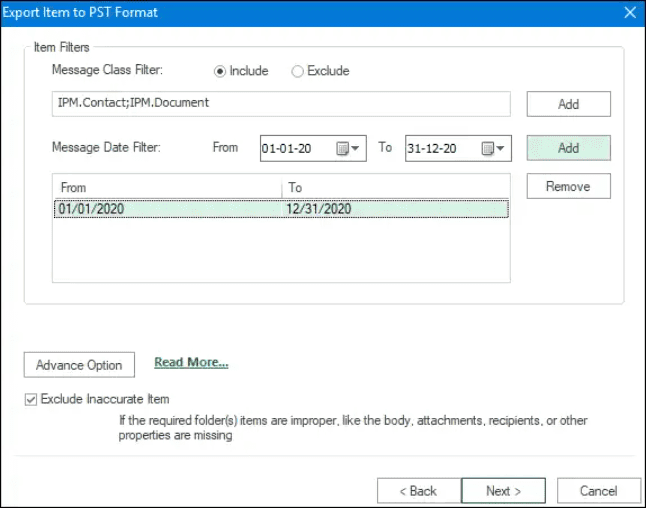
4. Apply message-class and date-range filters to exclude items you don't need.
5. Adjust advanced options if needed — folder mapping, email translation, thread item counts.
6. Start the export and wait for it to finish, then click Finish. The PST opens in any Outlook version.
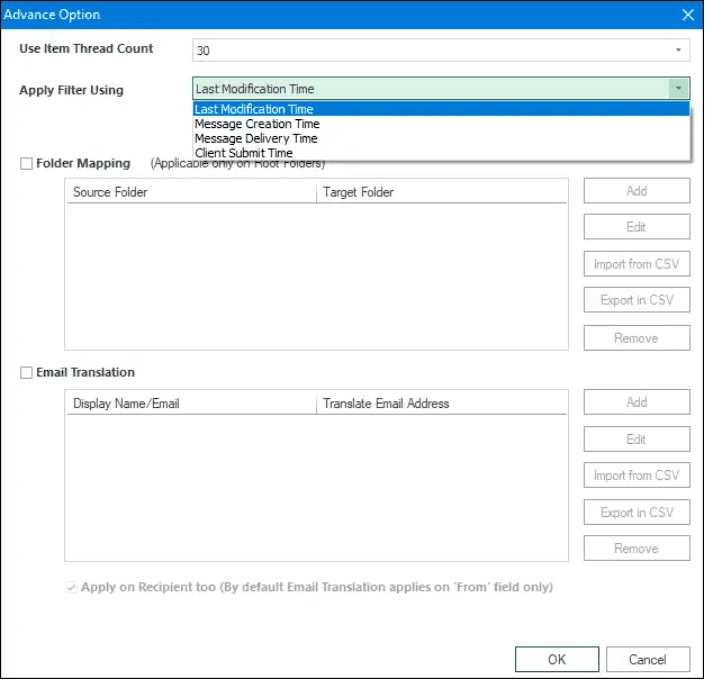
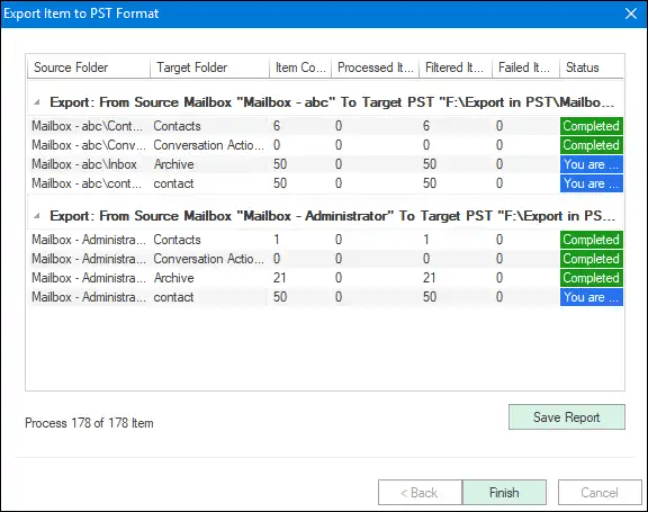
The free trial exports the first 50 items per folder, which is exactly enough to prove the tool reads your EDB before you pay — always run that test. If you want the manual routes in more depth, our own guides cover extracting EDB file data to PST and converting EDB to PST in Outlook 2019/2016.
Which method should you use?
| Situation | Best route |
|---|---|
| Live on-prem server, one or two mailboxes, admin rights | Exchange Admin Center / PowerShell (free) |
| Regular bulk exports with filters and scheduling | Converter tool |
| Server is offline, EDB orphaned on a backup disk | Converter tool (the only option) |
| Mailboxes live in Microsoft 365 | Content Search / eDiscovery, or a tool |
| Corrupted EDB | Converter with a recovery mode |
My rule of thumb after a few migrations: use the built-in export when Exchange is healthy and the job is small; reach for a converter the moment the EDB is disconnected, the job is big, or you need to be selective.
FAQ
What is an EDB file?
It's Exchange Server's mailbox database — the store holding every mailbox on a database, in Microsoft's proprietary format. EDB files live on the Exchange server (with matching log files), and they're only meant to be opened by Exchange itself. To read the mail outside a running server, you export it, typically to PST.
Can I convert EDB to PST for free?
Yes, if the Exchange server is running and you're an admin — the Admin Center export and the New-MailboxExportRequest PowerShell command cost nothing. What's not free: exporting from an orphaned or corrupted EDB, or from Exchange Online without eDiscovery permissions. Those need a converter tool (Shoviv's trial exports 50 items per folder to test with).
Can I export PST files from Exchange Online / Microsoft 365?
Not with the Admin Center export — that's an on-premises Exchange feature. For cloud mailboxes, admins use Content Search in the Microsoft Purview portal to export mailbox data, or a third-party tool. Individual users with desktop Outlook can also simply archive or drag mail into a local PST.
What's the difference between EDB and PST?
EDB is the server-side database: multi-tenant, proprietary, meant for Exchange's internals, unreadable without it. PST is a personal storage file: client-side, portable, openable in any desktop Outlook. Think of EDB as the bank vault and PST as your wallet — the converter is the transfer between them.
Is Shoviv's free trial enough to evaluate the tool?
For most cases, yes — 50 items per folder shows you whether the tool reads your EDB correctly, how folders map, and what the PST looks like in Outlook. That's the whole point of the trial: prove the match before paying. Test it on the most important folder, not a disposable one.
What if my EDB file is corrupted?
A corrupted database usually won't export cleanly through Exchange's own tools — they depend on the store being consistent. Converter tools with a recovery mode scan damaged EDBs and salvage what's readable into PST, which in a disaster scenario beats waiting for a full database repair. Keep in mind recovery can't invent what's physically missing, so restore from the newest healthy backup when one exists.
Related reading
—
I've sat on both sides of Exchange migrations — admin console and recovery seat — and the export step is always the one worth over-preparing. If your EDB won't cooperate, describe the symptom in the comments and I'll point you at the likely cause.