
- Quick Answer
- Why Bother With an External Copy?
- Method 1: Copy the Synced OneDrive Folder to the Drive (Best for Regular Backups)
- Method 2: Download From onedrive.com (Best for One-Off Copies)
- Method 3: Move the OneDrive Folder Onto the External Drive (Most Permanent)
- What About Automated Backup Tools?
- FAQ
- Does OneDrive back up to an external hard drive automatically?
- Why can't I just copy files — some show a cloud icon?
- Is downloading from onedrive.com enough for a full backup?
- Will moving my OneDrive folder to the external drive slow anything down?
- How often should I back up OneDrive to an external drive?
- Related Reading
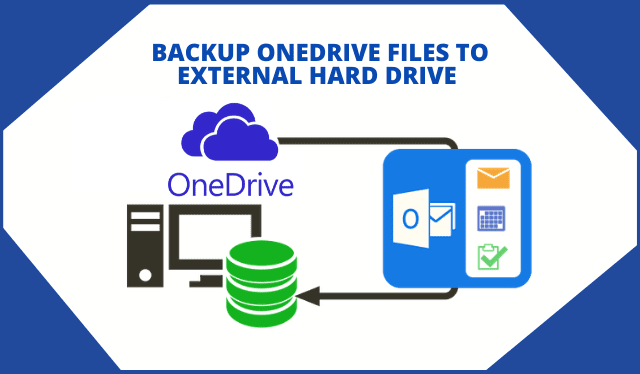
I keep years of work in OneDrive, and I still keep a copy on an external hard drive — because cloud sync is not a backup. If ransomware encrypts your files, OneDrive syncs the damage; if an overzealous cleanup deletes a folder, the deletion propagates everywhere. An external drive copy is the one version nobody can touch remotely. Here are the three ways I use, from easiest to most permanent.
Quick Answer
The fastest way to backup OneDrive files to an external hard drive: connect the drive, open the OneDrive folder on your PC, right-click important folders and choose "Always keep on this device," then copy them to the drive. For a one-off copy, sign in at onedrive.com, select your folders and download them as a zip. You can also move the OneDrive folder itself onto the external drive.
Why Bother With an External Copy?
OneDrive is reliable, but it's sync, not backup. A local copy protects you from:
- Accidental or malicious deletion — OneDrive's recycle bin buys you 30 days (93 for work/school accounts), not forever.
- Ransomware — encrypted files sync to the cloud like any other change.
- Account problems — expired subscriptions, locked accounts or a closed Microsoft account can cut off access when you least expect it.
- No internet — your drive works in a blackout; OneDrive's Files On-Demand placeholders don't.
- Storage pressure — archiving old projects to a drive frees your 5 GB (free tier) or 1 TB (Microsoft 365) quota.
Method 1: Copy the Synced OneDrive Folder to the Drive (Best for Regular Backups)
This is the method I use monthly. It works because the OneDrive app on your PC already keeps a real, local copy of your files — you just have to make sure the files aren't cloud-only placeholders, then copy them.
1. Connect your external hard drive and confirm it appears in File Explorer.
2. Open your OneDrive folder (the one with the cloud icon in the sidebar).
3. Right-click each folder you want, and choose OneDrive → Always keep on this device. Wait until the icons change to green ticks — that means real files, not placeholders.
4. Select the folders, copy them (Ctrl+C), then paste them into the external drive (Ctrl+V).
5. When the copy finishes, safely eject the drive.
Subsequent backups are fast: Windows only re-copies files that changed, if you use a tool like Robocopy or FreeFileSync. My robocopy one-liner for this:
“`bat
robocopy "%USERPROFILE%\OneDrive" "E:\OneDriveBackup" /MIR /XJ
“`
Run it monthly and your external backup is always current. (Add `/MIR` with care — it mirrors deletions, which is exactly what you want for a backup of the current state, but double-check the drive letter first.)
Method 2: Download From onedrive.com (Best for One-Off Copies)
If you're at a PC without the OneDrive app — or you want specific folders only — the web interface works:
1. Sign in at onedrive.com in any browser.
2. Tick the files or folders you want (the checkboxes appear on hover).
3. Click Download in the toolbar.
4. Multiple files and folders arrive as a single zip — extract it, then copy the contents to your external drive.
Limits to know: folders above roughly 20 GB or with tens of thousands of files can fail or stall in the browser, and the zip step means you need free space on the PC first. For a handful of folders it's perfect; for your entire library, use Method 1.
Method 3: Move the OneDrive Folder Onto the External Drive (Most Permanent)
You can make the external drive the home of OneDrive itself, so every synced file lands there automatically:
1. Open OneDrive Settings → Sync and backup → Advanced settings (the exact wording varies slightly by app version).
2. Under the location setting, choose Move, then pick a folder on your external drive.
3. OneDrive migrates your files to the new location — keep the drive connected until it finishes.
The catch, and it's a big one: the drive must be connected whenever you use those files, and an always-connected spinning drive adds failure modes of its own. I only recommend this for laptops used at one desk, or when your PC's internal disk is too small for your library. Everyone else should use Method 1.
What About Automated Backup Tools?
Third-party OneDrive backup tools exist, and they add scheduling, multi-account exports and mailbox-plus-drive bundles. After testing this route, my honest take: they're unnecessary for personal use. The built-in methods above cover everything a home user needs, cost nothing, and don't require granting a vendor admin access to your Microsoft account. Businesses running many tenant accounts should look at Microsoft's native export and retention tooling before third-party software anyway.
FAQ
Does OneDrive back up to an external hard drive automatically?
Not by itself. OneDrive syncs between the cloud and your PC's OneDrive folder only. To automate the drive copy, point a file-copy tool — Robocopy, FreeFileSync or Windows' own Backup and Restore — at the local OneDrive folder on a schedule. Once configured, plugging in the drive (or leaving it connected) keeps the backup current without manual copying.
Why can't I just copy files — some show a cloud icon?
Cloud-icon files are OneDrive's Files On-Demand placeholders: they look like files but contain no data until opened. Copying placeholders to a drive produces empty or broken files. Right-click the folder, choose Always keep on this device, and wait for green tick icons before copying. That single step is the difference between a working backup and a false one.
Is downloading from onedrive.com enough for a full backup?
For occasional use, yes — but watch the limits. Web downloads of large libraries (over roughly 20 GB, or many thousands of files) often stall, and you get a zip you must extract first. The downloaded copy also doesn't preserve sharing permissions. For a complete, repeatable backup of a big account, use the synced-folder method instead.
Will moving my OneDrive folder to the external drive slow anything down?
It can. Every file operation now runs over the drive's connection — USB 2.0 feels painful, USB 3.0 or later is fine — and a disconnected drive makes OneDrive pause with errors. Sync speed to the cloud is unchanged. If the drive is a fast SSD over USB 3, most people notice no difference; with an old spinning drive, expect slower file access.
How often should I back up OneDrive to an external drive?
For active work files, monthly is the practical sweet spot I've settled on, with an extra copy before big events — OS reinstalls, device switches, major projects. The 3-2-1 rule (three copies, two media types, one offsite) suggests more, but OneDrive itself already counts as an offsite copy; your external drive closes the loop. The key is doing it regularly enough that a restore never loses more than a month of work.
Related Reading
- 3 Ways to Backup Any Folder to OneDrive
- Which Is The Best 1TB External Hard Disk?
- Tips to Write to Microsoft NTFS Drives on Your Mac
- Advanced Security Features of Cloud Data Backup
—
I've run the monthly robocopy routine on my own OneDrive library for years — it has survived two dead laptops and one ransomware scare. Questions about your setup? Ask in the comments.