



A Redmi fingerprint sensor that suddenly stops working usually fails in one of two ways: it rejects every scan ("Couldn't recognize fingerprint") or it refuses to even enroll a new print ("Couldn't add fingerprint. Try again"). Nine times out of ten it's a software problem you can fix in ten minutes without losing data — and this guide works from the safest fixes down to the hardware checks, for phones running HyperOS as well as the older MIUI-era models like the Redmi Note 3, Note 4 and Mi 6 this guide originally covered.
- Before You Start: Two Ground Rules
- Quick Checks to Try First (5 Minutes)
- Software Fixes, Safest First
- Fix 1: Rule out a rogue app with Safe Mode
- Fix 2: Update to the latest HyperOS / MIUI build
- Fix 3: Clear the biometrics cache (settings-level)
- Fix 4: Factory reset (last software resort)
- For Older Redmi Models: Engineering Mode Check
- Hardware: When It's the Sensor Itself
- While You Wait: Secure Alternatives
- Frequently Asked Questions
Quick Answer: Start with the free fixes — clean the sensor, re-enroll your fingerprint, boot into Safe Mode to rule out a misbehaving app, then update to the latest HyperOS/MIUI build. Factory reset only after those fail. If the sensor still won't respond after a reset, it's almost certainly hardware — use a strong PIN and visit an authorised Xiaomi service centre.

Before You Start: Two Ground Rules
1. Back up first. Most fixes below are harmless, but a factory reset is on the menu — copy your photos and files to a PC or cloud drive before you need them. If your phone is also running slowly and filling up, our Android slowdown and freezing fixes cover safe cleanup first.
2. Warranty beats bravery. If the phone is under warranty or you're not comfortable inside settings menus, skip straight to the service centre. Opening the back cover yourself can void it.
Menu names below use the current HyperOS layout (Settings → Passwords & security → Fingerprint unlock). On older MIUI builds the same options live under Settings → Lock screen & password → Manage fingerprints — same steps, different shelf.
Quick Checks to Try First (5 Minutes)
1. Clean the sensor and your finger. A smudged, wet or greasy sensor is the number-one false alarm. Wipe the sensor with a soft, dry cloth, wash and fully dry your hands, and try again.
2. Check your screen protector (in-display sensors). Most Redmi phones from the last few years read the print through the display with an optical sensor. Thick or cracked tempered-glass protectors and air bubbles under the sensor area kill recognition. Try scanning with the protector removed or with a slightly firmer, longer press.
3. Reboot. Boring, but it clears the biometric service's bad state. Hold the power button, restart, and test before anything else.
4. Re-enroll the fingerprint. Delete the existing print (Fingerprint unlock → tap the print → Remove), then add it fresh. Enroll the same finger twice at different angles — it measurably improves recognition. Enroll on a clean sensor with a steady, full contact of the pad, not just the tip.
5. Check for drops and pressure. A phone that landed hard recently and then lost the fingerprint reader is telling you it's hardware. Jump to the hardware section.
Software Fixes, Safest First
Fix 1: Rule out a rogue app with Safe Mode
Third-party lock-screen, security or cleaner apps can interfere with the fingerprint service. Hold the power button, then long-press Power off and tap OK when the Reboot to Safe Mode prompt appears. In Safe Mode ("Safe mode" watermark at the corner), all third-party apps are disabled — if the sensor works there, uninstall your recent apps one by one, starting with anything lock-screen or security related, then reboot normally.
Fix 2: Update to the latest HyperOS / MIUI build
Fingerprint bugs get patched in firmware. Go to Settings → About phone → tap the HyperOS/MIUI version, and check for updates. If your device is older, updating via the built-in updater to the latest Global Stable build is the safe route — avoid random "port ROMs" from download sites. flashing a full ROM manually is a last resort and carries real risk; if you go the custom-ROM route on an old device like the Poco F1, our OxygenOS port guide shows what that process involves.
Fix 3: Clear the biometrics cache (settings-level)
On newer builds, Settings → Apps → Manage apps → search Fingerprint / Android System related entries → Clear data on the Fingerprint service entry, then reboot and re-enroll. This resets the sensor's stored calibration without touching your files.
Fix 4: Factory reset (last software resort)
Settings → About phone → Factory reset (or Backup & reset on MIUI). A reset reinstalls a clean system state — if the sensor still doesn't work on fresh software, you've ruled out software entirely, which makes the service-centre conversation much shorter.
For Older Redmi Models: Engineering Mode Check
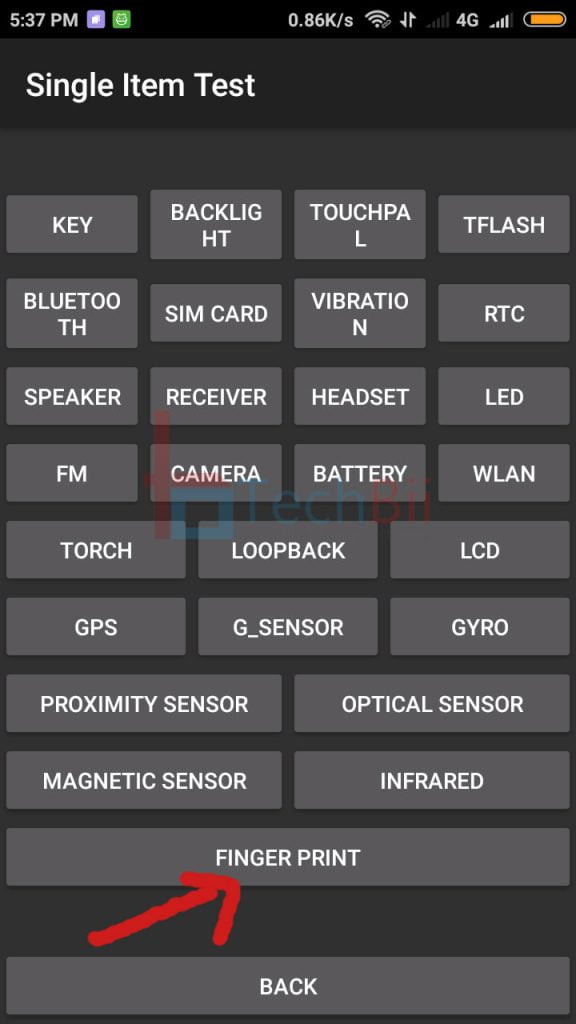
Older Xiaomi phones (Mi 5, Redmi Note 3/4 era) have a hardware test menu that can confirm whether the sensor itself responds. Open the phone dialer and enter \#\#6484#\*#\ — the CIT engineering menu opens. Find the Fingerprint (or fp*) test item and run it. Two outcomes:
- Test passes but Android still fails → software; re-run the fixes above or reflash the stock ROM.
- Test fails or the item is missing → the sensor or its ribbon cable is faulty → hardware section.
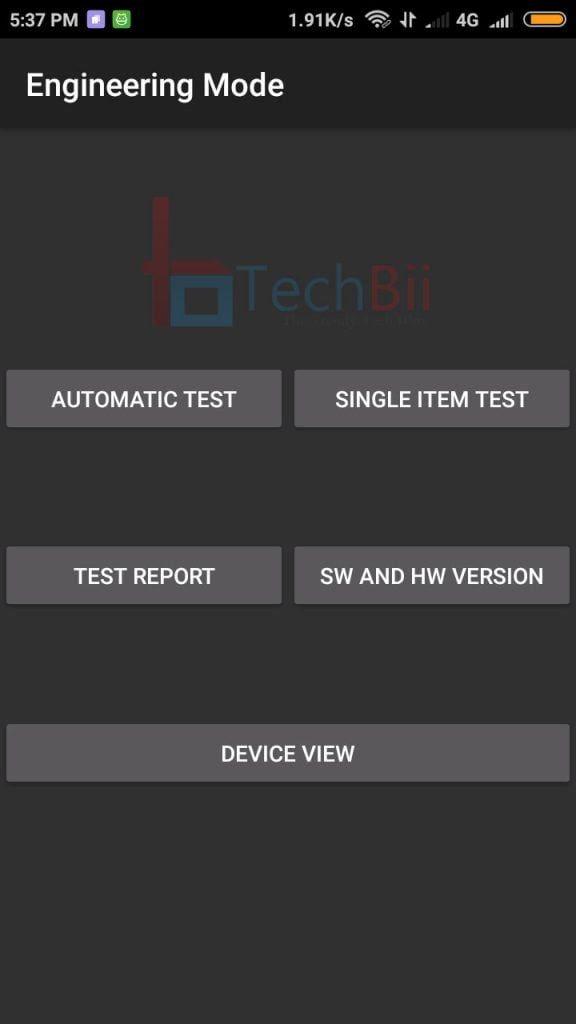

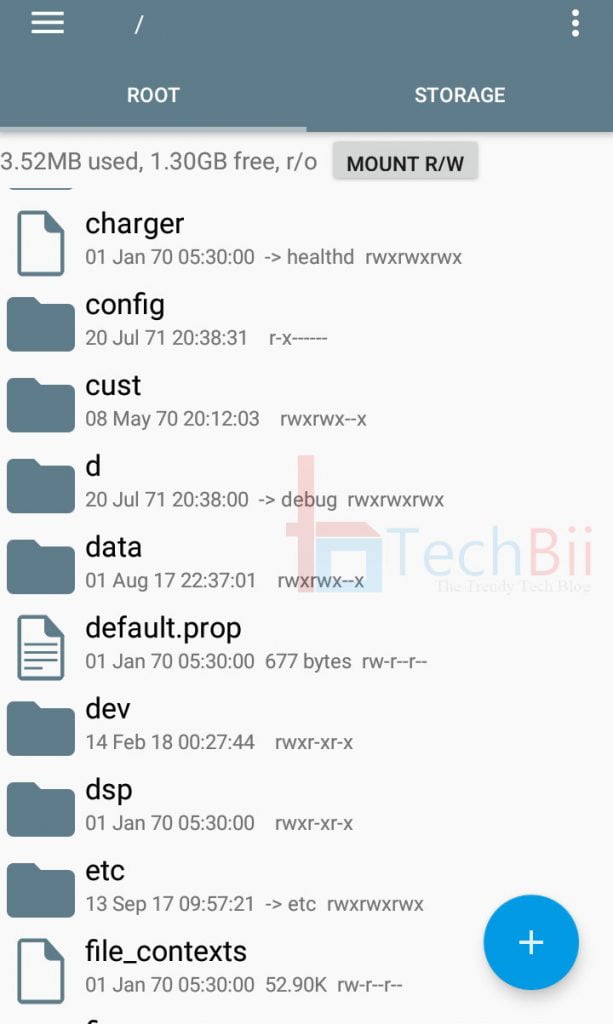
On rooted phones, a corrupted system permission can also break enrollment; a root file manager such as Explorer lets you inspect the system partition — but don't edit build.prop values you can't verify against the XDA fingerprint repair guide that documented this fix for the Mi 5. And be honest with yourself: if the phone's that old, a ₹500 padlock app and a strong backup PIN may be the better investment than an afternoon of tinkering.

Hardware: When It's the Sensor Itself
If every software fix has failed, the fault is physical. What you can realistically check:
- Rear-mounted sensors (Note 3, Note 4): the sensor is mounted in the back cover, connected by a thin ribbon cable. A dropped or flexed phone can unseat it. Re-seating means opening the back cover — doable with patience and a plastic pry tool, but the cable is fragile, and pressing the cover hard while testing can crack it. The XDA teardown-and-reseat guide for the Mi 5 shows the general procedure.
- Side-mounted (power-button) sensors: usually sealed units — no user serviceable part. Service centre.
- In-display sensors: nothing to reseat; a failing optical sensor is a display-assembly repair. Get a quote first — on a budget phone it may exceed the phone's value.
If the phone is under warranty, an authorised Xiaomi service centre replaces the sensor module at no cost for genuine faults. Out of warranty, ask for the quote before agreeing to the repair.
While You Wait: Secure Alternatives
Don't leave the phone on "swipe to unlock" while you wait for a repair. Set a strong alphanumeric PIN (Settings → Passwords & security → Screen lock), and add face unlock on phones that offer 2D face recognition — it's less secure than the fingerprint but fine as a convenience layer on top of a strong PIN. Google's and Xiaomi's own find-device tools work independently of the lock method, so your data stays protected either way.
Frequently Asked Questions
Why did my Redmi fingerprint sensor stop working after an update?
Firmware updates occasionally break the biometric service's stored calibration — especially big MIUI-to-HyperOS transitions. Re-enrolling your fingerprints after a major update fixes it for most people; if not, the cache-clear and update fixes above usually finish the job.
Does factory reset fix a fingerprint sensor?
Only software faults. If the sensor works after a factory reset, a corrupted system state was to blame. If it's dead on fresh software too, the hardware has failed and no reset will help — that's the point where you book a service appointment.
Why doesn't my screen protector work with the in-display fingerprint sensor?
Optical in-display sensors read the print through the OLED panel, and thick protectors scatter the light. Use a protector certified for in-display sensors (usually thin tempered glass with a cutout-free sensor area), apply it without bubbles, and re-enroll your print after applying it.
Is the engineering mode code safe to use?
#\#6484#\#\ only opens Xiaomi's built-in hardware test menu — it changes nothing by itself, and it appears on most Xiaomi/Redmi/Poco phones. Read each test's result but avoid changing settings inside the menu you don't understand.
Can I still unlock my phone if the fingerprint sensor is dead?
Yes — your PIN, pattern or password always works; the fingerprint is a convenience layer on top of it. That's also why biometrics alone never fully replace a strong backup PIN. If you've forgotten the PIN and the sensor is dead, that's a factory-reset-from-recovery situation, which erases the phone.
Related reading:
- Troubleshooting Guide: Redmi Fingerprint Sensor Fixes
- Redmi Note 6 Pro Fingerprint Sensor Not Working
- Android Phone Running Slow and Freezing? Causes and Fixes
- How to Install an OxygenOS Port on Poco F1
Did your sensor come back to life — and which fix did it? Tell us in the comments.













can I fix finger print after unlocking my device? please suggest me how to fix after unlocking the system