I've had friends find their Facebook photos on fake dating profiles, which is exactly the misuse this feature was built for. Facebook's Profile Picture Guard adds a blue shield border around your profile photo and makes it harder to download or misuse — and despite being a 2017 launch, it's still live in 2026. Here's how to turn it on, plus the stronger option most people should use instead.
- What Profile Picture Guard Actually Does (and Doesn't)
- What You Need Before Starting
- Method 1: Turn It On From Your Profile
- Method 2: Turn It On From Settings
- Better: Lock Your Entire Profile
- Extra Protections Worth Five Minutes
- FAQ
- Is Facebook Profile Picture Guard still available in 2026?
- Does the profile picture guard prevent screenshots?
- Why don't I see the "Turn on profile picture guard" option?
- What is the difference between Profile Picture Guard and Lock Profile?
- Can someone still steal my profile picture with the guard on?
- Does the profile picture guard work on Pages or only personal profiles?
- Related Reading
Quick Answer: Two ways to enable it: tap your profile picture on your Facebook profile and choose Turn on profile picture guard, or use Settings & privacy → Settings → Audience and visibility (location varies by app version). The guard adds a shield overlay and blocks saving the photo from Facebook. Note: it's not offered in every country, and no feature can prevent screenshots.
What Profile Picture Guard Actually Does (and Doesn't)
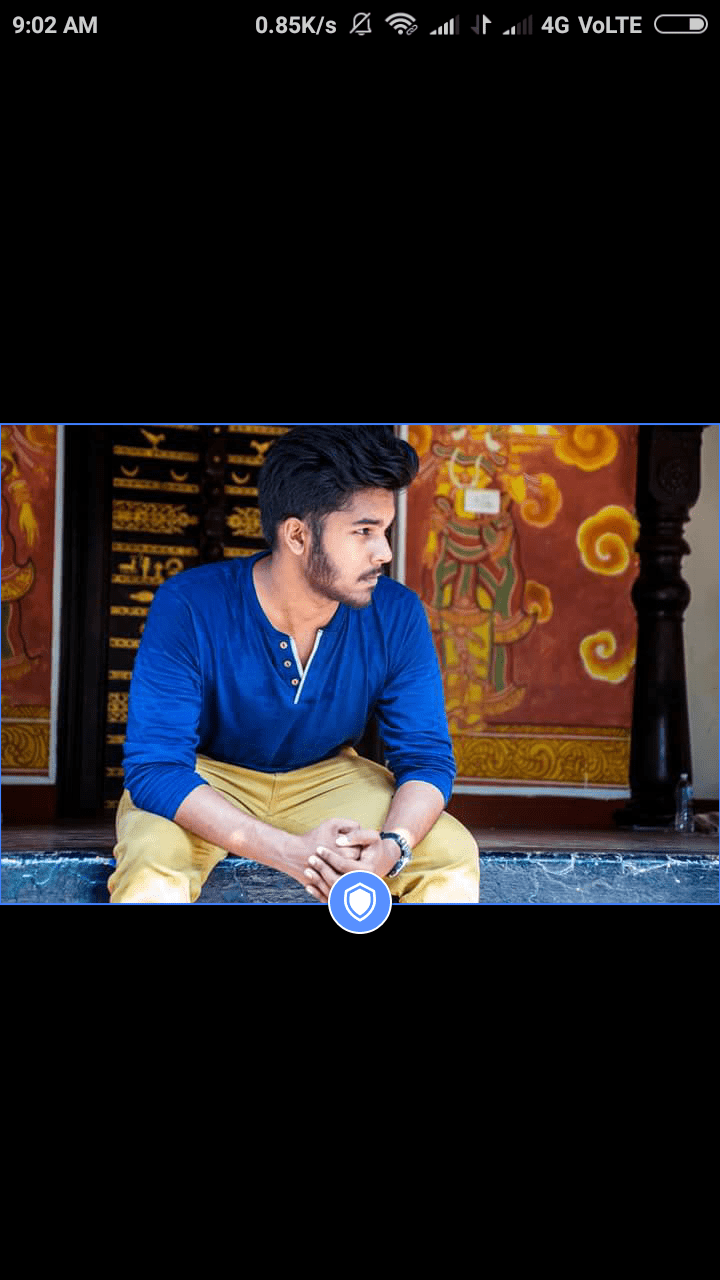
Launched first in India in 2017 and since expanded to dozens of countries, the guard does three things: it adds a visible blue border and shield badge to your profile picture, it stops people saving or sharing the photo directly from Facebook, and it restricts non-friends from viewing details like zooming into the image. Facebook also applies detection to help find accounts using your photo without permission — you can read the official details on the Facebook Help Center page.
What it doesn't do — and I want to correct the version of this article from years past: nothing stops screenshots. Anyone can photograph their screen, and third-party tools can strip the overlay from a downloaded image's metadata. The guard is a strong deterrent, not invisibility. If your threat model is "someone stealing my photos," it helps; if it's "someone screenshotting my profile," you need the privacy settings in the last section too.
What You Need Before Starting
- The current version of the Facebook app (Android or iPhone), or a desktop browser
- A personal profile (it doesn't apply to Pages)
- Availability: the option is not offered in every country — it rolled out first in India and expanded to regions with high rates of photo misuse. If you don't see it, that's why, and the Lock Profile method below is your alternative.
Method 1: Turn It On From Your Profile
This is the fastest path on the mobile app:
1. Open the Facebook app and go to your profile.
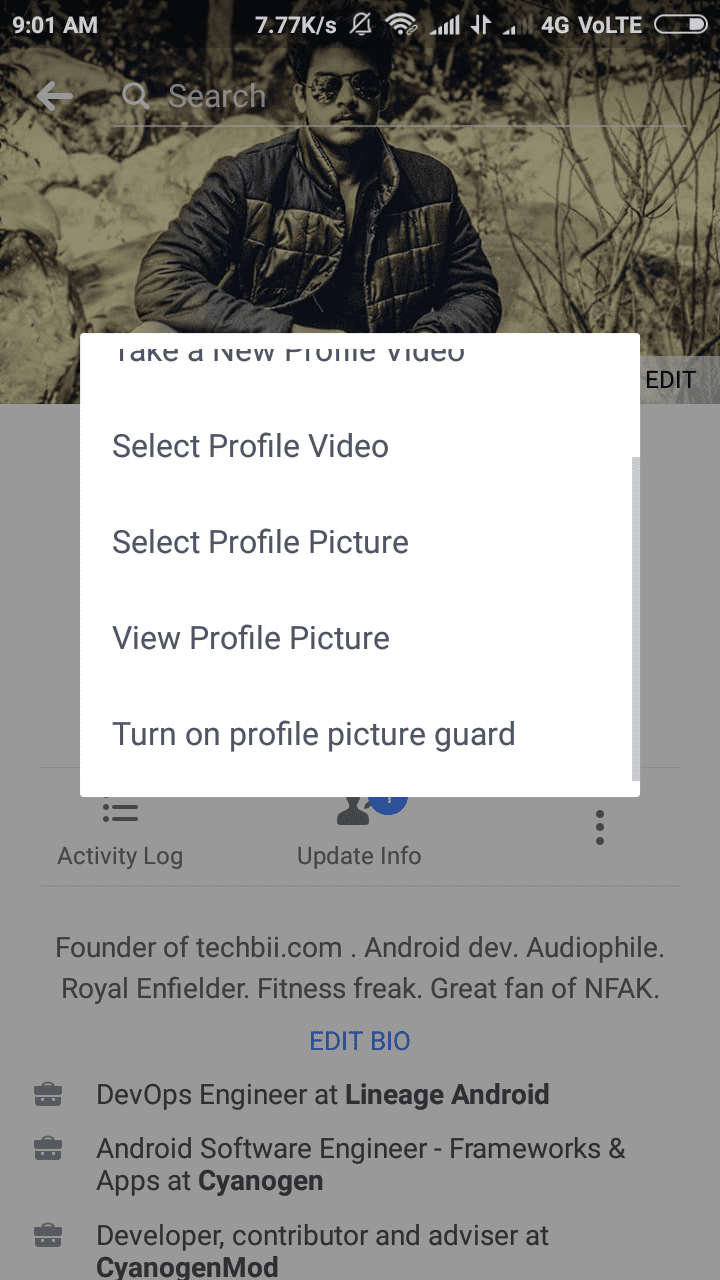
2. Tap your profile picture.
3. If the guard is available in your region, you'll see Turn on profile picture guard — tap it.
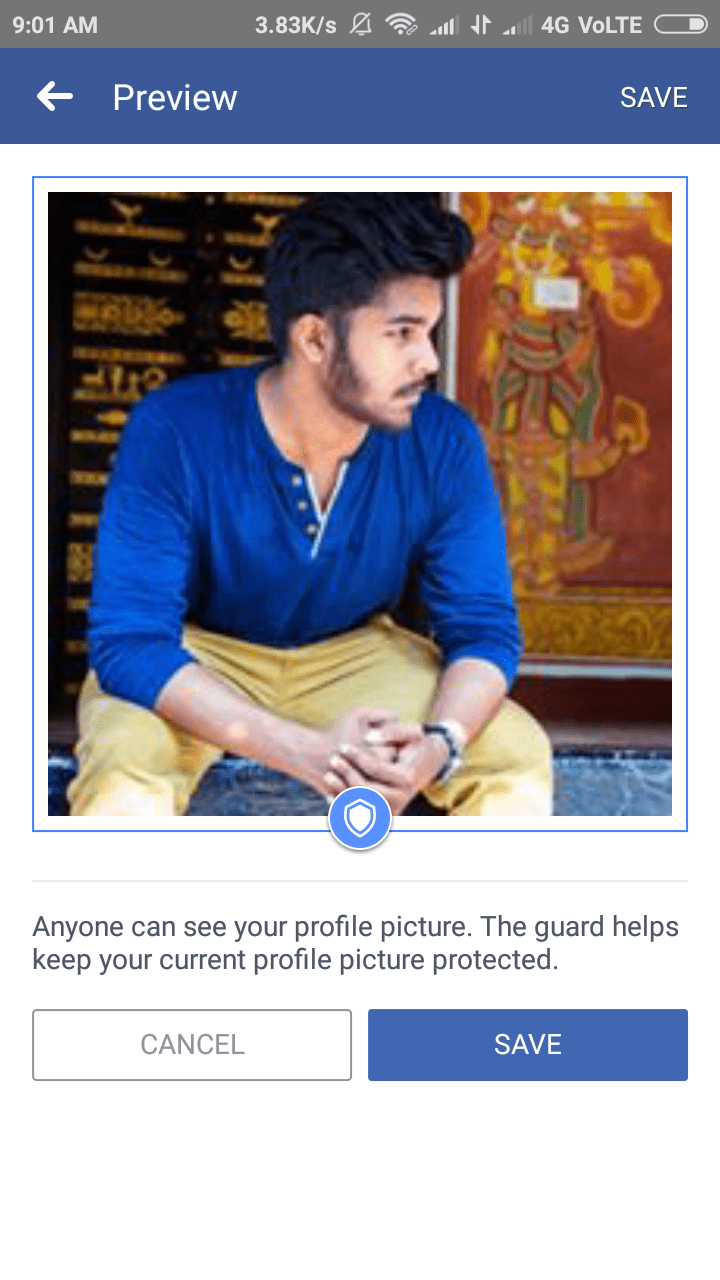
4. Choose a border design if offered, then tap Next.
5. Review the preview and tap Save.
Your photo now displays with the blue shield border to everyone who visits your profile.

Method 2: Turn It On From Settings
If the profile-picture shortcut doesn't appear for you (menu layouts shift between app versions):
1. Tap Menu (☰) → Settings & privacy → Settings.
2. Open Audience and visibility, then look for profile or picture protection options — on some versions it appears under Profile settings as Protect your profile picture.
3. Toggle the guard on and confirm.
If neither path shows the option, your account or region doesn't currently offer the guard — move on to the next section, which protects you more thoroughly anyway.
Better: Lock Your Entire Profile
Honestly, this is what most people searching for the guard should use instead. Lock Profile goes further than the shield: when locked, only your friends can see your photos and posts, old posts become friends-only, and strangers can't view or download your photos at all — the guard only protects one image; the lock protects everything.
To lock your profile:
1. Go to your profile and tap the three-dot menu (⋯) beside your name.
2. Tap Lock Profile.
3. Confirm on the explanation screen.
You can also find it under Settings & privacy → Settings → Audience and visibility → Profile Locking. Like the guard, availability varies by country — it's widely offered in India, Bangladesh, and many other markets, less so in some Western regions. If it's missing, the privacy checklist below achieves most of the same effect manually.
Extra Protections Worth Five Minutes
- Restrict old photos: Settings → Audience and visibility → Posts — limit who can see your past posts to Friends.
- Protect future posts: set default post audience to Friends, not Public.
- Turn off public photo downloads: for your profile picture specifically, the guard handles this; for albums, set each to Friends.
- Enable Tag Review so you approve photos others tag you in before they appear on your profile.
- Turn on two-factor authentication — photo theft usually pairs with account takeover attempts; Settings → Accounts Centre → Password and security.
- For a broader checklist beyond Facebook, see our top 10 tips for online privacy protection.
FAQ
Is Facebook Profile Picture Guard still available in 2026?
Yes — Facebook's Help Center still documents turning the guard on and off, and it works on Android, iPhone, and desktop. The catch is availability: it isn't offered in every country, having rolled out first in India and expanded to selected regions. If you don't see the option, use Lock Profile or tighten your privacy settings instead.
Does the profile picture guard prevent screenshots?
No — and nothing does. The guard stops people saving or sharing your photo directly through Facebook and adds a visible shield overlay that makes misuse less attractive, but anyone can screenshot their screen. If screenshot prevention matters to you, restrict who can see your photos at all (Friends-only or a locked profile) rather than relying on any overlay.
Why don't I see the "Turn on profile picture guard" option?
Two usual reasons: your country isn't in the feature's rollout list, or your Facebook app is outdated. Update the app first and check again via your profile picture or Settings. If it's still missing, it's regional — Lock Profile (profile → three-dot menu) is available in more places and protects far more than a single photo.
What is the difference between Profile Picture Guard and Lock Profile?
The guard protects exactly one thing — your current profile picture — with a shield overlay and download blocking. Lock Profile restricts your entire presence: non-friends can't see your photos, posts, or stories, and past posts get limited to Friends automatically. If you're worried about photo misuse, the lock is simply the stronger tool; the guard is the lighter touch when you still want a public-facing profile.
Can someone still steal my profile picture with the guard on?
A determined person can screenshot it, and sophisticated tools can rebuild the underlying image. What the guard realistically prevents is casual right-click saving, download buttons, and non-friends zooming into your photo — which stops the majority of opportunistic misuse. Combine it with a friends-only audience for the protection that actually matches how most photo theft happens.
Does the profile picture guard work on Pages or only personal profiles?
Only personal profiles. Facebook Pages (for businesses, creators, and public figures) don't get the guard — page photos are inherently public. For pages, manage photo misuse through copyright reports and Facebook's IP tools instead. If you run a personal profile in creator mode, the guard still applies to your personal profile picture.
Related Reading
- How to Hide or Remove Your Last/Middle Name on Facebook
- The Ultimate Guide to Facebook VIP Accounts
- Top 10 Tips for Ensuring Online Privacy
The guard's been on my profile since the feature launched and I've never had a photo misused since — if the option isn't showing for you, tell me your country in the comments and I'll help you figure out which protection to use instead.