Users may need to convert an OST file to PST when they need to access or recover mailbox data outside its original Exchange or Microsoft 365 environment. This can be useful when an Exchange account is no longer available, Outlook is disconnected from the server, or mailbox data needs to be archived, transferred, or accessed in another Outlook profile. Converting OST to PST allows users to preserve emails, contacts, calendars, attachments, and other mailbox items into PST that can be opened in Outlook.
- Why OST Files Are Inherently Difficult to Access
- Stellar Converter for OST- Free Online OST to PST Converter, Desktop Tool
- When You Need More: The Desktop Solution
- Automatic OST Discovery
- Comprehensive Mailbox Preview: The Differentiator
- Selective Conversion: Convert Only What Matters
- Large Mailbox Support
- Folder Structure Preservation
- Step-by-Step: Converting OST file with the Desktop Tool
- Select OST File
- 2. Preview Mailbox Content
- 3. Initiate Conversion
- 4. Select Destination & Options
- 5. Choose Export Format
- 6. Completion
- Online vs. Desktop: Direct Comparison
- Who Should Use Which Tool?
- Verdict: Two Tools, Two Distinct Purposes
- Frequently Asked Questions
This scenario plays out in IT departments daily. Unlike PST files that open independently, OST (Offline Storage Table) files are tethered to their original Outlook profiles and Exchange accounts. When that connection breaks—whether through profile corruption, account deletion, or server unavailability—the data becomes stranded.
Why OST Files Are Inherently Difficult to Access
OST files serve as local replicas of Exchange mailboxes, designed for offline work. Microsoft Outlook requires the original profile and account association to open them. You can’t simply double-click an OST file like you would a PST.
This architectural design creates problems when:
- Exchange Server becomes permanently unavailable
- Microsoft 365 accounts are deprovisioned
- Outlook profiles become corrupted beyond repair
- Users leave the company and mailboxes are deleted
The solution? Converting OST to PST format, which creates a standalone, profile-independent file that opens in any Outlook installation.
Stellar Converter for OST- Free Online OST to PST Converter, Desktop Tool
Stellar offers two distinct tools for this conversion challenge: an online browser-based converter and a desktop application. Each serves different use cases, and understanding when to use which tool can save significant time.

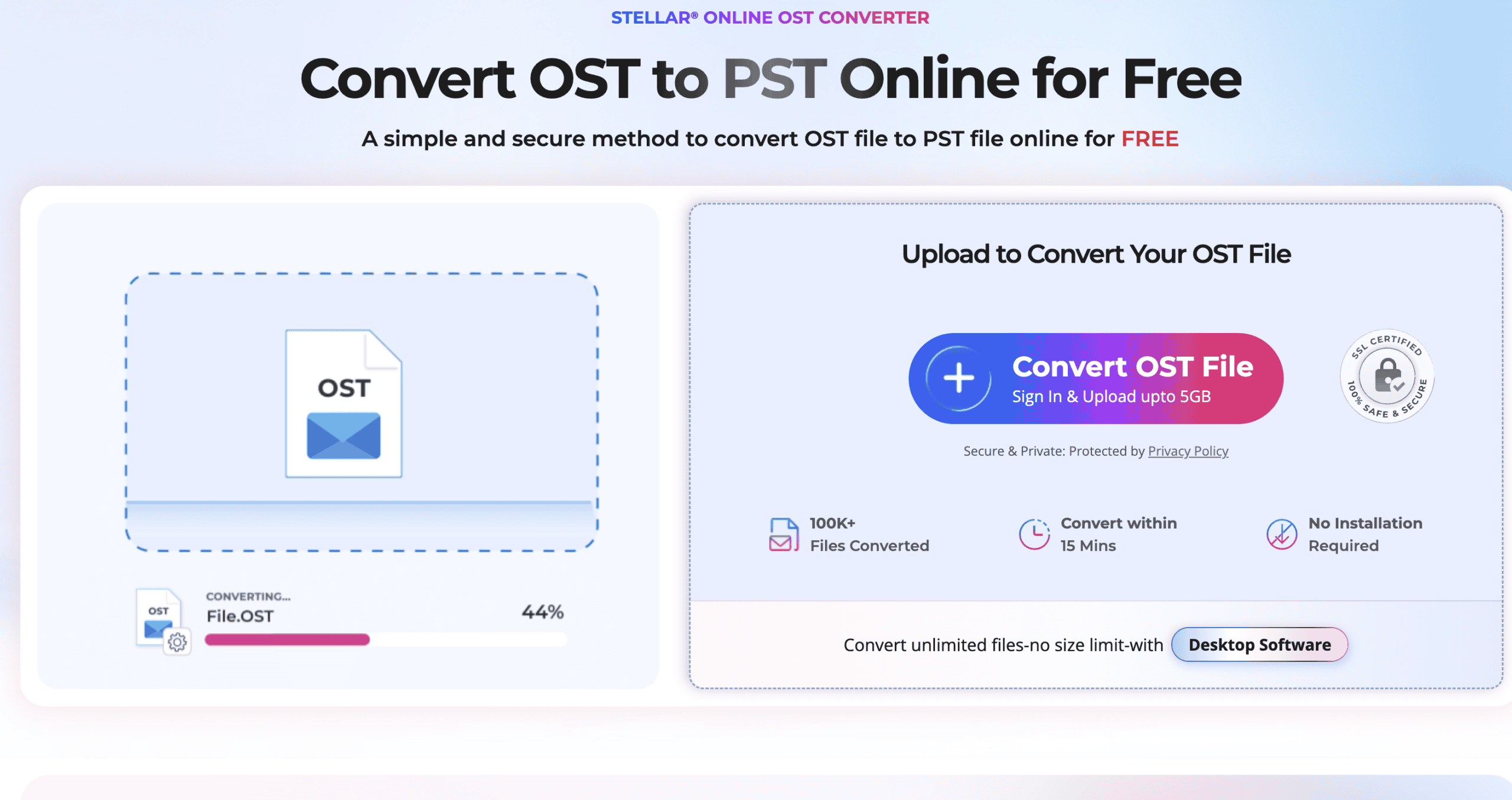
Online OST to PST Converter: Quick and Simple
The online OST to PST converter targets straightforward, one-time conversion needs.
What It Offers:
- Browser-based operation (no installation required)
- No Outlook dependency
- Email verification for security
- Direct download of converted PST files
Best For:
- Small to medium OST files (under 5 GB)
- Single file conversions
- Non-technical users who need quick access
- Home users or consultants working remotely
The Process:
- Verify your email address

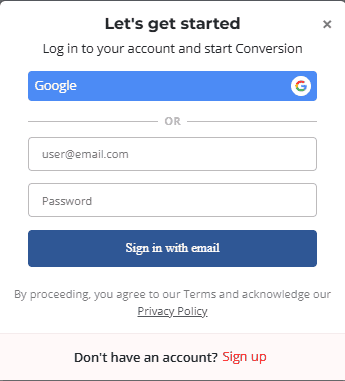
2. Upload your OST file through the web interface

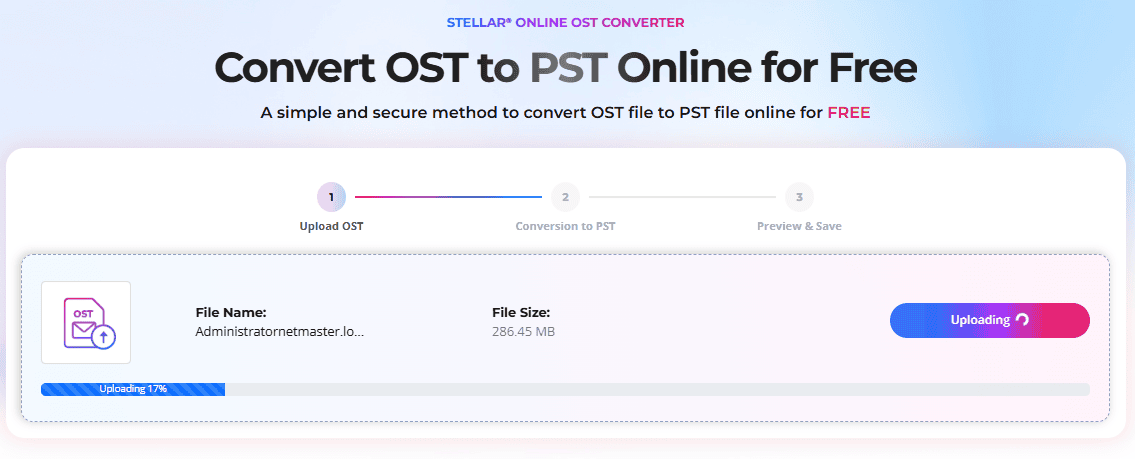
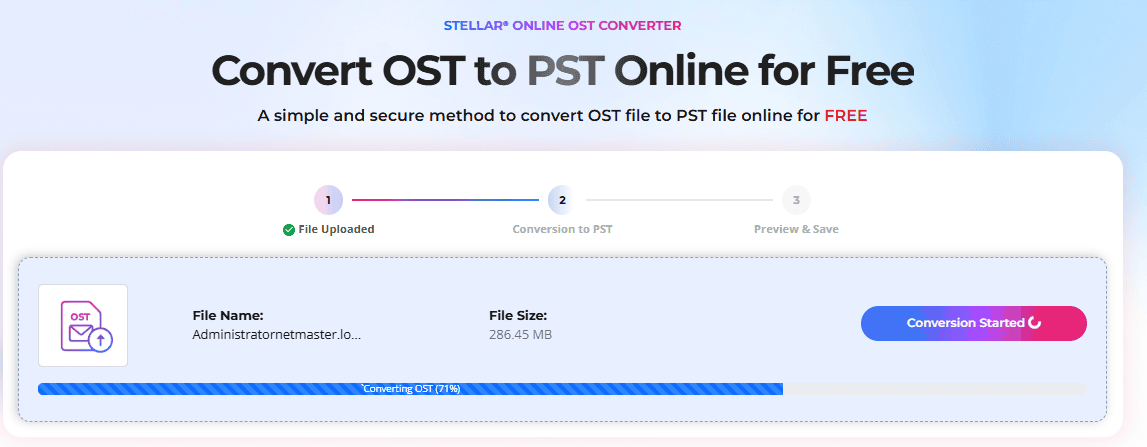
3. Wait for server-side conversion

4. Download the converted PST file

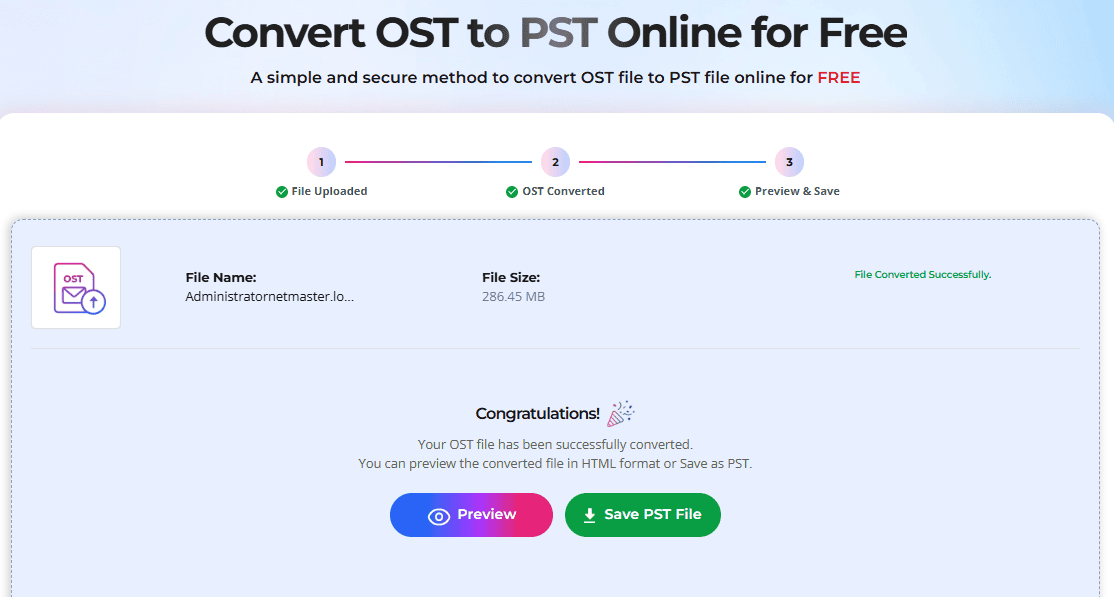
5. Import into Outlook
While convenient for occasional needs, the online tool has limitations with large enterprise mailboxes, offers no preview functionality, only shows mailbox structure and counts.
When You Need More: The Desktop Solution
The online converter works well for quick conversions. However, IT administrators often deal with larger mailboxes, multiple OST files, compliance requirements, mailbox verification, and data conversion scenarios. That’s where the desktop solution becomes more practical.
The Stellar Converter for OST (desktop version) is built for professional environments where mailbox integrity, selective conversion, and advanced preview matter.
Automatic OST Discovery

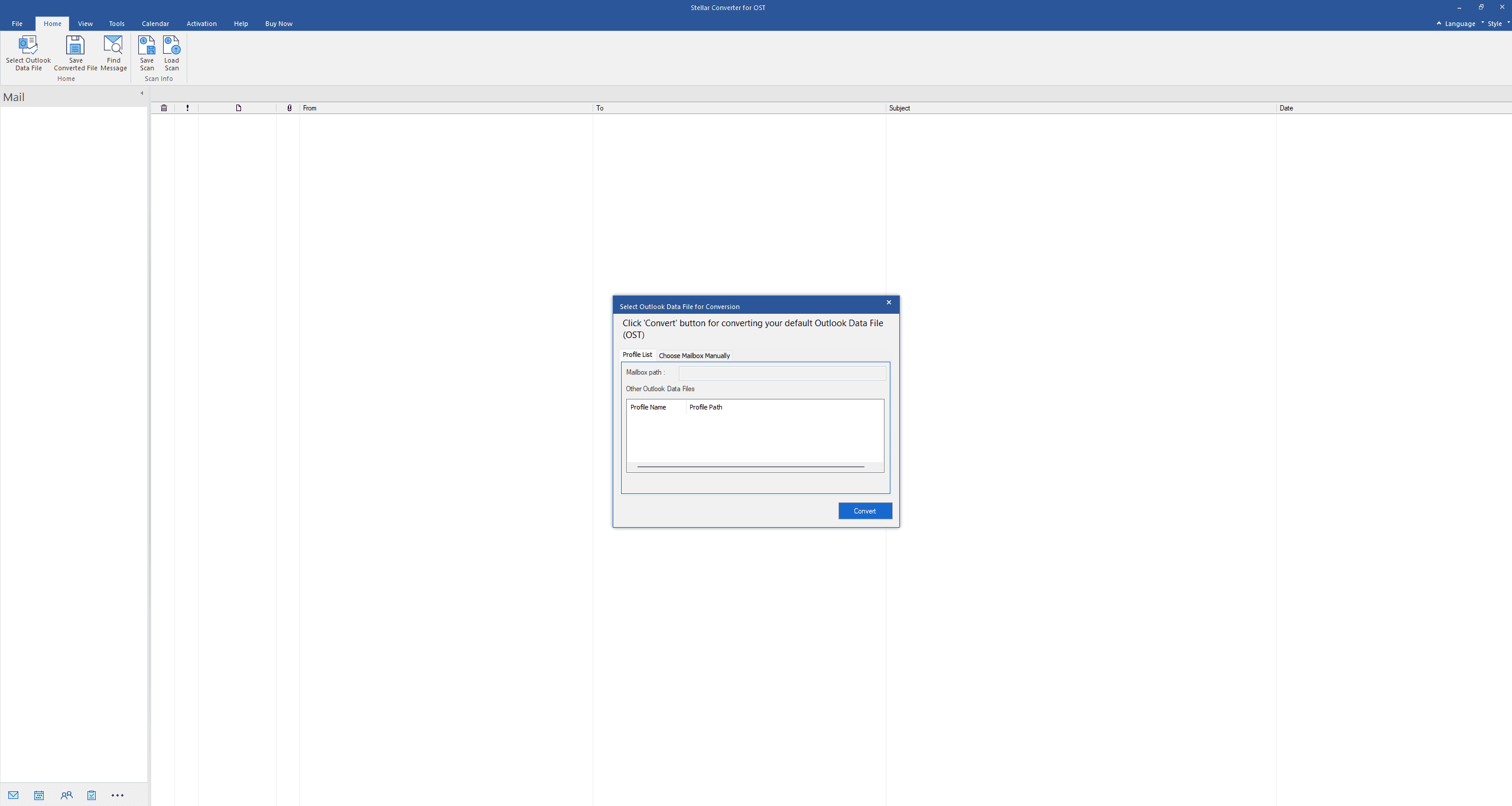
The software can automatically detect all configured Outlook profiles on the system and locate their associated OST files. For IT admins working with multiple user machines or archived drives, this eliminates manual file hunting.
Alternatively, you can manually browse to specific OST files, useful when working with backups, network shares, or external drives.

Comprehensive Mailbox Preview: The Differentiator
This is where Stellar’s desktop tool pulls ahead of competitors. Before committing to a full conversion, you get complete visibility into:
- Email messages with full content
- Contacts with all fields
- Calendar appointments and meetings
- Attachments (viewable and extractable)
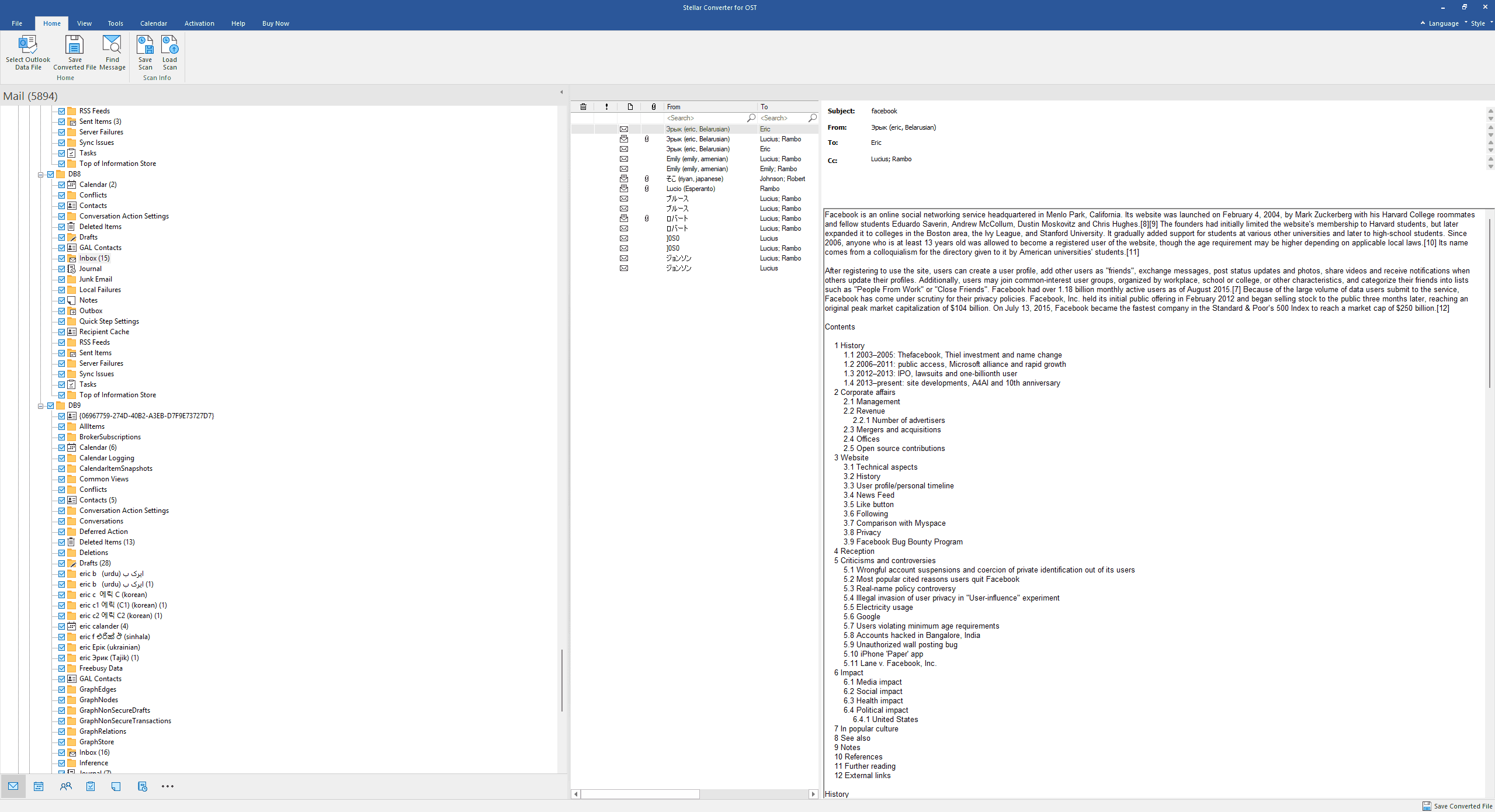
The preview pane displays emails with proper formatting, sender/recipient details, and attachment lists. You can verify data integrity before investing time in the conversion process, critical when dealing with encrypted or inaccessible OST files.
In our testing with a 5,894-item mailbox, the folder structure remained intact, showing everything from RSS Feeds and Calendar entries to conversation threads, all fully browsable before conversion.
Selective Conversion: Convert Only What Matters
Rather than converting entire multi-gigabyte mailboxes, you can selectively export specific folders. Need only the Sent Items folder for an audit? Want to extract just the Contacts database? The selective export option saves considerable time and storage.
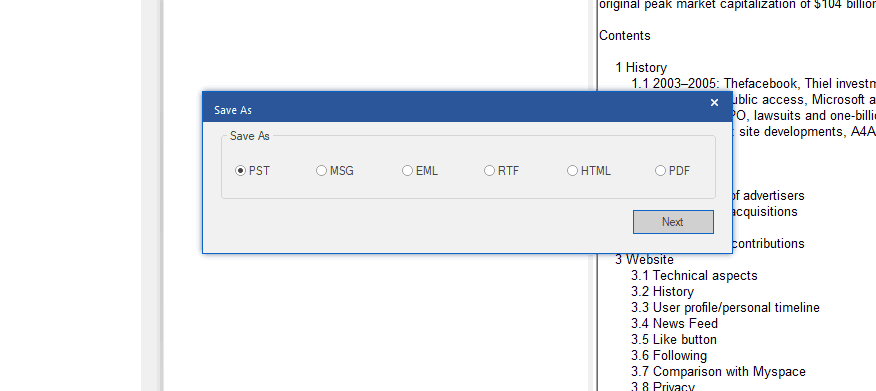
The tool also provides multiple output format options beyond PST:
- MSG (individual message files)
- EML (universal email format)
- RTF (formatted text)
- HTML (web-readable)
- PDF (archival format)
Large Mailbox Support
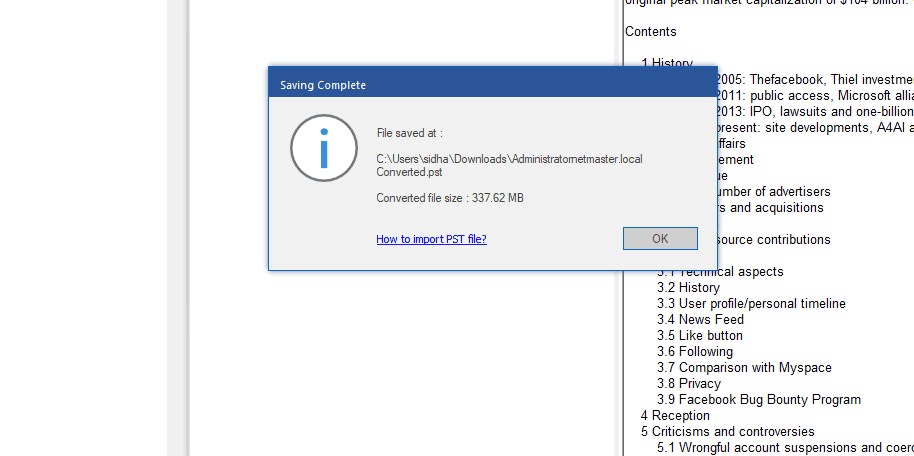
Enterprise mailboxes routinely exceed 10-20GB. The desktop converter handles these large OST files without the upload bandwidth constraints or file size limits of web-based tools. During testing, we converted a 337.62 MB OST file without issues.

Folder Structure Preservation
One of the most important aspects of any conversion tool is maintaining the original folder structure. Stellar preserves:
- Custom folder hierarchies
- Inbox subfolders
- Sent Items organization
- User-created categories
- Nested folder structures
After conversion, you won’t need to reorganize thousands of emails, everything maintains its original location.
Step-by-Step: Converting OST file with the Desktop Tool
Select OST File
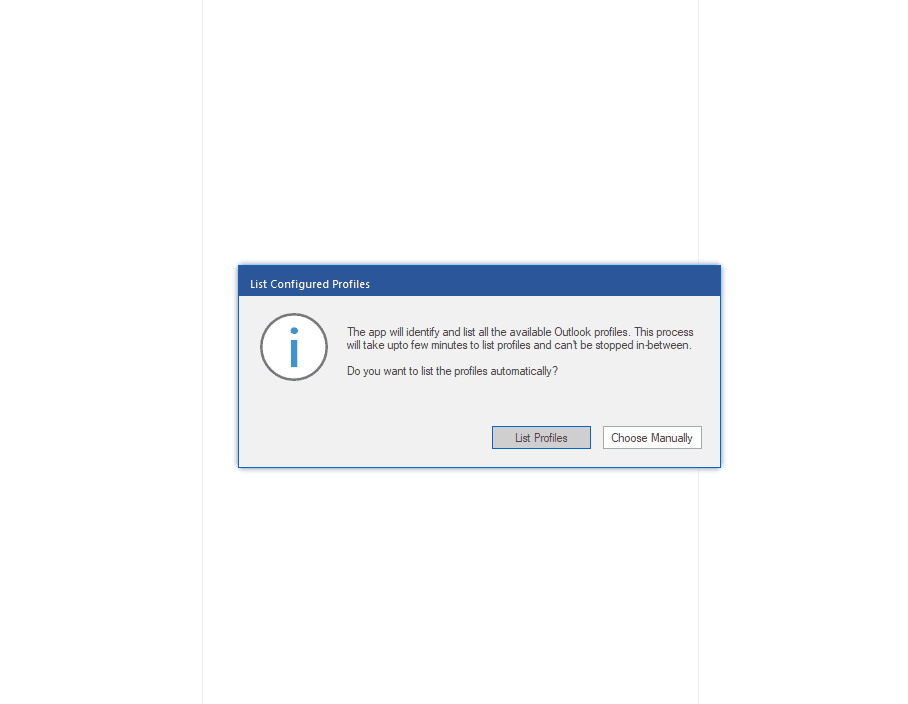
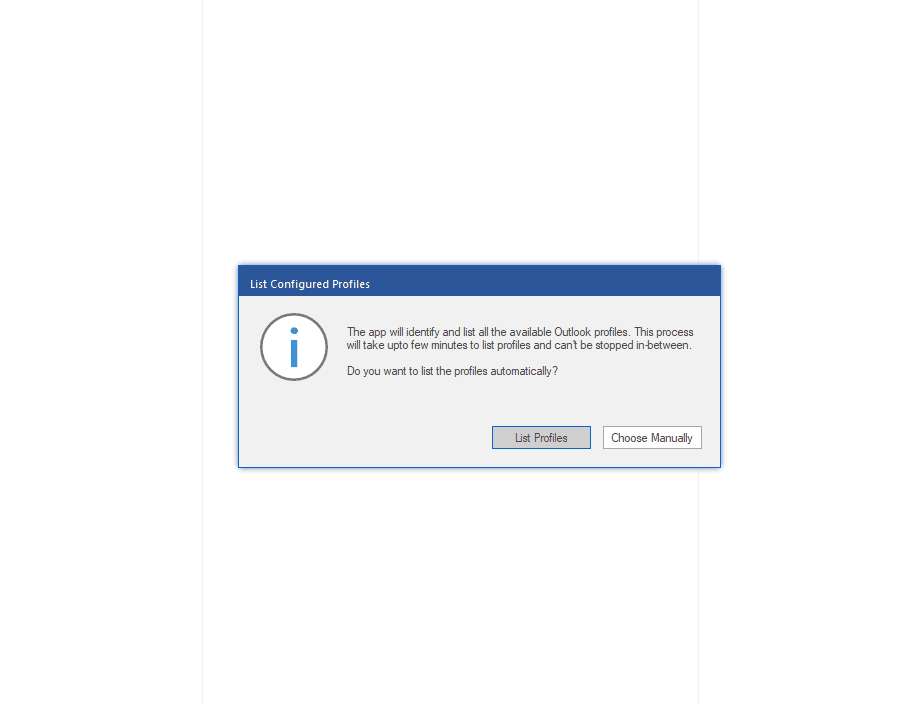
Launch the application and choose between automatic profile detection (“List Profiles”) or manual file selection (“Choose Manually”). For our test, we manually selected a specific OST file.
2. Preview Mailbox Content
Once loaded, explore the complete mailbox structure. Open emails, check attachments, verify contacts, ensure this is the correct mailbox and the data is intact.

3. Initiate Conversion

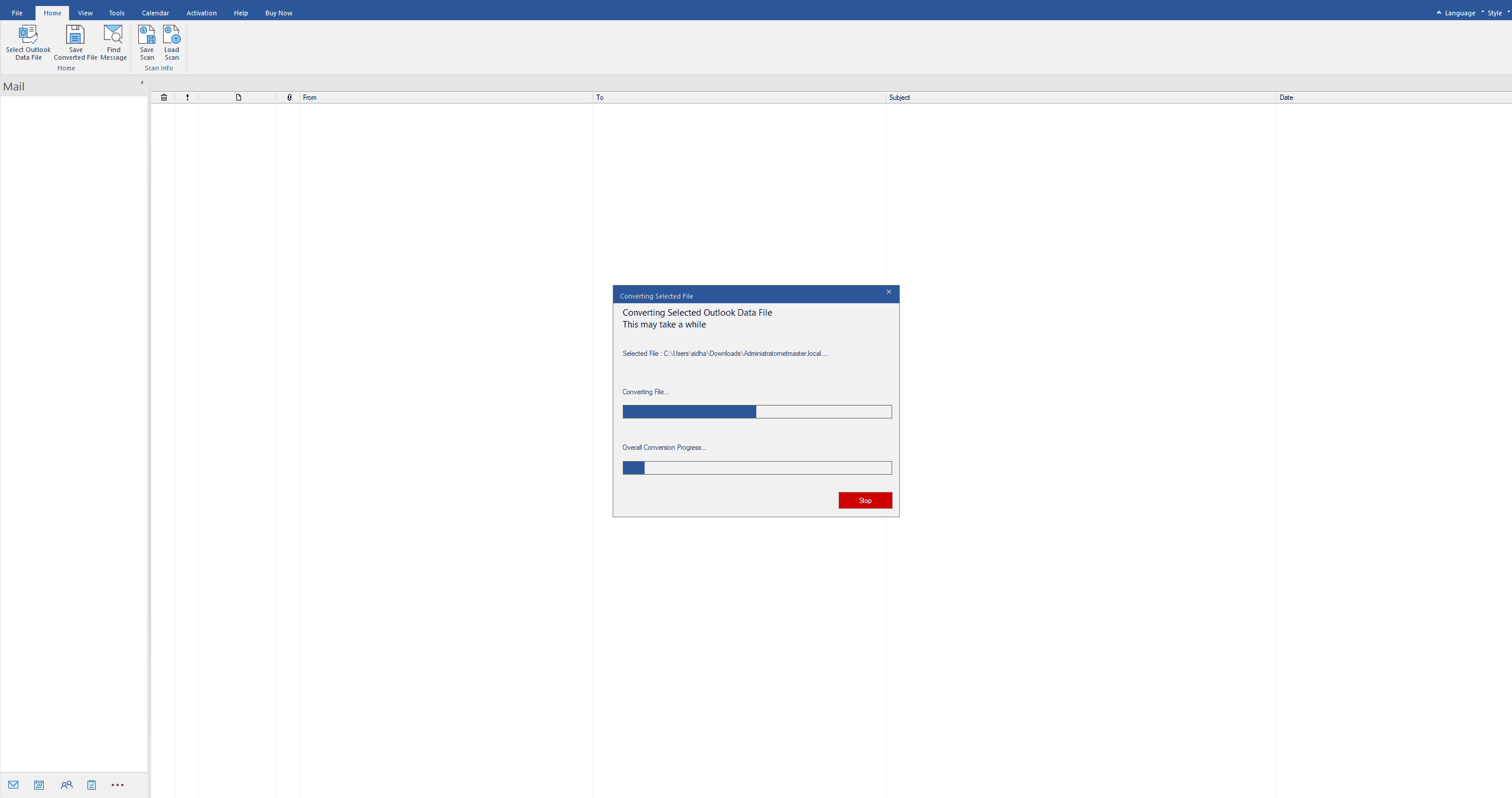
Click “Save Converted File” and the process begins. The software displays real-time progress with:
- Current folder being processed
- Conversion file progress bar
- Overall conversion progress
- Stop button for cancellation if needed

4. Select Destination & Options

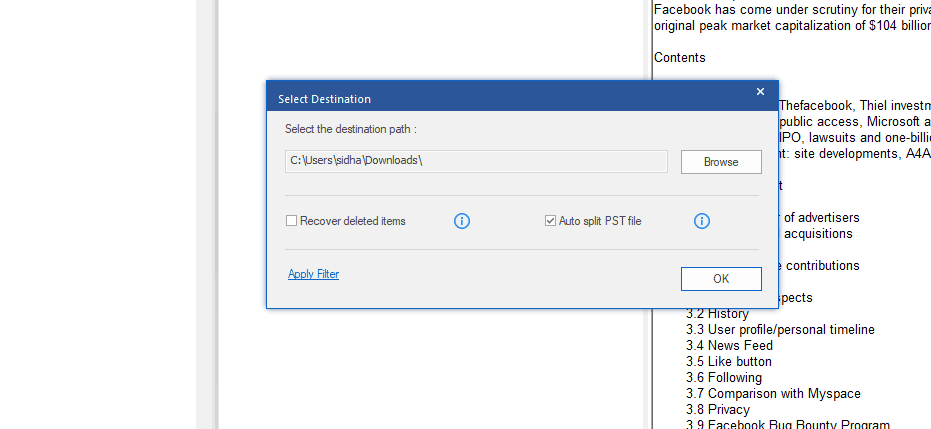
Choose your save location and decide whether to auto-split large PST files (helpful for staying under Outlook’s file size recommendations).
5. Choose Export Format
Select PST for direct Outlook import, or choose alternative formats based on your specific requirements.

6. Completion

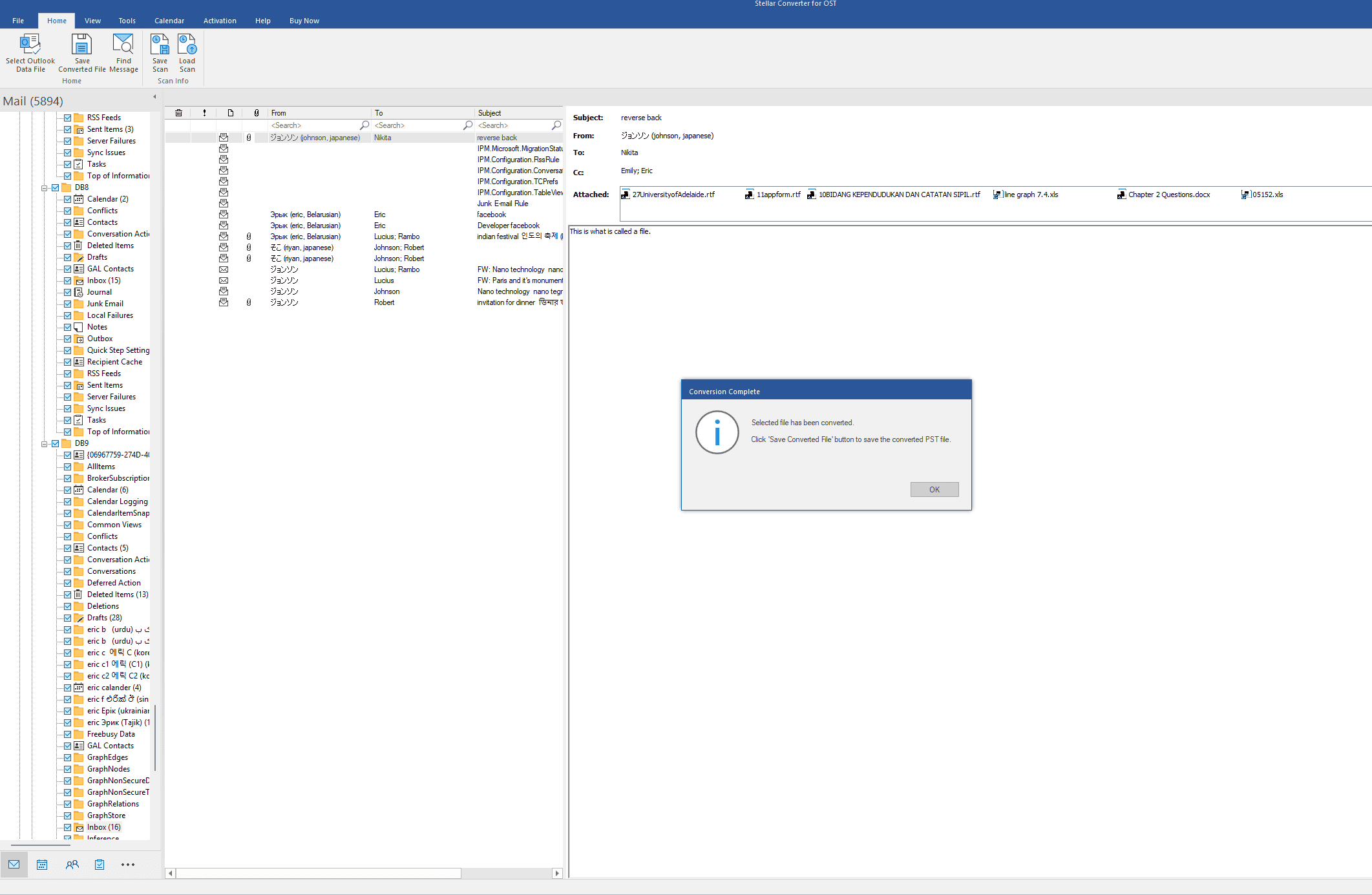
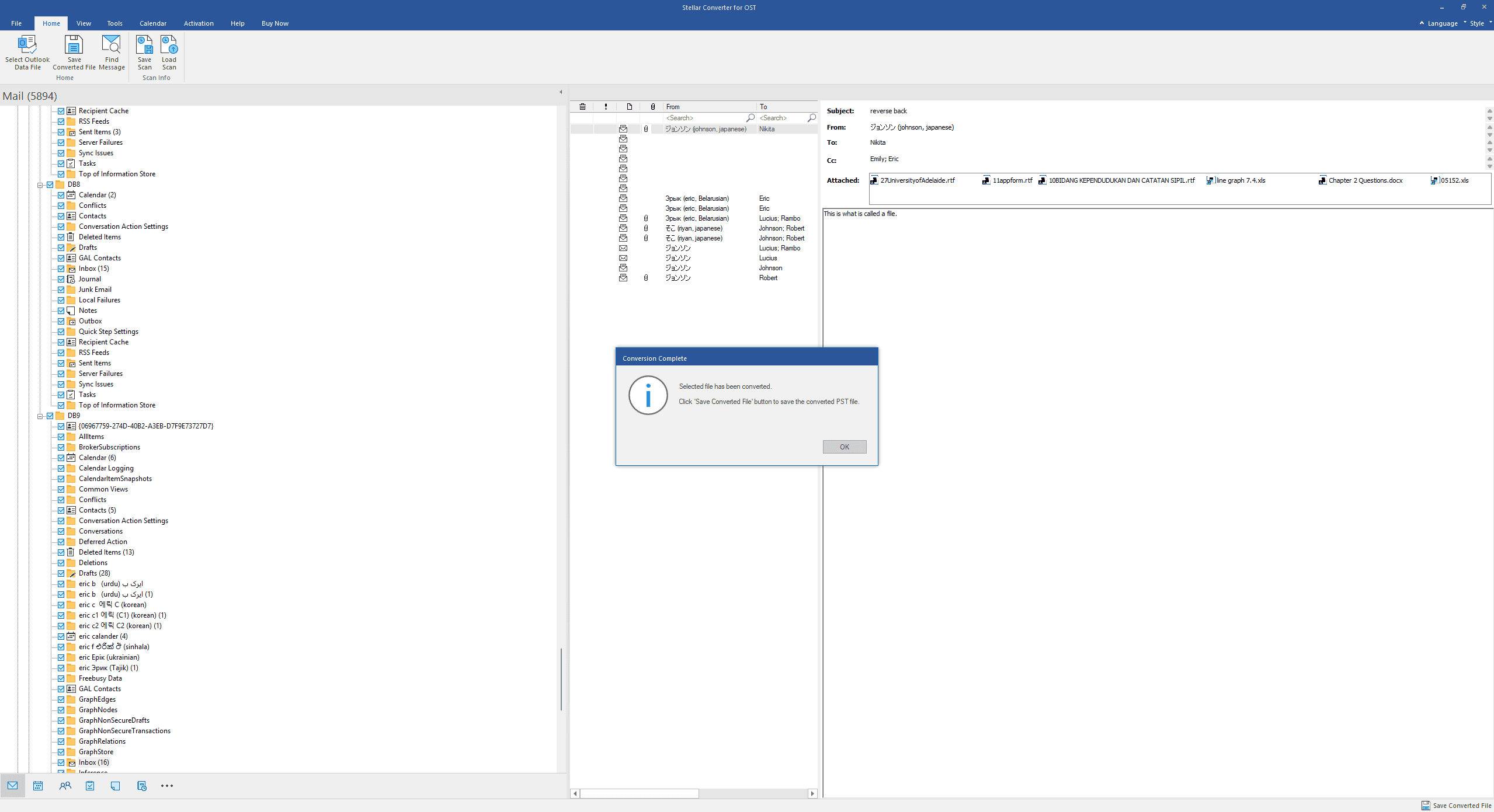
Once finished, you receive confirmation with the file location. The converted PST file is ready to import into any Outlook profile.
Online vs. Desktop: Direct Comparison
Feature | Online Converter | Desktop Converter |
Installation | Browser-based | Desktop application required |
Best Use Case | Quick, one-time conversions | Enterprise scenarios & bulk operations |
File Size Handling | Small to medium files | Large enterprise mailboxes (10GB+) |
Preview Before Conversion | HTML Only | Full preview of emails, contacts, calendar |
Selective Conversion | No | Yes (choose specific folders) |
Output Formats | PST only | PST, MSG, EML, RTF, HTML, PDF |
Data Privacy | Saved PST file automatically got deleted after 24 hours in free online service, premium 48hours | Local processing only |
Batch Processing | Single file at a time | Multiple OST files |
Ideal User Profile | Home users, consultants | IT administrators, MSPs, legal teams |
Who Should Use Which Tool?
Choose the Online Tool If You Are:
- A home user with a single OST file
- Performing a one-time conversion
- Working with OST files under 5GB
- Comfortable uploading data to external servers
- Non-technical and need simplicity
Choose the Desktop Tool If You Are:
- An IT Administrator managing multiple user mailboxes
- A Managed Service Provider (MSP) servicing client environments
- An Exchange Administrator performing migrations
- A Microsoft 365 Administrator handling account transitions
- An IT Consultant requiring portable, offline tool
- Part of a legal/compliance team needing forensic recovery
- Working with large enterprise mailboxes (5GB+)
- Required to maintain data privacy (no external uploads)
- Needing preview and verification before conversion
Verdict: Two Tools, Two Distinct Purposes

Stellar’s approach of offering both online and desktop solutions acknowledge that OST conversion isn’t a one-size-fits-all problem.
The online converter delivers on its promise: fast, simple, no-installation conversion for straightforward scenarios. It’s the equivalent of a quick-service oil change, in and out with minimal complexity.
The desktop application, however, is the full-service diagnostic toolkit. The comprehensive preview functionality alone justifies its use in professional environments. Being able to verify mailbox contents, folder structures, and attachment integrity before committing to a multi-hour conversion of a 50GB mailbox is invaluable.
For IT professionals, the selective conversion capability means you’re not forced to convert 20GB of data when you only need 500MB of the Legal folder.
Bottom line: If you’re a home user need a one-time ost to pst conversion, the online tool will serve you well. If you’re an IT professional, the desktop version isn’t just recommended, it’s essential. The preview, selective export, large file handling, and privacy of local processing make it the only viable option for enterprise use.
Frequently Asked Questions
Q: Can I convert password-protected OST files?
Both tools can convert password-protected OST files, though you’ll need the password for encrypted mailboxes.
Q: Does conversion preserve email formatting and attachments?
Yes, both HTML formatting and all attachments are preserved in the PST output.
Q: What versions of Outlook are supported?
The desktop tool supports OST files from Outlook 2024, 2021, 2019, 2016, and earlier versions, as well as Microsoft 365.
Q: Can I convert multiple OST files at once?
The desktop version supports batch processing of multiple OST files; the online tool processes one at a time.
Q: Is there a file size limit?
The online tool has practical upload limits upto 5GB. The desktop version can handle OST files exceeding 50GB. There is no file size limitation for Desktop version.
Q: Can I try Desktop version before purchasing?
Yes, Stellar offers a free demo version that allows preview of all converted file data before purchase.